Contents Why Google Ads works for an online store
- Why Google Ads works for an online store
- Google Ads basics: a quick crash course
- Setting goals: the step before any campaign
- The foundation: tracking, product feed and research
- Your first campaigns
- Where do you go after launch?
- Ongoing optimization
- Scaling: more budget, more products, more surfaces
- Promotions and sales
- Google Ads results are made outside the account
- FAQ
- Conclusion
For most online stores, Google Ads is the channel that brings in the first predictable orders. Search and Shopping ads put you in front of people already looking for what you sell, and every dollar you spend comes with a number attached to it.
Building it out is more work than it looks, though. Merchant Center, the product feed, conversion tracking, campaign types, bidding strategies, and on top of that the question of which targets your business actually needs. Start in the wrong place and you usually find out once the budget is gone.
This article walks through the whole build, from the first setup to the advanced plays that optimize and scale a profitable account. If your account is already running, skip ahead past the beginner sections.
Key takeaways
- What setup do you need before your first campaign? Goals, conversion tracking, a product feed and Merchant Center.
- How do you start? Focus on people who are ready to buy, using Shopping and Search ads.
- How does optimization work? Through a fixed routine: cut the waste, double down on what sells, based on your conversion data.
- Advanced optimization and scaling: Add more campaign types, segment your tracking and campaigns further, and pull the levers outside the ad account.
The sections below cover each of these in turn.
Why Google Ads works for an online store
Google gives you an advantage almost no other channel does: with Search and Shopping ads, you reach people who are already looking for your products.
Someone types “men’s running shoes gel nimbus 27” and has essentially made the decision already. You don’t have to convince anybody they need running shoes. That work is done before you spend a cent. Channels like Meta are strongest where demand has to be created first, and they need more touchpoints to get to a sale.
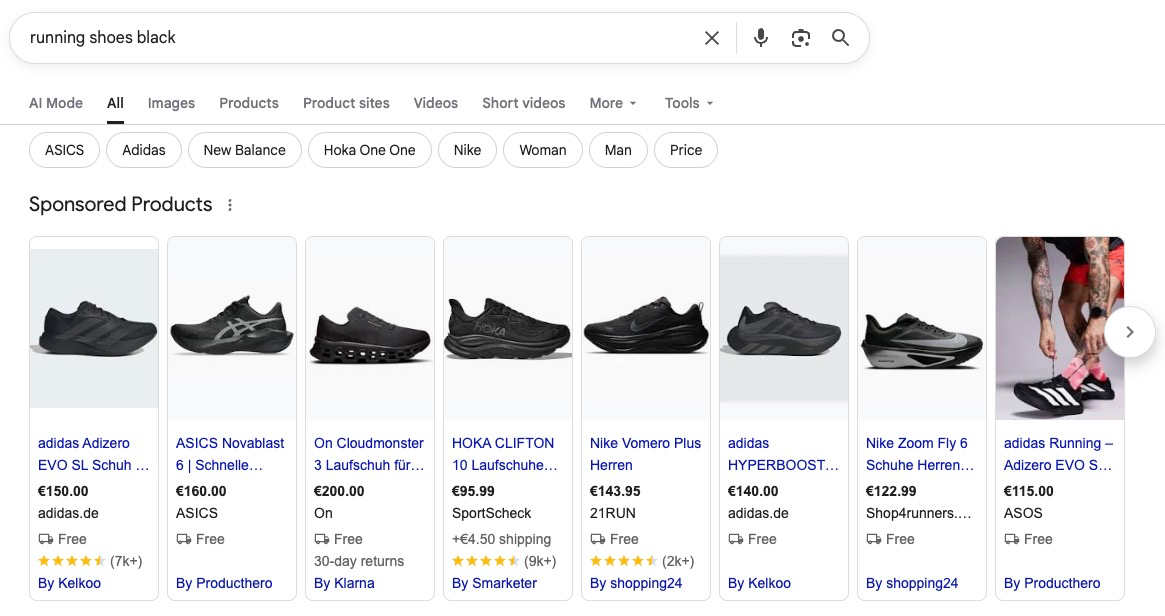
For stores, Shopping ads add another layer, and they’re a price comparison at heart: product image, price and merchant name sit right in the search results, usually with several sellers side by side. That’s uncomfortable when you’re not the cheapest. It’s also the most honest channel you have, because click behavior tells you exactly where you stand in the market.
Google Ads basics: a quick crash course
Before the build, a quick pass over what Google Ads actually consists of. Four ad formats and five concepts are enough to make sense of every decision that follows.
The four ad formats (beginner)
Search ads are text ads above the organic results: you bid on keywords and write the ads yourself. Shopping ads pull product image, price and merchant name straight from your product feed and require a Merchant Center account. Performance Max bundles Shopping, Search, YouTube, Display, Gmail and Discover into one campaign, with Google distributing budget across those surfaces. Without your own creative assets, PMax runs as a feed-only setup on close to nothing but the Shopping surface, more on that below. Demand Gen puts ads on YouTube, Discover and Gmail in front of people who haven’t searched at all.
The concepts that matter (beginner)
-
The auction: Every single search triggers an auction. Your bid and the quality of your ad determine position and cost per click, and you pay per click. A more relevant ad can win a better position at a lower price.
-
Bidding strategy: Your bidding strategy answers how you decide what a given click is worth. Three matter for a store: “maximize clicks” to gather data early on, “maximize conversions” with an optional target CPA, and “maximize conversion value” with an optional target ROAS. The last two are Smart Bidding, where Google bids in real time off countless signals, assuming the data is there to support it. For most stores it comes down to target ROAS in the end.
-
Conversion tracking: Conversion tracking is how you tell Google that something you wanted actually happened, which for a store means a purchase and its order value. That data is what your campaigns learn from. The hard part is privacy: consent mode, enhanced conversions and server-side tracking now decide how many of your sales are even allowed to be measured and make it through.
-
Brand vs. generic: Searches split into two worlds. Brand is anyone searching for you specifically: your store name and your own labels, if you carry any. Those clicks convert far better and cost less, because the decision has effectively been made. Generic is everything else, and that’s where you compete for new customers. Worth knowing if you’re a reseller: searches for brands you only resell count as generic, because you’re up against every other seller of the same products. The two worlds get handled separately in the account, with their own campaigns and their own targets.
-
Automation and Smart Bidding: The direction has been the same for years. More and more decisions run automatically, from bids to delivery to how ads get assembled. You used to have more direct control. You still do; it just moved: instead of setting individual bids, you steer through goals, budgets and the quality of your data.
That is the theory. From here the article turns into a walkthrough, and it starts at the very beginning: figuring out what your campaigns are supposed to achieve.
Setting goals: the step before any campaign
Before you launch anything, the first job is a solid goal. Without one you don’t know what you’re working toward, and later you can’t tell whether your campaigns are performing or merely running.
First decision: do you want growth or efficiency? Growth means more revenue, more new customers, more market share, and it costs efficiency in the short term. Efficiency means more profit out of the budget you have, and it caps growth.
Maximizing both at once doesn’t work, because the two goals pull against each other. Pick one as your primary and use the other as a guardrail. Something like: grow revenue as long as ROAS stays above a floor.
A few more questions worth answering:
- Is every sale worth the same to you, or are new customers worth more than repeat buyers who’d come back anyway?
- Are you advertising the full catalog, or the products you actually make money on?
- How much of your contribution margin are you willing to put into ads?
Not all of these need a final answer right away. Two numbers will help with almost all of them.
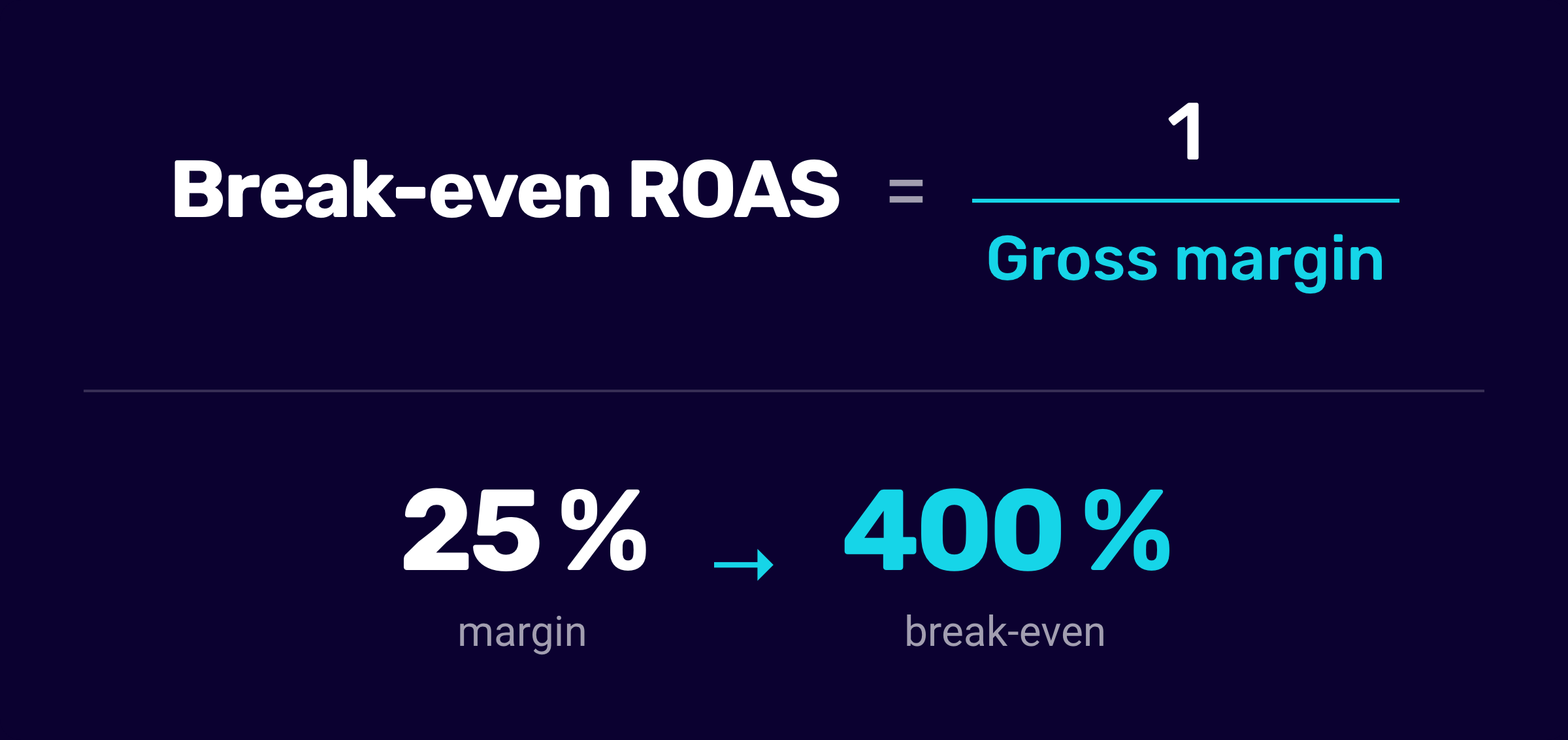
The first is ROAS, return on ad spend: revenue from Google Ads divided by what you spent on it, expressed as a percentage. Turn $1,000 in budget into $4,000 in revenue and your ROAS is 400%.
The second is break-even ROAS. It tells you where profitability starts, and it’s the inverse of your gross margin. If 25% of the order value is left after cost of goods, shipping and fees, your break-even ROAS is 400%: campaigns above that make money, campaigns below it cost you.
Two caveats. If you sell a single product, or your order values cluster tightly, you can steer by target CPA instead, meaning cost per purchase. With similar cart sizes both numbers say the same thing, and a dollar amount per order is easier to reason about.
And if you’re thinking a step ahead, you steer by profit instead of revenue, which means POAS instead of ROAS. The POAS guide covers how that works. To start, break-even ROAS is enough.
Your goal should end up as one concrete sentence, something like: “Grow Google Ads revenue 20% over six months at a minimum 450% ROAS.” One primary target, one guardrail, one timeframe. From there you can hold every campaign against it.
How much budget do you need? (beginner)
Google doesn’t set a minimum, but there is a mathematical floor: your budget should buy enough clicks for 30 to 50 purchases a month, because that’s roughly where Smart Bidding starts learning reliably. The math: planned purchases divided by conversion rate, times cost per click. At a 3% conversion rate and a $3 CPC, that’s $100 to $170 a day.
If your budget is below that, it’s not a dealbreaker. Advertise fewer products or fewer terms so the data concentrates in a smaller slice, instead of spreading thin across everything.
The foundation: tracking, product feed and research
The goal sets your direction. Now comes the groundwork. Three things need to be in place before your first campaign, and all three determine the quality of everything built on top of them.
Step 1: set up conversion tracking (beginner)
The principle is simple enough: a measurement tag sits on your order confirmation page, usually deployed through Google Tag Manager, and reports every purchase and its order value back to Google Ads. Google uses that data to teach your campaigns which searches lead to sales and which just burn click budget.
That’s why tracking matters this much: Smart Bidding makes every bidding decision off that data. If purchases go missing or the wrong values come through, Google bids on the wrong searches, and you won’t even see it in the reports.
The pieces that determine data quality are at least worth knowing by name:
- Consent mode: governs how Google handles your visitors’ cookie consent. Required in the EU, and without a correct implementation you lose conversions.
- Enhanced conversions: adds hashed customer data like the email address, so Google can attribute purchases even when cookies aren’t available. Setup is in the enhanced conversions guide.
- Server-side tracking: moves measurement from the browser to your own server, so less data gets lost to ad blockers and browser restrictions. More in the advanced conversion tracking guide.
To start, purchase tracking with consent mode covers it.
One thing to knock out at the same time: set up your remarketing audiences while you’re in there. Those lists only fill up as visitors arrive, and the earlier they’re running, the sooner you’ll have the volume to actually use them.
Step 2: Merchant Center and the product feed (beginner)
Google Merchant Center is the product database behind Google Shopping. Your product feed lands there, a structured list of your items with title, description, image, price and availability, and that’s where you see which products got approved or disapproved.
To run those products in campaigns, you link Merchant Center to your Google Ads account. Both accounts are free. The account setup guide covers getting the Ads side right.
Here’s what’s different about Shopping ads: the entire ad comes out of the feed. You don’t write ad copy, Google assembles the ad from your product data. Feed quality therefore determines ad quality directly, which is why feed optimization is one of the highest-leverage things in the whole account.
There are several ways to get data into Merchant Center, depending on your platform and catalog size:
- Native integration: platforms like Shopify or WooCommerce connect straight to Merchant Center and push product data automatically. Fastest way to get moving.
- Apps and plugins: store extensions that generate the feed and give you some first control over the data.
- Feed management tools: tools like Channable sit between your store and Merchant Center and let you rewrite titles, attributes and rules freely. My recommendation once your catalog hits mid-size, because you get full control over the data.
- Google Sheets: for very small catalogs, a well-maintained spreadsheet works fine as a feed source.
If you can’t get at your platform’s data, you can add individual attributes later through a supplemental feed without touching the primary source.
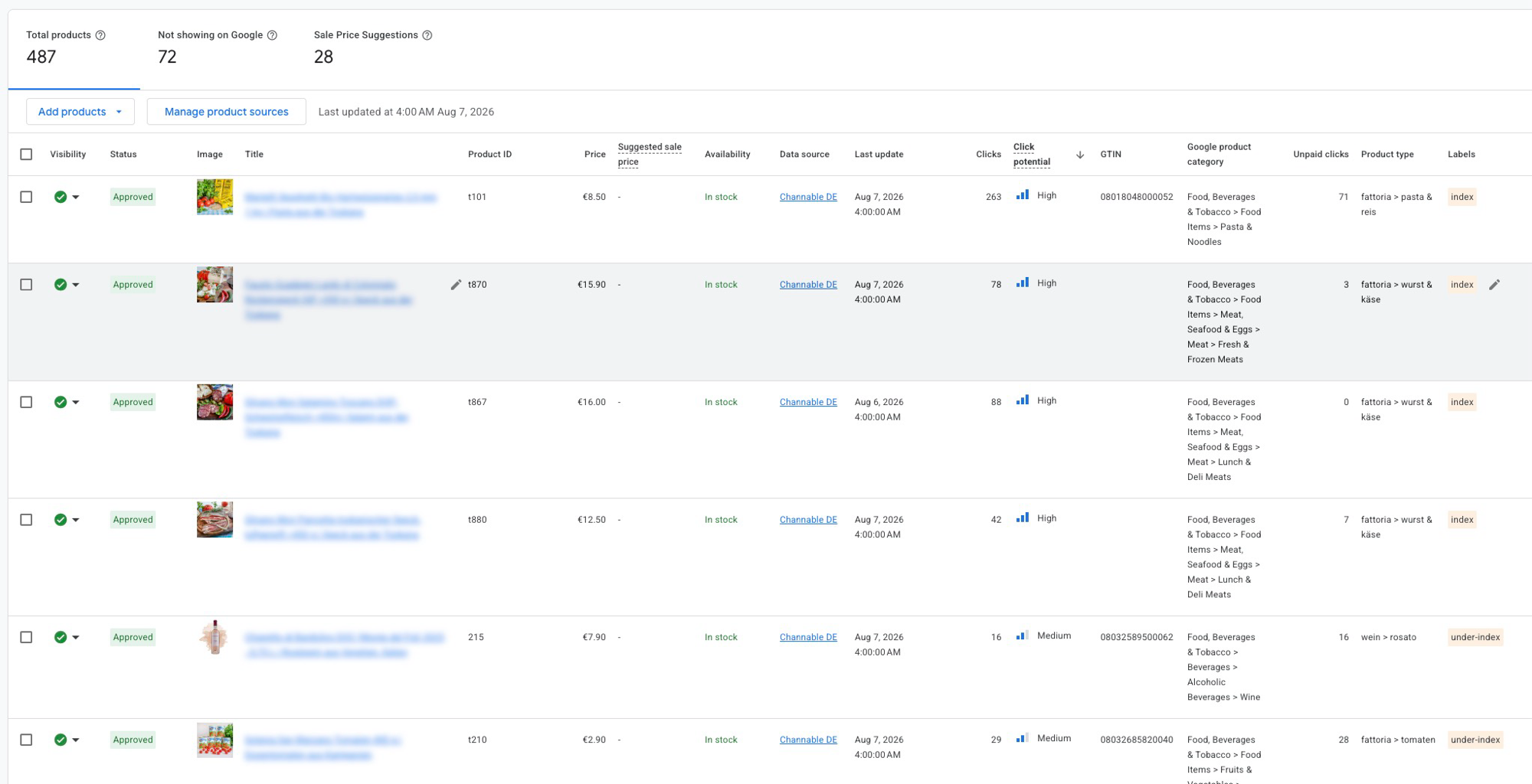
For Shopping, the title does what the keyword does for a Search campaign: Google matches your products to searches through feed data. Brand, product type and purchase-relevant attributes like material, color or size belong in the title from day one. More in the product titles guide and the product descriptions guide.
One more decision belongs in this step if you sell in the EU: use a CSS partner instead of Google Shopping. Shopping ads there run either through Google Shopping itself or through a Comparison Shopping Service. The background is a 2017 EU antitrust ruling: since then, competing comparison services have to be able to buy the same Shopping placements, and Google gives ads placed through CSS partners better terms.
My recommendation: use a CSS partner as a default, and compare packages first, because terms vary quite a bit. Outside the EU, in the US for instance, CSS doesn’t apply.
Step 3: keyword research and market check (beginner)
The third piece of the foundation is homework on the market: whether and how people search for your products, and what a click costs.
Google Keyword Planner shows search volume and CPC ranges for your key terms, from the category level (“stainless steel water bottle”) down to specific products. This research answers two questions: is there enough demand to start on search at all, and which terms carry purchase intent. If practically nobody searches your category, your first move belongs on channels that create demand, and Google comes later.
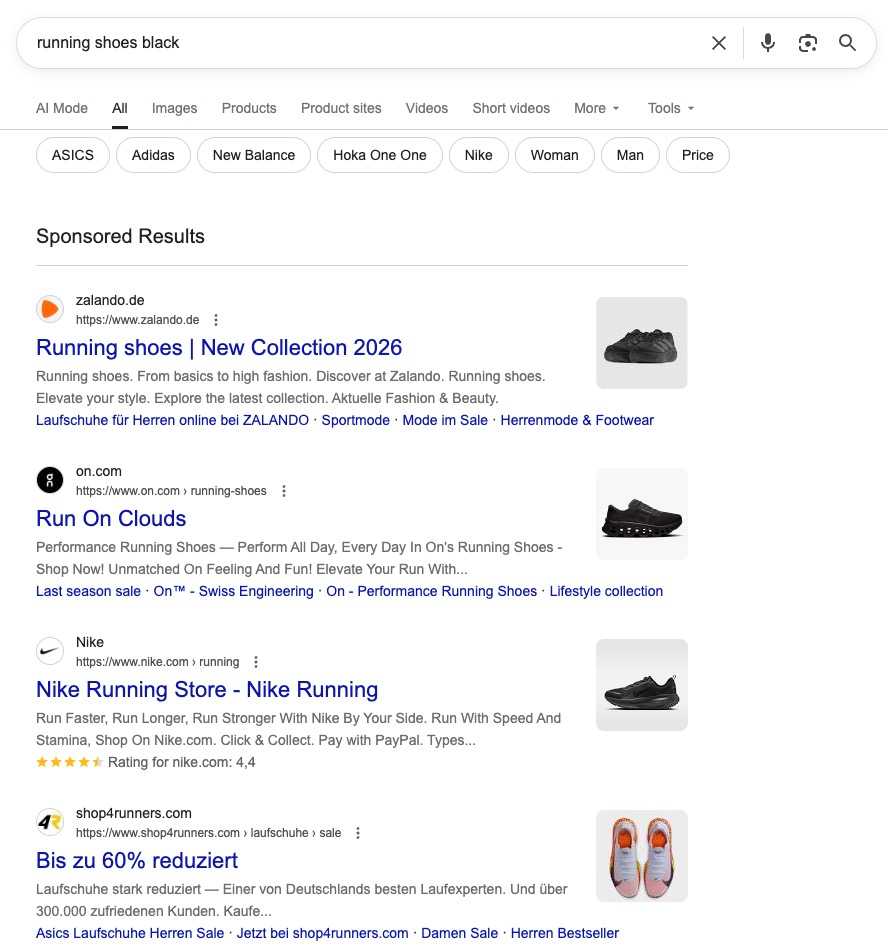
Pair that with an honest look at the results page itself. Type in your key terms and see who’s advertising at what price. The Shopping results tell you in about a minute who you’re up against and where you sit on price. If you’re clearly above the offers on screen, you know before spending a dollar that price is going to be a factor.
Out of those three steps you end up with tracking that measures, a feed that gets found, and a list of terms with purchase intent and realistic click prices. That’s what the first campaigns are built on.
Your first campaigns
There’s no blueprint that fits every store. One concept holds almost always though: your first campaigns serve the demand that already exists, before you spend money creating new demand. Shopping covers product searches with image and price, Search covers category and brand searches with text ads.
Underneath sits a principle that applies to every campaign: search intent, ad and landing page should line up. The query shows what someone wants, the ad promises exactly that, and the page delivers it.
Someone searching for a specific product should land on the product page, someone searching a category on the category page. A search ad can point straight at a product too, if that’s the most relevant page for the query.
Every break in that chain costs you conversion rate, and raises your cost per click through ad quality.
How do you decide on campaign structure? (beginner)
The ground rule: as few campaigns as possible, as many as necessary. Every campaign needs its own conversion data to learn from, and every extra campaign dilutes that data. A separate campaign earns its place only with a concrete reason: its own budget, its own target, or the brand/generic split.
That leads to a rule of thumb that fits most stores:
- Consolidate Search campaigns. Smart Bidding evaluates every individual query, and campaign boundaries don’t matter to it. One Search campaign where all your generic data pools will learn faster than five small ones splitting the same orders.
- Segment Shopping and PMax feed campaigns where there’s a reason. With Shopping, structure is how you control which products get how much budget. If bestsellers and the rest of the catalog should be treated differently, they need separate campaigns with separate budgets. Without that reason, one campaign again.
The purpose behind both is the same: structure should make what’s working visible, so you can push budget exactly there. “Do more of what works” is the principle the entire optimization runs on later, and structure sets how precisely you can steer.
Shopping: start with your strongest products (beginner)
The most common mistake at the Shopping start is advertising the entire catalog on a small budget. Budget then spreads so thin across products that no single one gathers enough data.
This is where the budget floor from your goal setting applies: enough clicks for 30 to 50 purchases a month. If your budget can’t cover that across the whole catalog, narrow the campaign to your strongest products and expand later.
Four criteria tell you which ones those are:
- Proven sellers: the bestsellers from your store backend, not the products that ought to sell.
- Margin: favor the items where break-even ROAS math leaves something realistic on the table.
- Competitive price: the SERP check from step 3. A product visibly pricier than three sellers next to it burns click budget.
- In stock: sounds obvious, but it’s a common launch problem. Out-of-stock products stop being served.
Plus three rules that hold for any Shopping campaign:
- Shopping has no keywords. Google decides which searches your products show on based on feed data, the title above all. You steer through feed quality and through negative keywords that block irrelevant queries. A short starter list pays off before the first click: terms like “free”, “used”, “manual” or “repair” almost never buy anything from a store selling new goods.
- The search terms report applies to Shopping too. It shows which queries triggered your product ads. As a benchmark: if clearly irrelevant queries stay under roughly 3% of spend, the campaign is clean. Well above that means negatives are missing or the feed is matching too broadly.
- Brand runs separately in Shopping as well. Searches with your store name belong in their own Shopping campaign, or you keep them out of the generic one with negative keywords.
Standard Shopping or Performance Max: where do you start? (beginner)
There are two campaign types for the Shopping surface, and choosing between them is one of the bigger decisions in the account.
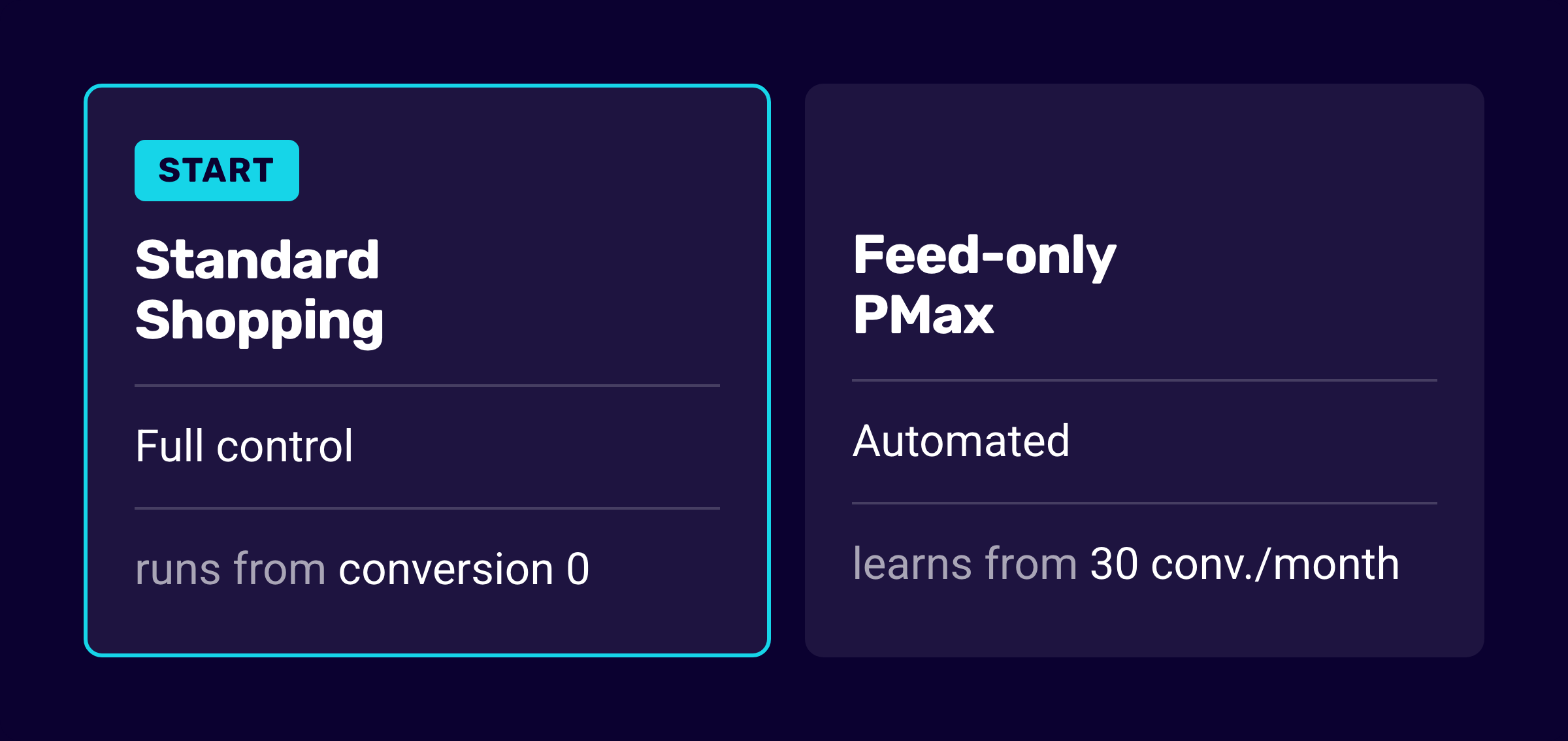
Standard Shopping is the classic route: full control over bids, negative keywords at every level, and the complete search terms report. It works at any conversion volume, including none at all.
Performance Max hands the steering to Google and runs creative across every surface up to YouTube and Display. The interesting version for stores is feed-only: a PMax campaign where you upload no text, no images and no video, just the feed. It then runs on close to nothing but the Shopping surface and is, in practice, an automated Shopping campaign. Setup is in the feed-only PMax guide.
My recommendation on sequence: start with Standard Shopping. It needs no conversion history, and the search terms report shows you from day one where the money goes. PMax doesn’t learn reliably until somewhere around 30 conversions a month, and while moving from Shopping to PMax is easy any time, the way back is considerably harder.
Once your conversion data is stable, you can test feed-only PMax against it. Two things to keep straight: the same products run in only one of the two types, and brand exclusions in PMax go through the dedicated setting.
Search: how do you build the campaign? (beginner)
A Search campaign is made of ad groups, and an ad group bundles keywords that share the same ads. Which gives you the principle: one ad group per theme. Group only terms that the same ad can serve, so one group for “stainless steel water bottle”, another for “kids water bottle”.
You already collected the keywords during research in step 3. Keep the structure coarse: a few groups with clear themes learn faster than twenty micro-groups splitting the same data. The keyword grouping guide covers how to divide terms sensibly.
For keywords, match type determines how freely Google interprets your terms:
- Exact
[stainless steel water bottle]: your ad shows on that query and close variants. Maximum control, minimum reach. - Phrase
"stainless steel water bottle": your ad shows on queries that carry the meaning of the term, like “stainless steel water bottle 1 liter buy”. The middle ground. - Broad
stainless steel water bottle: Google decides what’s topically related, and it reaches well past the obvious.
Some perspective: Google stopped treating these types as narrowly as their names suggest years ago. Exact matches rewordings and same-meaning variants too, and the lines between the types have been blurring for years.
The gradient of control still holds: exact is tightest, broad is loosest. How far each type actually reaches today is covered in the match types guide.
My recommendation for the start: phrase and exact. Broad match only shows its strength once Smart Bidding has enough conversion data to judge those wider queries. Without that data, broad buys a lot of clicks with no intent behind them.
While you build the campaign, Google will also offer you AI Max: a feature set that matches queries using your landing pages and ad copy, even without a matching keyword. I’d switch it off to start and test it once conversion data is stable. There’s more on where it fits in the optimization chapter.
What makes a good search ad? (beginner)
Search ads are responsive search ads now: you supply up to 15 headlines and 4 descriptions, and Google assembles the ad. Four rules cover the start:
- Put the group’s keyword in several headlines, so the ad visibly matches the query.
- Concrete selling points over ad-speak: shipping cost, delivery time, returns, selection, reviews. “Ships in 24 hours” beats “top quality”.
- One point per description. Two arguments in one sentence weaken both.
- The landing page delivers what the ad promised. The principle from earlier: intent, ad and page belong together. Someone clicking “kids water bottle” should land on the kids category.
Then there are ad assets, formerly extensions: sitelinks to key categories, callouts for shipping and returns, price and image assets. They cost nothing extra and make your ad physically larger, which takes up more of the results page. Four sitelinks and a handful of callouts are plenty to start.
How do you split brand and generic? (beginner)
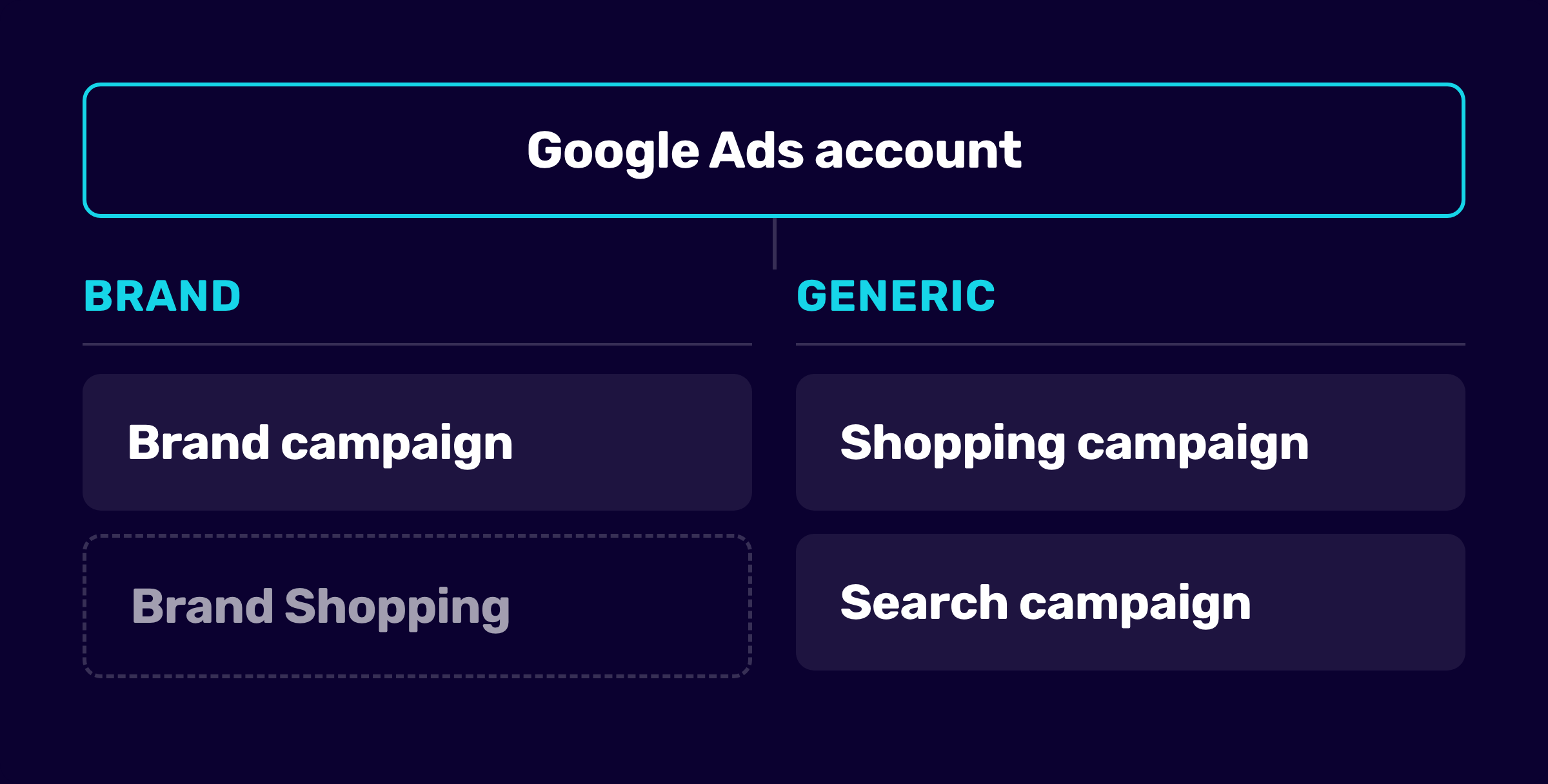
The concept from the crash course gets practical here: your brand terms, meaning store name and own labels, get their own campaign, and you exclude them from the generic campaigns with negative keywords. Run together, your generic performance looks better than it is, and you end up making budget decisions on flattered numbers. Split apart, you see both honestly and can give each its own target.
Your starter kit (beginner)
- Brand campaign on your store name, as protection and for honest numbers
- Shopping campaign (Standard Shopping) on your strongest products. With no conversion history you can gather data on “maximize clicks” and switch to Smart Bidding once purchases accumulate
- Search campaign on generic terms with purchase intent, consolidated into a few ad groups
Optional on top, once your store name gets searched in any meaningful volume: a brand Shopping campaign that captures those searches separately on the Shopping surface too.
That’s all you need to start. Everything else follows from the data these campaigns collect.
The learning phase (beginner)
Every new campaign and every significant change starts a learning phase of 7 to 14 days where numbers bounce around. Judge the campaign after that, because the first week almost never reflects true performance.
You want more results with Google Ads?
Get a free Google Ads Reality Check: a compact video (about 10 minutes) showing where budget is slipping away in your account and what to change.
Get your Google Ads Reality Check →
Where do you go after launch?
With the starter setup in place the build is done, and the work changes character: instead of setting things up, you read data and decide what’s next. Those decisions run in two directions.
You cut the waste, meaning money going to queries and products with no purchase intent. And you expand what demonstrably sells, because every store wants to grow: more budget, more products, more surfaces.
The basis for nearly all of it is your conversion data. Google Ads opens up its options in stages: at 15 purchases a month you steer differently than at 150. The more data accumulates, the finer you can segment and the more you can hand to automation, because it works reliably once your data foundation is solid.
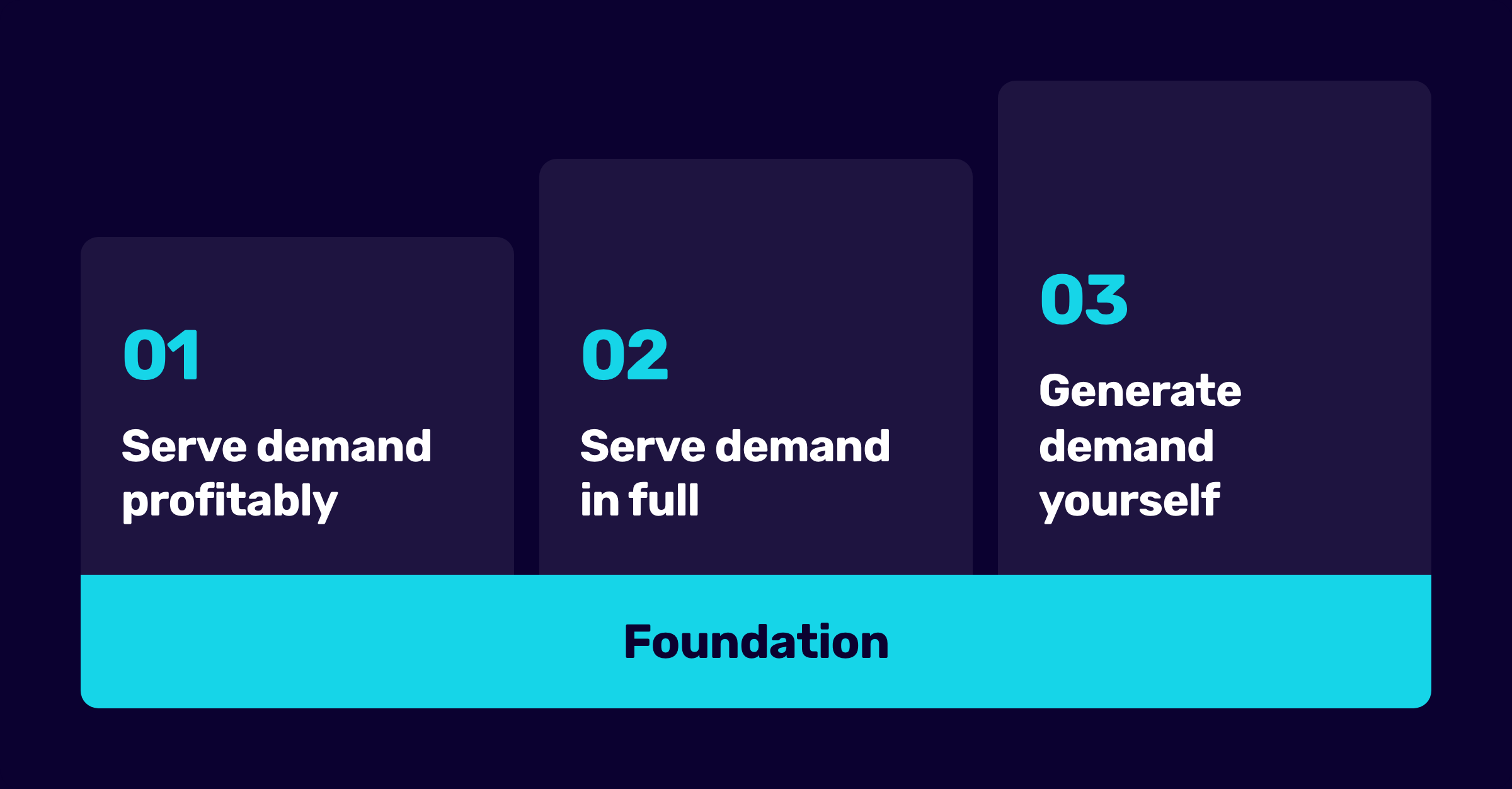
The sequence follows what I call the profit ladder: first capture the demand that already exists and make it profitable. Then serve that demand in full, until no profitable volume is left on the table. Only after that do you create new demand on surfaces like YouTube and Discover, because that’s the most expensive of the three rungs.
Ongoing optimization
The optimization routine
Behind every check sits the same question: what am I spending money on right now, and is it worth it? How often you ask depends less on the calendar than on your budget, because budget determines how fast new data accumulates. An account with a high daily budget buys as many clicks in two days as a small one does in three weeks, and it earns proportionally more frequent attention.
So there’s no fixed rule, but there is a priority order: some tasks need fresh eyes because a mistake there costs money daily. With others, wait on purpose, because you cannot judge until enough data lands.
The table shows the tasks at a cadence that suits a mid-sized account. In the first weeks after launch, run the frequent checks daily, because every signal is new. A problem you catch in two days doesn’t cost you two weeks of budget.
| Task | What you’re looking at | Rhythm |
|---|---|---|
| Budget pacing | Is budget spending evenly or gone by noon? | daily at first, then weekly |
| Disapproved products and ads | Disapprovals in Merchant Center, rejected ads and assets | weekly |
| Search terms report | Exclude queries with no intent, most expensive first | weekly |
| Product report | Items with cost and no sales, bestsellers not being served | weekly |
| KPI trend against target | Are campaigns above or below the target you set? | biweekly |
| Conversion reconciliation | Do conversions match your store backend? | monthly, immediately if something looks off |
| Lost impression share | Are you losing auctions to budget or to rank? | monthly |
| Ads and assets | Declining ads, stale promo copy and prices | monthly |
| Price competitiveness | Where do your prices sit against the market? | monthly |
| Google recommendations | Review suggestions manually, apply what fits the strategy | monthly |
| Structure review | Does the data now justify more segmentation? | quarterly |
More data opens up more options
The recommendations in the beginner section were deliberately cautious: “maximize clicks” to start, phrase and exact on keywords, Standard Shopping on the Shopping surface. All three share a reason: without conversion data, Google’s automation can’t work, so you keep control early on. With stable data the argument flips, and each of those decisions gets an upgrade worth testing.
-
From “maximize clicks” to Smart Bidding. Somewhere around 30 to 50 purchases a month, switch to “maximize conversions” or “maximize conversion value”. My advice on the transition: run two to four weeks without a target first, then set the target at the average you actually hit and move it toward your goal in 5 to 10% steps.
-
From phrase and exact to broad match. Broad works once Smart Bidding is running with a target and has enough data, because Google then measures every wide query against the conversion goal. After two to three months of stable numbers, it’s time to test.
-
From Standard Shopping to feed-only PMax. Now you settle the comparison from earlier: if your Shopping campaign delivers conversions consistently, put feed-only PMax up against it, with the same products in only one of the two.
The tool for these upgrades is experiments, right inside Google Ads under Campaigns → Experiments. An experiment splits budget 50/50 between your existing campaign and a variant with exactly one change, and after four to eight weeks you see, with statistical context, whether the variant really did better. Test upgrades that way rather than just switching, because a before-and-after comparison never separates season and chance from the change itself.
The same principle applies to structure. “As few campaigns as possible” still holds, but with more data, splits that would have been premature start to justify themselves: bestsellers on their own budget, a separate brand Shopping campaign, a different target for a high-margin category. The measure stays the same: every new campaign needs enough conversions of its own to learn.
AI Max from the beginner section belongs in this same test logic, and only after your broad match experiment has passed, because AI Max opens matching up even further than broad does. If you turn it on, set brand controls to unbranded only, so your brand searches stay separate.
Data quality: better signals for Smart Bidding
Google learns from the signals you provide. If all that’s in there is revenue, Google optimizes for revenue, and revenue is a blunt signal: returns count as wins, low-margin orders look like high-margin ones, and the loyal customer who’d have bought anyway reads as a new-customer success. The next stage of optimization starts with those signals, in four steps:
-
Profit instead of revenue: ROAS treats an order with $50 profit the same as one with $5. POAS switches conversion value from revenue to profit, and bidding then favors high-margin orders on its own. This pays off most with large catalogs and widely varying margins. Setup is in the POAS guide.
-
Account for returns: a returned order stays a success in the account until you do something about it. Conversion adjustments let you subtract returns after the fact, bringing account numbers closer to actual business numbers. In categories with high return rates, apparel for instance, that shifts the assessment of entire product groups.
-
Measure and value new customers separately: some of your conversions come from repeat buyers who’d have purchased anyway, and without flagging them you can’t see how large that share is. The new-customer parameter in your tracking gives you a true new-customer CPA, and optionally you can pass Google an added value for new customers so bidding weights them higher. Start with measuring, bidding comes after. Setup is in the new vs. returning customer tracking guide.
-
First-party data: your customer list is the one signal no competitor can copy. Customer Match lets you upload it in hashed form and use it as an audience signal, to exclude existing customers or as a seed for similar audiences. The less cookie measurement delivers, the more valuable your own data becomes.
Product bucketing: segmenting your catalog
The product report shows it every week: part of your catalog sells, part just consumes budget, and part never gets served at all. Once enough conversion data has accumulated, you turn that observation into structure: split the catalog into groups using custom labels in the feed, and give each group its own budget. Feed tools like Channable set labels through rules, specialized tools like the ProductHero Labelizer classify automatically by performance.
There’s no single correct split, just different approaches that suit different catalogs:
-
Performance-based bucketing: sorting by results, in the established ProductHero vocabulary: heroes (sell profitably), sidekicks (steady contributors), villains (cost without return) and zombies (never served). The thing to remember about zombies: those are untested products, and only deliberate visibility shows what’s in them.
-
Margin bucketing: steer high, mid and low-margin products separately, because the same ROAS number means two different outcomes at 15% margin and at 45%.
-
Price competitiveness: Merchant Center shows under Analytics whether your prices sit in the cheapest, middle or most expensive third of the market, with a benchmark price per product (for items with a GTIN). Products priced well can take more pressure. Visibly expensive ones need better titles and images, or a different price.
-
New vs. established: new products have no data yet and get buried next to the existing catalog. A separate label buys them deliberate visibility until the data allows a verdict.
-
Seasonality: seasonal stock gets its own label, so you can push it inside its window and pull back afterward, separately from your evergreen range.
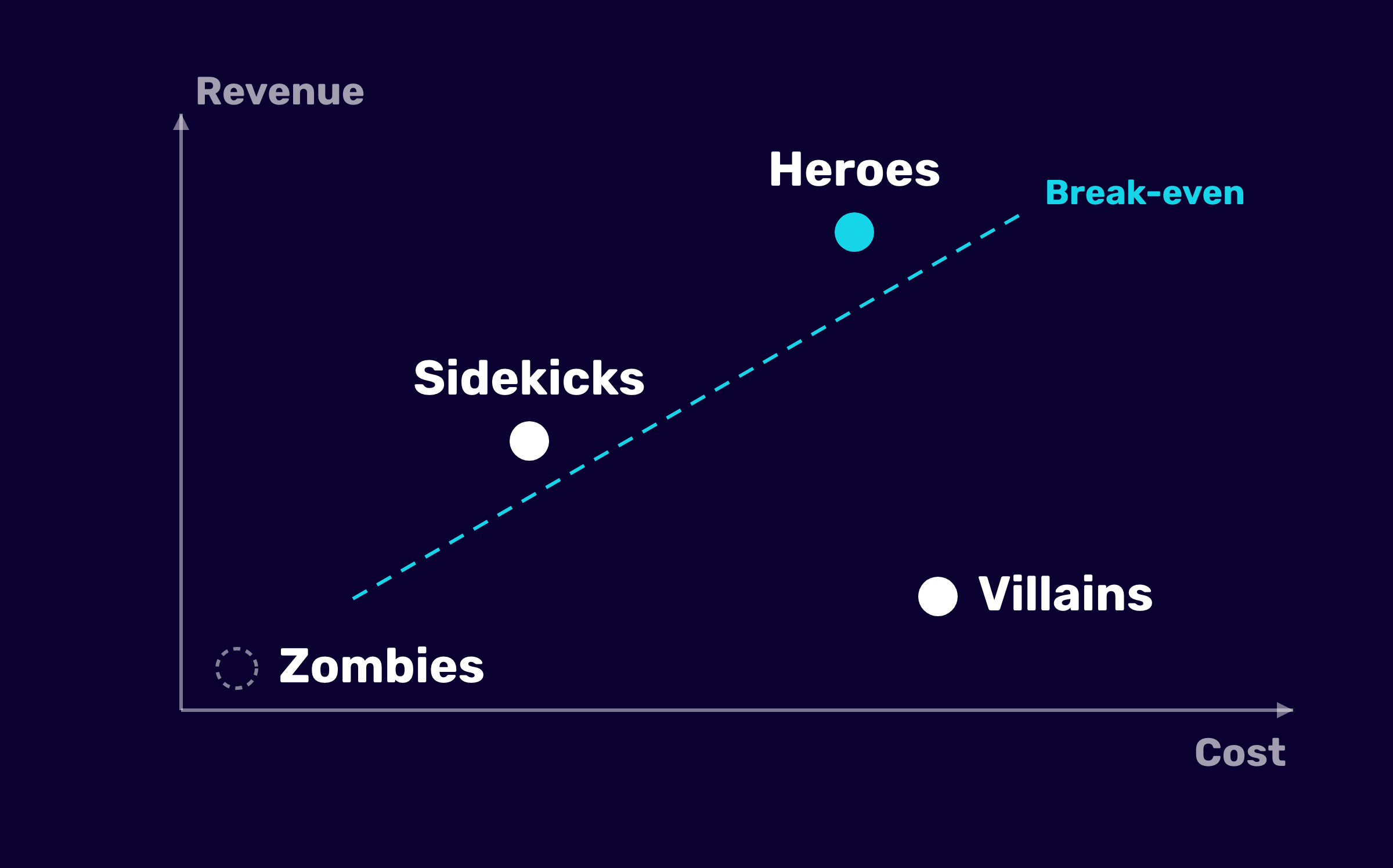
The terms heroes, sidekicks, villains and zombies come from the ProductHero Labelizer and have become standard vocabulary in the feed world.
Two rules apply across all approaches. Every group needs enough conversions of its own to learn from, otherwise you merge them back. And you steer through budget, with the same target across groups, because differing targets break the flow of products between them.
Scaling: more budget, more products, more surfaces
The clearest growth signal sits in the routine table: impression share lost to budget. When a campaign hits its target and still reports “limited by budget”, you’re passing on profitable auctions.
The three directions
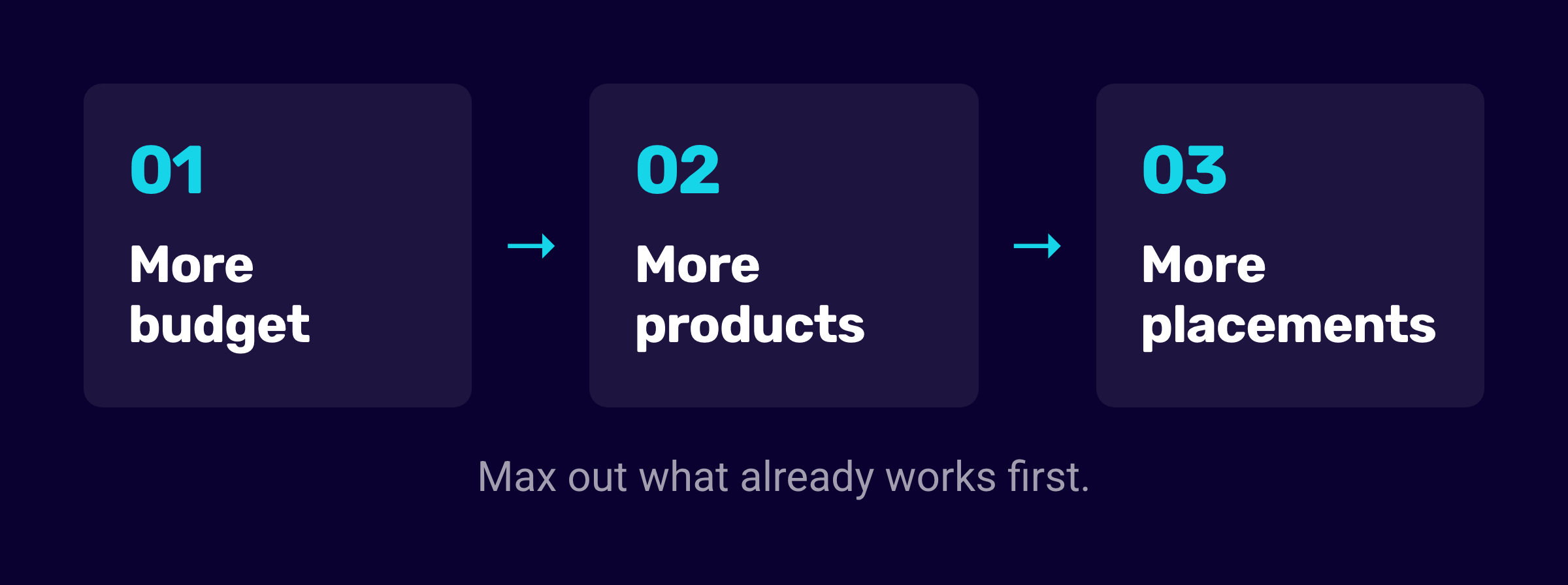
From there you scale in three directions, in this order:
-
More budget. Raise it in 15 to 25% steps and give bidding one to two weeks of quiet afterward, because every large jump restarts the learning phase. Win back the auctions you’re losing to budget before opening anything new: more of what already works beats the next experiment nearly every time.
-
More products. If you started with a set of your strongest items, add further product groups as budget grows, on the same logic as the launch: proven sales, competitive price, healthy margin first.
-
More surfaces. Once the Shopping surface is well covered, PMax with full assets, remarketing and Demand Gen come into play.
PMax with full assets: the step onto new surfaces
Upload text, images and video into your PMax campaign and Google runs it on YouTube, Display, Gmail and Discover as well, turning the automated Shopping campaign into a different model with its own logic. Two things decide whether it works: enough conversion volume, on the order of 50 a month, because optimizing across several channels takes more data, and good creative, because weak images and video burn budget on Display and YouTube. Setup and optimization are in the PMax optimization guide.
Two checks belong in place from week one:
-
Channel distribution: how much of the budget stays on the Shopping surface, what goes to YouTube and Display, and what comes back from each? The analysis is covered in the PMax analysis guide, and some of those numbers you only get out of the account through PMax scripts.
-
Search impression share: if it drops without total numbers growing, PMax is only relabeling conversions your other campaigns would have picked up anyway. More in the PMax scaling guide.
Brand exclusions from the beginner section still apply here.
Remarketing: bringing known visitors back
Most visitors don’t buy on the first visit. Remarketing puts your products in front of them afterward, and the strongest version is dynamic remarketing: it pulls the exact products someone viewed or added to cart out of your feed and into the ad.
You set the audiences up back in the foundation, and the volume they’ve collected since then pays off now. Setup is in the dynamic remarketing guide.
Some context: PMax remarkets automatically once it’s running. Before you run a separate remarketing campaign alongside it, check whether it brings incremental sales or just relabels conversions PMax would have collected anyway.
Demand Gen and YouTube: creating demand yourself
The third rung of the profit ladder starts when there’s no profitable volume left in existing demand. Then you create demand yourself, mainly through Demand Gen: ads on YouTube, Discover and Gmail aimed at people who weren’t searching. It’s the most expensive rung, because you’re convincing people who’ve shown no purchase intent yet, which is why it belongs at the end of the sequence.
Judge it by its own standards, because these campaigns take several weeks to stabilize and comparing them to Search numbers will mislead you. Getting started is easier with good video and a clear audience, your customer list as a seed for similar audiences for instance.
Promotions and sales
Almost nothing moves Shopping numbers as directly as price, and a promotion is where you use that deliberately. For a promotion to land in Google Ads, it has to become visible in three places: the feed, the ad and the account.
Sale prices in the feed
A discount doesn’t belong in the price field, it belongs in its own. You keep the regular value in price and add the promotional price in sale_price.
Google then shows both in the Shopping ad, with the regular price struck through beside it. That strikethrough display is the whole reason for the effort: the discount becomes visible before the click.
Two conditions worth knowing. The regular price has to have been in effect for a while, otherwise Google won’t recognize the discount as one. And the promotional window belongs in the field alongside it, so the price reverts on its own instead of relying on you to remember.
Merchant Center helps here on its own: under your products there’s a dedicated section with sale price suggestions, where Google flags items where a discount is likely to have an effect based on market data.
Merchant promotions: the promo badge
Alongside the strikethrough there are merchant promotions: a promo badge right on the Shopping ad announcing a free gift, a coupon code or free shipping. It works independently of the sale price and pays off especially for offers that don’t express well as a percentage. Setup is in the merchant promotions guide.
What to do before and after a promotion
Three things to plan around a promotion:
-
Open budgets ahead of time. A budget cap in the middle of a demand peak is the most expensive moment to lose auctions. Raise it in advance, not on day one of the sale.
-
Leave targets alone. A promotion pushes your conversion rate up and bidding notices on its own. Turn the target dial at the same time and you won’t be able to separate what the promotion did from what the setting did.
-
Clean up afterward. Expired promo copy in ads and assets costs trust, and a sale price left sitting in the feed sells below value indefinitely. That check sits in the routine table.
For recurring promotions, a dedicated custom label for promotional stock pays off, so you can push it inside the window and pull back afterward. Same mechanism as the bucketing above.
The big seasonal peaks
Black Friday, Cyber Monday and the holiday season behave differently from the rest of the year. Willingness to buy goes up, click prices go up with it, and competition is at its fiercest. An account that’s tuned well for normal operation doesn’t automatically sail through the peak.
Three things make the difference:
-
A dedicated campaign or asset group for the promotion, if you need extra control. For example, for stock you want to clear out, or for sale items that need their own target. Otherwise, keep the promotion in your existing campaigns, with promotion assets and promo copy.
-
Dedicated ads and assets. Promotional messaging belongs in headlines, sitelinks and image assets, and it belongs finished before the peak starts. Writing copy on the day costs you the best hours.
-
Lead time for audiences. Your remarketing lists fill up in the weeks before. Build traffic in October and you have an audience to talk to in November.
Google Ads results are made outside the account
Up to here this was about the ad account. The levers that ultimately decide your numbers largely sit next to it. Google Ads brings the click to your site; what happens then is your store’s job.
So to close, the topics that live outside the account and still move every number inside it.
The landing page
Your conversion rate acts as a multiplier on everything you do in Google Ads. Take it from 2 to 3% and the same budget produces half again as much revenue, without touching a single setting. Bidding strategies, meanwhile, can’t really compensate for what a weak product page costs you.
The usual suspects: load time on mobile, product imagery, visible shipping cost and delivery time, payment methods, checkout length. Work through tests rather than opinions once you have the traffic for it.
Your new-customer offer
Generic searches bring people who don’t know your store and have no particular reason to buy from you rather than anyone else. That’s exactly where expensive traffic either turns into customers or doesn’t.
The question behind it: what does someone get from you that they don’t get from the next seller of the same products? That might be a bundle, a sampler, something extra with the first order, or a benefit reserved for first-time buyers.
Large brands build this systematically. For you it’s the lever that works on the most contested queries, and it can be tested like any other variable.
Reviews
Of everything on this list, this is the only one that becomes visible inside your ad. Google Customer Reviews collects seller ratings, a review feed collects ratings for individual products. Both show up as stars in Shopping ads, next to competitors who often don’t have them.
Building them takes time, because you need a minimum number before Google displays stars at all. All the more reason to start early.
Price and average order value
With Shopping ads your price sits next to your competitors’, and no amount of campaign optimization takes that comparison off the table. Merchant Center shows you under Analytics where you stand in the market.
The second lever is average order value. It acts directly on the math from the very beginning: raise the cart at the same margin and the ROAS you need to break even drops, which pulls campaigns that ran slightly underwater into the black. Bundles, tiered pricing and a free-shipping threshold are the usual routes there.
Turning new customers into repeat customers
Google Ads wins the new customer; whether they come back is decided in your store. The tools for that are mainly email marketing with welcome and repurchase flows, reminders on consumable products, and abandoned cart emails.
Which loops back to bidding: when you pass Google an added value for new customers, you’re paying up front for an expected second purchase. If nothing happens after the first order, that second purchase never comes and the added value was just a higher price. It only works as a pair: acquisition through Google, retention through email.
Other channels
Google Ads harvests demand that already exists. Anything that grows that demand makes your campaigns cheaper: social, content, newsletters, marketplaces, press.
The effect is even measurable in the account, because it lands in your brand campaign. The better known your store gets, the more people search for you by name, and those clicks are the cheapest and best in the whole account.
Which makes brand search volume worth watching as a growth indicator. If it climbs over the months, the rest of your marketing is working for your Google Ads numbers too.
FAQ
What does Google Ads cost per month?
Google doesn’t set a minimum, but there’s a mathematical floor: your budget has to buy enough clicks for roughly 30 to 50 conversions a month. At a 3% conversion rate and a $3 CPC, that’s $100 to $170 a day. On a smaller budget, advertise fewer products instead of spreading thin.
How does Google Ads differ from Meta ads?
Google serves demand that already exists: someone searches, you’re there. Meta creates demand among people who don’t know your product yet, and needs strong creative and more touchpoints to get to a sale. For products people search for, Google is usually the faster start; for new categories with no search volume, Meta.
When is Google Ads not worth it?
On very thin margins that would require an unrealistic ROAS, and on products nobody is searching for yet. In the second case, the route runs through channels that create demand.
What are the most common mistakes?
Campaigns without working tracking, targets set without looking at your own margin, segmenting too finely on too little data, and changes made mid-learning-phase. There’s a fuller list in 13 expensive beginner mistakes.
Conclusion
Setting up Google Ads for an online store is less a question of the right tricks than the right order: goals first, then the foundation of tracking, product feed and research, then campaigns that serve the demand already there.
My clear recommendation: work out your break-even ROAS before you do anything else. That one number tells you where your campaigns turn profitable, and it takes ten minutes.
Good luck with the build. I’d love to hear how it goes.
Work smart with Clicks in Mind
You might also like
 Account
 Black Friday & Christmas: The Google Ads Guide
Discount or free gift, separate campaign or not, adjust bids or leave them alone: the options Google Ads gives you for Black Friday and the holiday season, and when each one makes sense.
Read more → Account
 Google Ads Account Setup in 2026: A Beginner's Roadmap
Get started with Google Ads: step-by-step guide from account creation to the first campaign - including valuable tips.
Read more → Account
 Google Ads Beginner? Avoid These 13 Costly Mistakes
Mistakes in Google Ads can be really expensive. In this post, I'll show you the 13 most common ones and how to avoid them.
Read more →You want more results with Google Ads?
Get a free Google Ads Reality Check: a compact video (about 10 minutes) showing where budget is slipping away in your account and what to change.
Get your Google Ads Reality Check