
Contents Your key takeaways
Dynamic Remarketing in Google Ads sounds simple at first: you automatically show users exactly the products that they have previously viewed in your store. In practice, however, your campaign and audience setup determines whether this really works properly.
In this article, I’ll show you how to set up and control Dynamic Remarketing in Google Ads correctly: which campaign types can do this, how to build target groups sensibly, and how to tell whether it really works.
Quick info: If you’re looking for the technical tracking setup (GTM, data layer, parameters, consent), I’ve explained it step by step here: Dynamic Remarketing Setup with GTM
Your key takeaways
-
The classic dynamic remarketing campaign is a display campaign in which you activate Dynamic Ads and link the appropriate Merchant Center feed.
-
For pure remarketing, only your own remarketing segments must be selected, and Optimized Targeting remains deactivated.
-
For Dynamic to really display products, feed data must be complete and the product IDs from tracking must match the ID in the Merchant Center feed 1:1.
-
Set a frequency cap, otherwise you’ll show the same users your ads multiple times a day and burn budget on display repetitions.
Post overview
Dynamic Remarketing basics
What is dynamic remarketing?
Dynamic remarketing means that users see ads with exactly the products that they have already viewed in your store. The product information such as title, image, and price comes from your Merchant Center feed. Google automatically compiles the ad and customizes it for each user.
The difference to normal remarketing is important because it explains why the setup is so critical:
- Normal remarketing: All users see the same ad in case of doubt, regardless of which products they have viewed.
- Dynamic Remarketing: Each user sees different products, depending on their behavior on your website.
Which campaigns can use dynamic remarketing?
Dynamic Display Remarketing campaign This is the classic way. You link your Merchant Center feed and create Responsive Display Ads. Google pulls the appropriate products from this and displays them to your remarketing target groups. You can control very clearly who sees the ads and who doesn’t.
Performance Max PMax has a special position. PMax can display formats that use product data. These include shopping formats and dynamic ads in the display context. The difference to the display remarketing campaign is the control: you cannot set it up so „hard” as pure remarketing because PMax is always optimized across channels and is not just limited to your remarketing lists.
Demand Gen Demand Gen can also use Merchant Center product feeds and display product ads in a carousel. This is „feed ads” within Demand Gen rather than the classic dynamic display remarketing logic. This can work very well as a supplement if you also want to cover Discover, YouTube, and Gmail.
The most important requirement: Tracking
Tracking is the heart of Dynamic Remarketing. Without proper tracking, Google cannot recognize which products someone has viewed. And without this information, Google cannot put together suitable product ads.
For it to work properly, these building blocks must be in place:
- Merchant Center Feed is clean and active (ID, title, image, price, availability are complete and up-to-date)
- Google Ads gets the right events and parameters (so that Google knows what users have done, e.g. viewed or bought a product)
- Product ID must match exactly The item ID that you send in the tag must match the ID in the feed 1:1. If not, Google cannot assign the products and the matching rate will be poor.
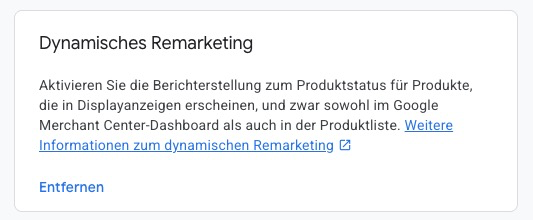
- Consent is implemented correctly (key term: Consent Mode v2 for EU traffic) Otherwise the tag may not fire and you will not build any target groups.
Note: Enhanced Conversions additionally improve the data basis for audience lists because they send hashed first-party data to Google. Enhanced Conversions are worth setting up separately for exactly that reason.
I explain the complete GTM setup (feed, data layer items, tag configuration, and consent) in this article.
Create target groups
Dynamic Remarketing stands and falls with your target groups. Google can personalize products, but you still have to determine who you want to target.
In Google Ads, you can build remarketing target groups in roughly three ways:
- Based on page views (URL-based) Example: All users who have visited product pages, seen the shopping cart, or been to the checkout. Quick to implement, but less precise if URLs change or are confusing.
- Based on tags and events (tag-based)
Example: Users who have triggered
view_item,add_to_cart, orpurchase. This is usually more stable and closer to your real funnel logic. - Using GA4 Audiences If you work with GA4, you can build audiences there (e.g. combinations of events, recency, device type) and then export them to Google Ads. Practical if you prefer to maintain target group logic centrally in Analytics.
Important as a reality check: If your segments are too small, they will not be delivered. You need a minimum size, especially for display, otherwise the campaign will simply remain empty.
Short example: „Add to Cart, last 30 days”
A typical segment is „Add to Cart, last 30 days”:
- Target group: All users who have added something to the shopping cart
- Membership duration: 30 days
Depending on your sales cycle, you can also set longer membership durations. Google allows a maximum of 540 days. For products with long decision cycles (e.g. furniture, B2B), a membership between 90 and 180 days often makes sense. For consumer goods, 30-60 days are enough.
Almost always useful: exclude buyers so that you don’t waste budget on users who have just ordered.
- Create the „Purchasers, 30 days” segment
- Set as exclusion in the campaign or ad group
This can vary depending on the store. For consumer goods or subscription models, you would often not exclude buyers immediately or only with a time delay.
Instructions: Create a dynamic remarketing campaign
A dynamic display remarketing campaign is the classic way to use dynamic remarketing. You link your Merchant Center feed and play responsive display ads that are automatically filled with suitable products from the feed.
A campaign in just a few steps
1) Create a campaign
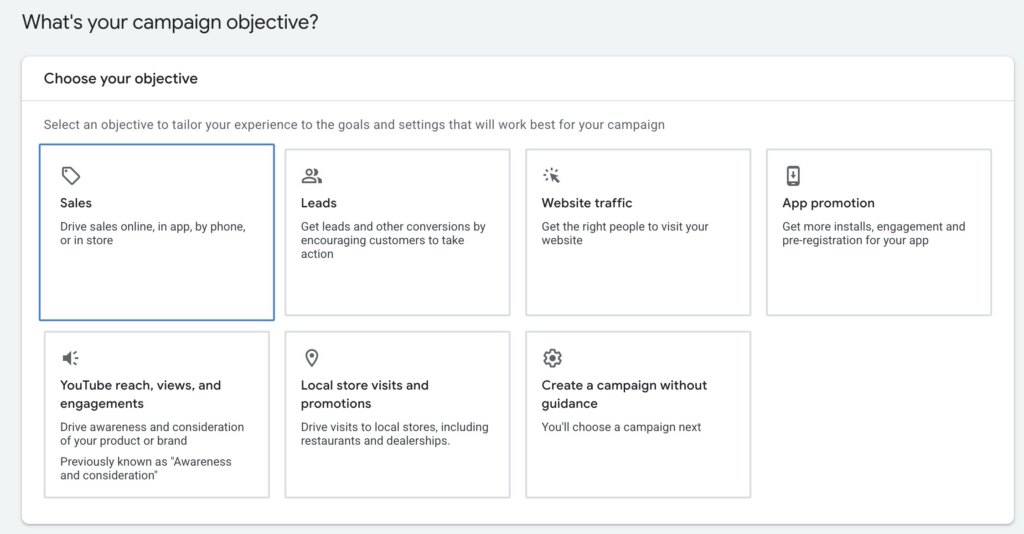
Create a new campaign, select target Sales.
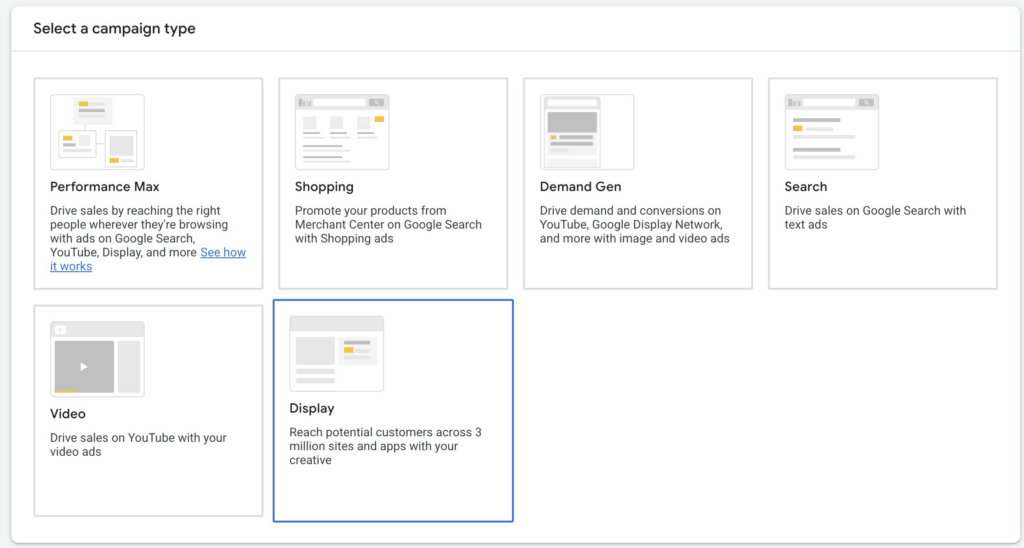
Select campaign type Display.
2) Activate Dynamic Ads and link feed
Activate the Dynamic Ads option in the campaign settings under „More settings”.
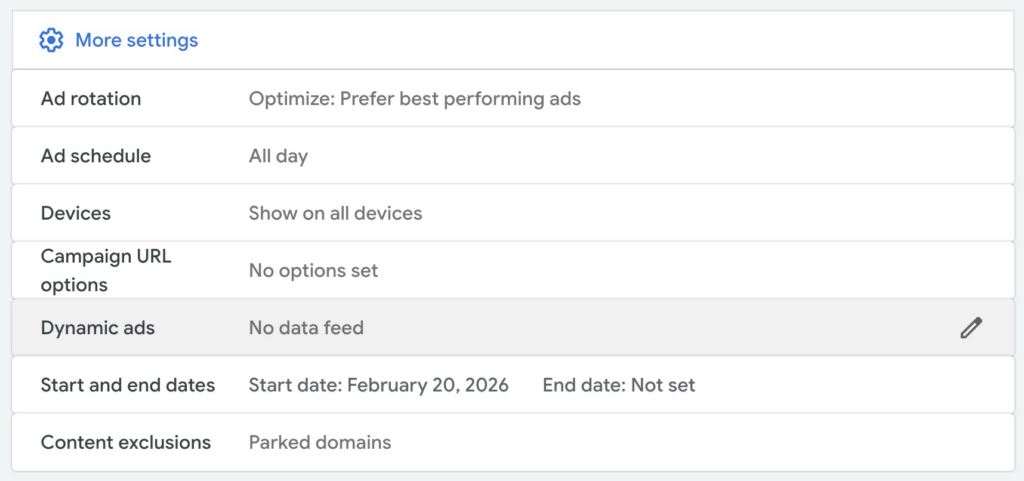
Select the appropriate Merchant Center feed and set a product filter if required.
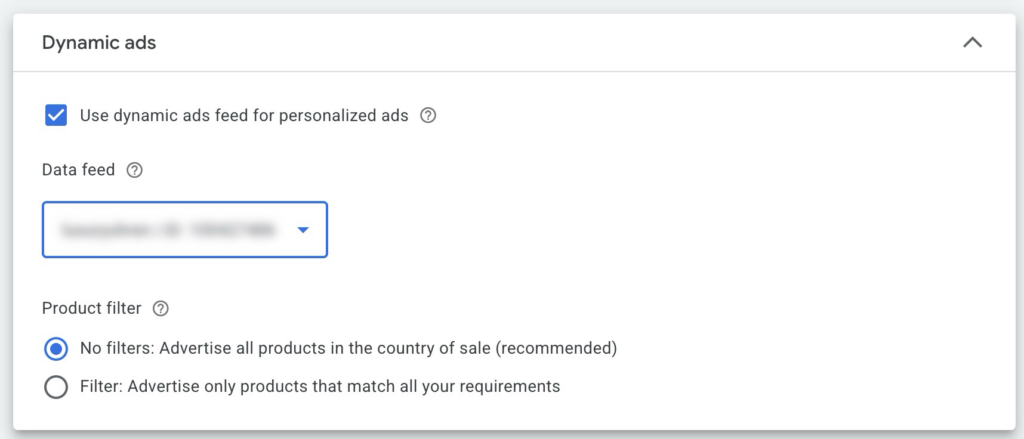
3) Set location, devices, and content exclusions correctly
Switch location to Presence
In the location options, set this to Presence. This way you reach users who are actually in your target region, not people who only show „interest” in a location.
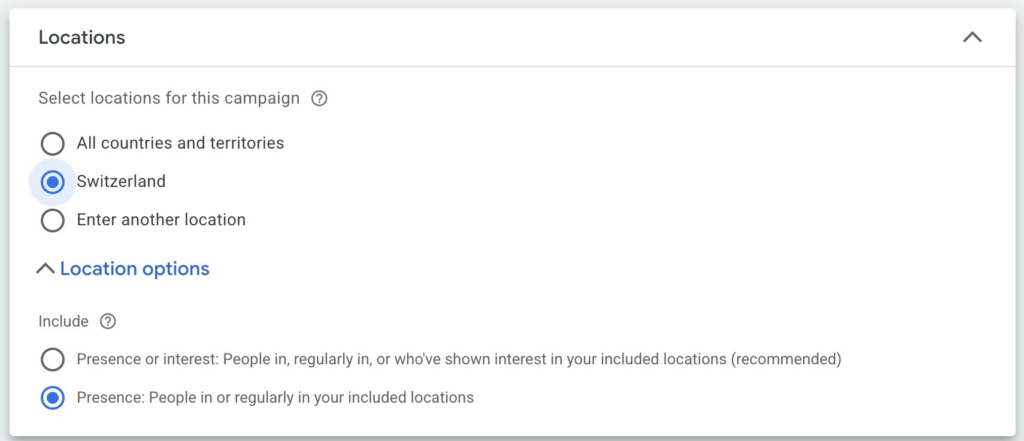
Exclude tablets
You can deactivate tablets under Devices. This is not a must, but often a quick hygiene step because tablets perform less well in most accounts.
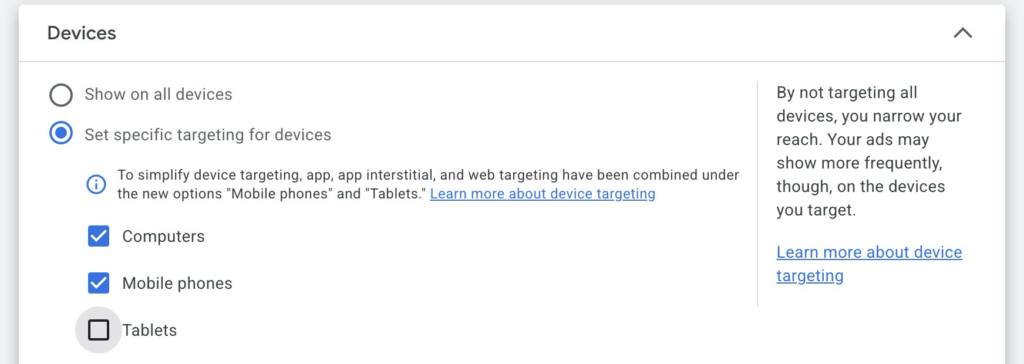
Clean up content exclusions consistently
You find this in the campaign settings under Content exclusions. In 99 percent of cases, I exclude all „sensitive content” here so that your ads do not run alongside tragedies, conflicts, shocking, or sexualized content.
The same principle applies to content labels: if your brand doesn’t fit with „Mature” or „Parental guidance”, exclude these labels and start conservatively. You can always release more reach later.
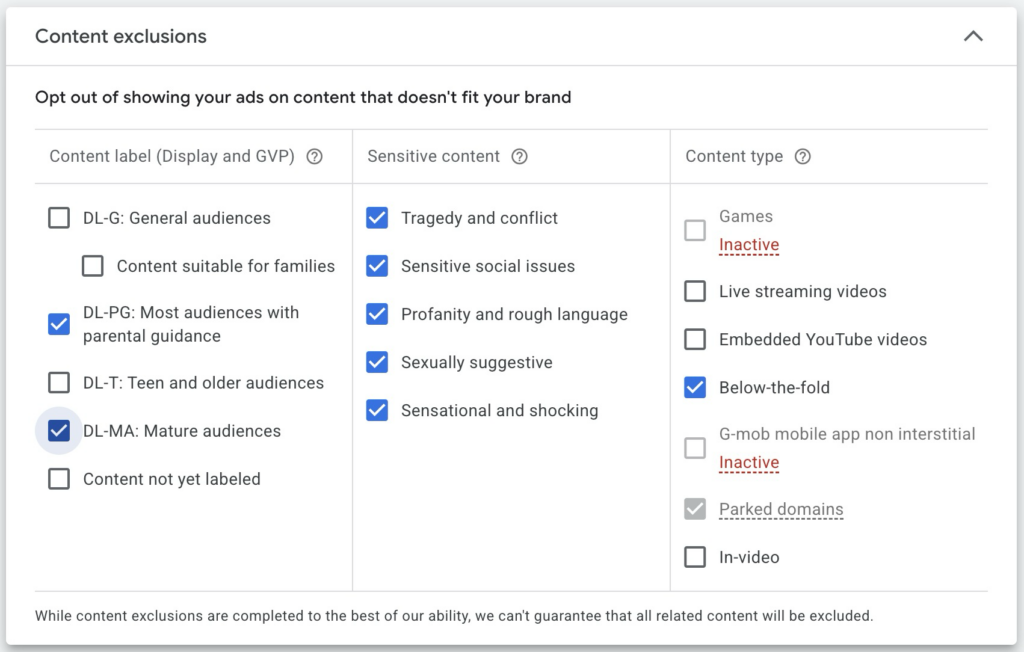
4) Set the bidding strategy
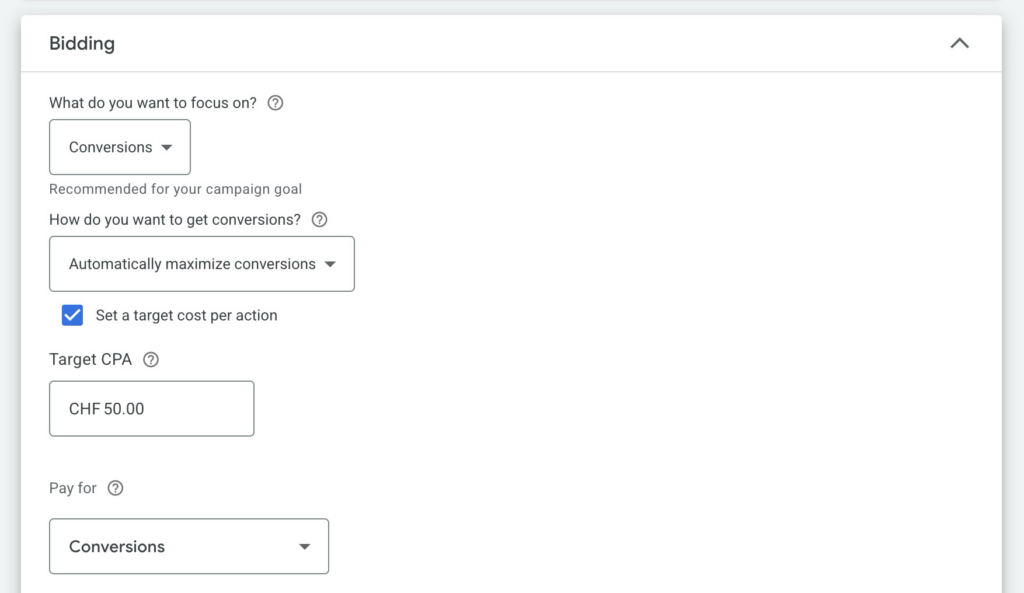
Smart bidding is the better choice for display in most cases. If display is optimized for clicks, there is often a lot of traffic with low purchase intent. Smart bidding steers playout more towards users who are more likely to convert.
5) Targeting: Select remarketing audiences
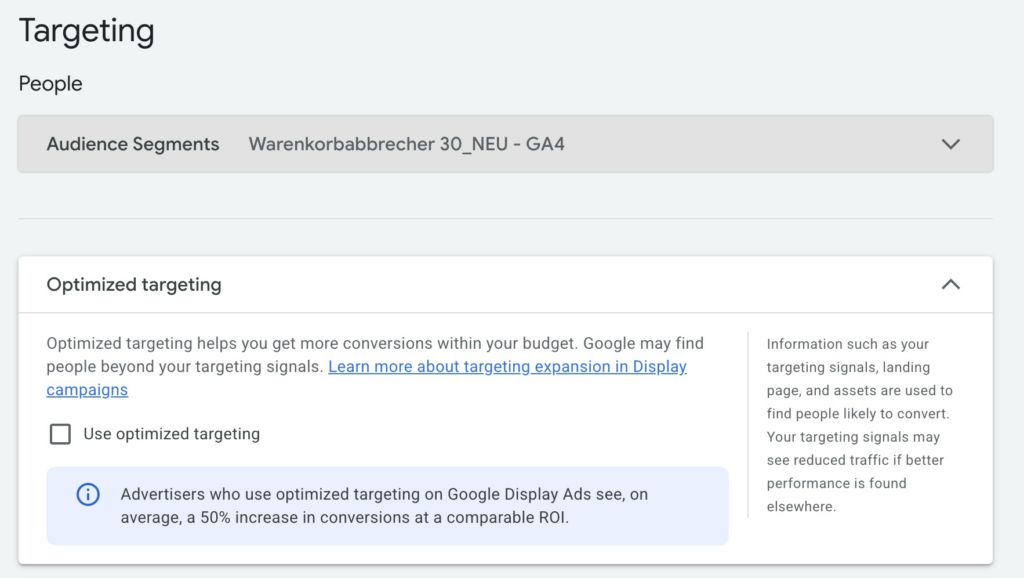
At this point, you must ensure that the campaign is only delivered to your remarketing target group.
In the ad group, you only select your segment under Audience segments. You will find it in the „How they have interacted with your business” area. This is exactly where your website-based remarketing lists such as shopping cart abandoners or product viewers are located.
The critical step: Deactivate Optimized Targeting
This is the most common pitfall in remarketing setups. If Optimized Targeting stays active, Google extends delivery beyond your list. Then it is no longer a pure remarketing campaign but a campaign that uses your list only as a signal.
Deactivate Optimized Targeting deliberately if you want clean remarketing logic.
6) Create a responsive display ad (with fallback assets)
- You also need static assets for dynamic remarketing: headlines, descriptions, images, and logos.
- The feed provides the product image, title, and price, but a „purely dynamic” ad without assets is practically impossible in this format.
- The static assets are also your fallback if Google cannot match a product properly.
7) Check and launch campaign
General tips for better quality
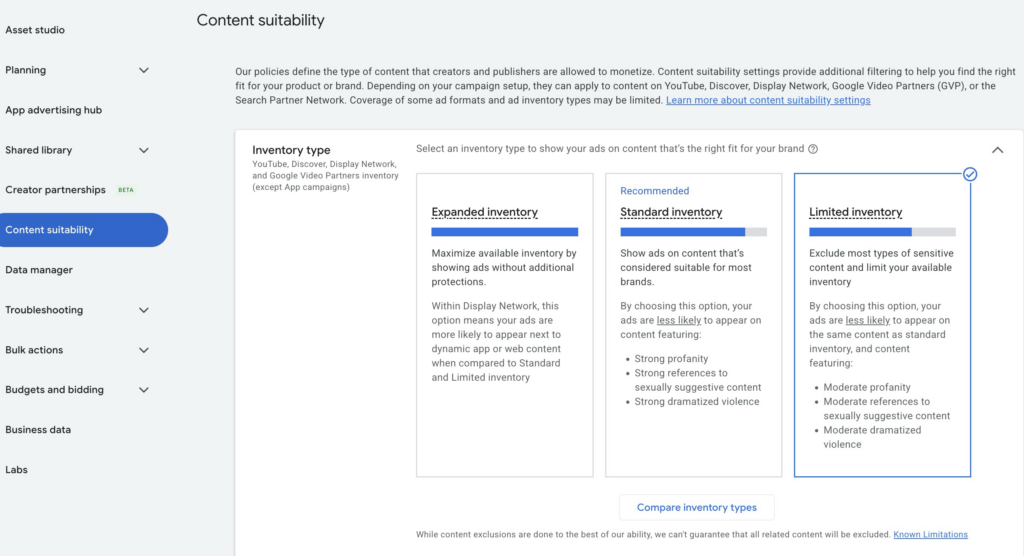
Set content suitability to „Limited” This reduces the risk of your ads running alongside questionable or inappropriate content. For most e-commerce brands, „Limited” is the sensible standard.
Exclude app placements in 99 percent of cases App inventory is often low-intent and can burn through budget. Therefore, consistently exclude apps if the goal is clean remarketing with purchase intent.
Set a frequency cap In pure remarketing, you’ll show the same users your ads multiple times. Without a frequency cap, you can quickly hit the same people 20+ times a day. A conservative start makes sense, e.g. 3-5 impressions per user per day. Then adjust up or down based on performance.
Which campaigns can use dynamic remarketing?
1) Display remarketing
This is the classic approach for dynamic remarketing. You link your Merchant Center feed and use Responsive Display Ads, which are automatically filled with suitable products from the feed. The biggest advantage is control: you can control very clearly that only your remarketing target groups are addressed, and you generally have more options for exclusions and brand safety settings in the display setup.
2) Performance Max
Performance Max uses your Merchant Center feed for more than just classic Shopping ads. Depending on the playout, other formats can also use product data, for example in the display environment when Google displays products dynamically.
It is important to note: Performance Max is not a campaign that you can set up as pure remarketing. The optimization runs across all channels and cannot be strictly limited to your remarketing lists as with a classic display remarketing campaign. Product data and remarketing effects can therefore be part of the playout, but cannot be controlled as clearly as in the display setup.
If you want to check how much product data is used in PMax, the Channel Performance Report can help. There you can filter according to the format Ads using product data and see what proportion of these ads are used and how they perform.
3) Demand Gen
Demand Gen can also be set up as a pure remarketing campaign by using only your own data segments as the target group, for example website visitors or shopping cart abandoners. As long as no additional segments or extensions are activated, playout remains limited to these users.
The difference to the classic Dynamic Display Remarketing campaign lies less in the feed than in the playout: In Demand Gen, you use the Merchant Center feed primarily as a product asset, often as a product carousel in Demand Gen placements such as Discover, YouTube, and Gmail. These are feed-based product ads within Demand Gen, while Display Dynamic Remarketing is designed more for the classic retargeting logic in the display network.
Dynamic Remarketing Troubleshooting
If Dynamic Remarketing does not work or only works poorly, it is rarely due to a single point. In practice, the problem is usually in one of five areas. If you go through the checks in a clear order, you will find the cause much more quickly.
1) First classify where the problem lies
A problem may be with the feed, for example if products are rejected, data is out of date, or the wrong Merchant Center account has been linked. It can also be due to tagging if events are not firing properly or important parameters are missing.
Very often it is a matching problem. In this case, the product ID sent in the tag does not match the ID in the feed exactly. Then Google cannot reliably assign the products. Audience problems are also common if target groups do not build up or are too small. And finally, campaign settings can also be to blame, for example if Dynamic Ads is not active, the wrong feed has been selected, or Optimized Targeting is still switched on.
2) The most important checks in a sensible order
1. Check feed First open the Merchant Center and check whether the feed is active and whether the products are approved. Also make sure that the price and availability are up to date. If products are rejected, Google cannot use them for dynamic ads.
2. Check tag and events Next, you should check whether the dynamic remarketing events and parameters arrive in Google Ads at all. You can do this directly in Google Ads under Tools, then Data Manager, then Google Tag and View stats. If no relevant parameters appear there, something is wrong in the tag setup or in the event triggering.
3. Check matching between tag and feed Then comes the most important step: ID matching. The product ID that you transfer in the tag must correspond exactly to the ID in the Merchant Center feed. If the format is not identical, the matching rate will be poor. As a result, Google often shows fallback assets or hardly delivers the campaign.
Remember: If the ID in the tag is not identical to the feed ID, dynamic remarketing will always be shaky.
4. Check target groups You should then check whether your remarketing lists are large enough and are filling up at all. If there is too little traffic or the tracking is not running properly, the segments will remain small and Display will not deliver. This is why the minimum list size is always an important reality check.
5. Check campaign settings Finally, a quick campaign check is worthwhile. Make sure that Dynamic Ads is really activated and the correct feed has been selected. Also check that Optimized Targeting is deactivated if you want pure remarketing. In addition, app placements should be excluded and content suitability should be set appropriately so that you don’t suffer any unnecessary wastage.
FAQ: Frequently asked questions about Dynamic Remarketing
What happens if I leave Optimized Targeting active?
Google extends the playout beyond your remarketing list to users that the algorithm considers „similar”. You lose the clean remarketing character, and the campaign de facto runs as a Display Audience campaign with your list as a signal. For pure remarketing, always deactivate it.
What’s the maximum membership duration for a remarketing list?
Google allows a maximum of 540 days membership duration for display and dynamic remarketing lists. For longer decision cycles (B2B, furniture), you can push the value up; for consumer goods, 30-60 days are enough.
Do I need a frequency cap even for small audiences?
Especially then. With small lists, in case of doubt you’ll show the same users your ads multiple times a day. Without a frequency cap, every user on your list gets your ad at a frequency that quickly annoys and damages brand perception. Start conservatively and calibrate based on performance.
Conclusion
Dynamic remarketing is one of the most useful methods in e-commerce for retargeting lost buyers. The decisive factor here is not just any trick, but a clean interplay of feed, tracking, target groups, and the right campaign settings.
If you only want to take three things with you, then these are it:
- For pure remarketing, your target groups must be cleanly selected and Optimized Targeting remains deactivated.
- The feed must be complete and up-to-date, otherwise there will be no good product ads.
- The tracking must reliably transfer product IDs to Google Ads, otherwise the matching will break.
Thank you for reading this far. Good luck with your remarketing campaigns.
Work smart with Clicks in Mind
You might also like
 Display
 Dynamic Remarketing in Google Ads via GTM: Easy Guide
How to set up dynamic remarketing in Google Ads: With product feed, GTM setup and data layer for personalized ads.
Read more → Account
 Black Friday & Christmas: The Google Ads Guide
Discount or free gift, separate campaign or not, adjust bids or leave them alone: the options Google Ads gives you for Black Friday and the holiday season, and when each one makes sense.
Read more → Tracking
 Conversion Adjustments in Google Ads: How to Fix Conversions You've Already Tracked
Conversion adjustments in Google Ads: correct returns, cancellations, and wrong values after the conversion so Smart Bidding bids on real revenue. With a step-by-step guide.
Read more →You want more results with Google Ads?
Get a free Google Ads Reality Check: a compact video (about 10 minutes) showing where budget is slipping away in your account and what to change.
Get your Google Ads Reality Check