
Contents Your key takeaways
Performance Max (PMax) campaigns are hard to control. In their search for the best results, they take every shortcut and trick. From experience, the algorithm concentrates a lot of budget on brand searches with known brands.
In most cases, that’s not the best thing for the business. Fortunately, there are ways to exclude searches for your brand from your PMax campaigns. In this post you’ll find a guide with three methods.
Your key takeaways
- Method 1: Brand Exclusions as a list at campaign or account level. Standard way for clean brand protection.
- Method 2: Negative keywords directly in PMax (up to 10,000 per campaign since end of 2025). More flexible than Brand Exclusions when you want to block specific terms or competitor brands.
- Method 3: Account-wide negative keyword lists linked. When brand protection should pull consistently across multiple campaigns.
How exactly you proceed and what to watch for is in this article.
Why are brand searches in PMax problematic?
You might ask yourself: „Why are brand keywords in my campaigns something bad as long as they bring good results?” That’s a legitimate question.
The point is that PMax campaigns often look much better in the Google Ads numbers than they actually are. It often happens that conversions get attributed to them that would have happened anyway.
Searches where users already search for your brand are the perfect example. The probability that people already explicitly searching for your brand also want to buy from you is high.
So why should the Performance Max campaign reap the laurels for that?
In the worst case, it just means you pay for conversions that would have happened anyway. Keyword: cannibalization.
Without restriction, PMax campaigns, especially for strong brands, can easily concentrate 50 percent of the budget on brand searches.
Effects of focus on brand searches
The goal of Performance Max is to achieve the best possible campaign results. Whether that also leads to actually better results for your business plays no role.
A strong focus on brand searches has negative effects in most cases:
-
Low focus on new customer acquisition: By default, PMax focuses on ready-to-buy audiences. Most money goes to brand searches and remarketing. The latter is beneficial. Much less money is spent on reaching new customers for whom your brand is still unknown.
-
Hard to scale: With good results, scaling is often the next logical step. „If the campaigns are so profitable, I can spend more and earn even more”? Wrong. Because if the good numbers are mostly based on brand searches, a campaign can’t be scaled sensibly. As soon as demand for your brand is exhausted, the campaign collapses. More tips: Scaling PMax Campaigns Properly.
You want more results with Google Ads?
Get a free Google Ads Reality Check: a compact video (about 10 minutes) showing where budget is slipping away in your account and what to change.
Get your Google Ads Reality Check →
Which searches does your PMax campaign spend your budget on?
You can check in Google Ads which searches your budget is being spent on, even though Performance Max campaigns are often called a black box.
You find the information in your campaign statistics or insights. Scroll down to „Search Term Insights”.
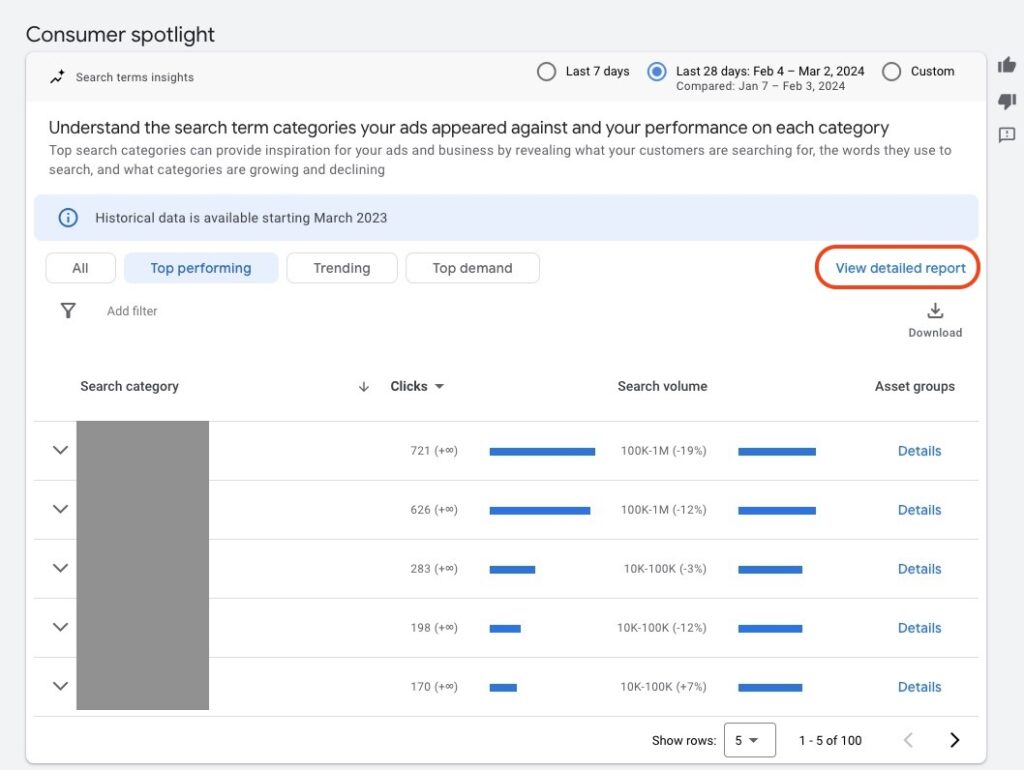
Google shows you an evaluation by search categories. You can sort by clicks, impressions, or conversions. Via the link in the top right, you get to an even more detailed report.
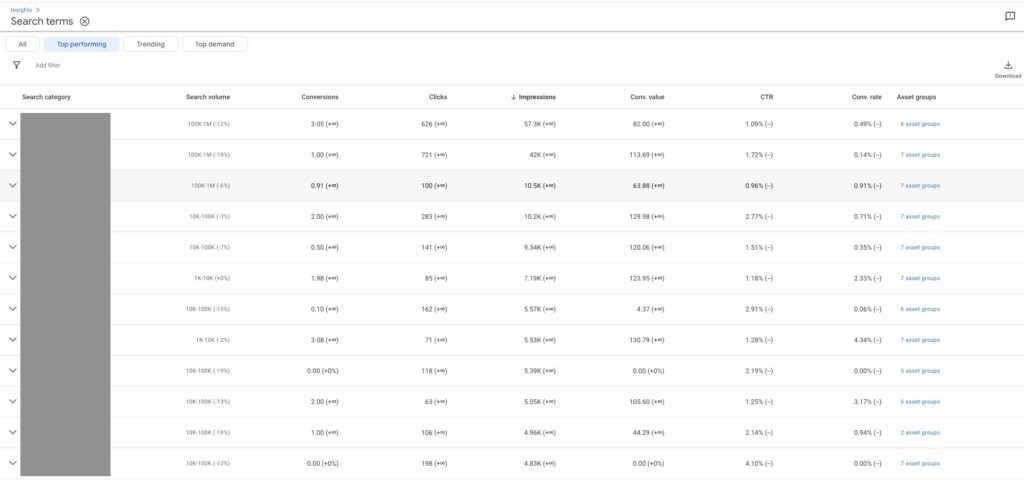
Examine the search themes and terms for your brand. Does it appear frequently and account for a large portion of clicks? If yes, you should exclude the brand.
Exclude brand keywords from Performance Max
There are three methods to ensure that your Performance Max campaigns don’t trigger ads for your brand terms. Sorted by use case:
Option 1: Brand Exclusions as a list
This is the clean standard way. Brand Exclusions are a dedicated mechanic in Google Ads and operate directly at the brand name level.
Step 1: Create a brand list
In the campaign settings, scroll down and open the advanced settings. There you find the option to store a brand list.
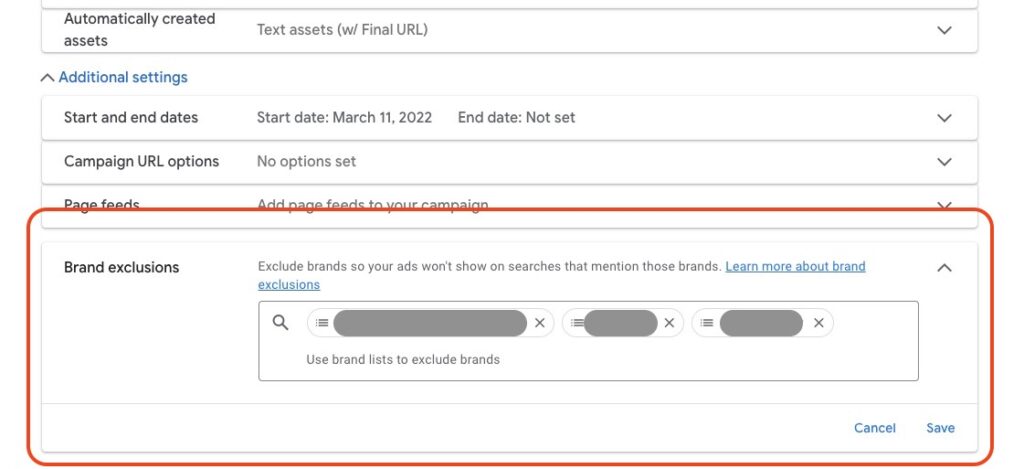
If there’s no brand list yet, you have to create a new one.
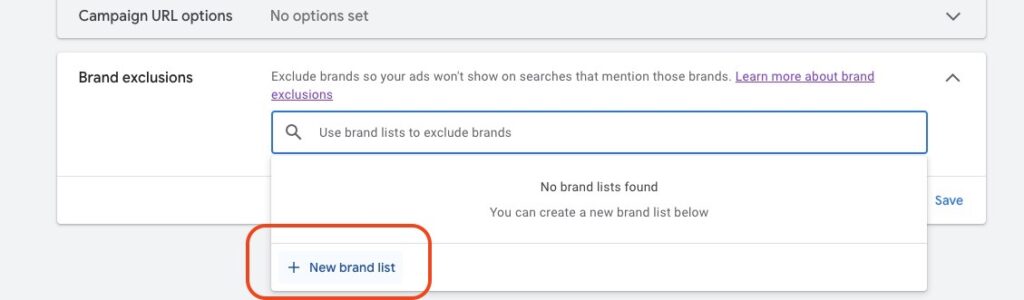
In total, you can store up to 10 brand lists. A brand can be a company or a product name. Brand lists are at account level and can be used for multiple campaigns.
Choose a descriptive name for the list. Then you can search for the corresponding brand terms in the next field.
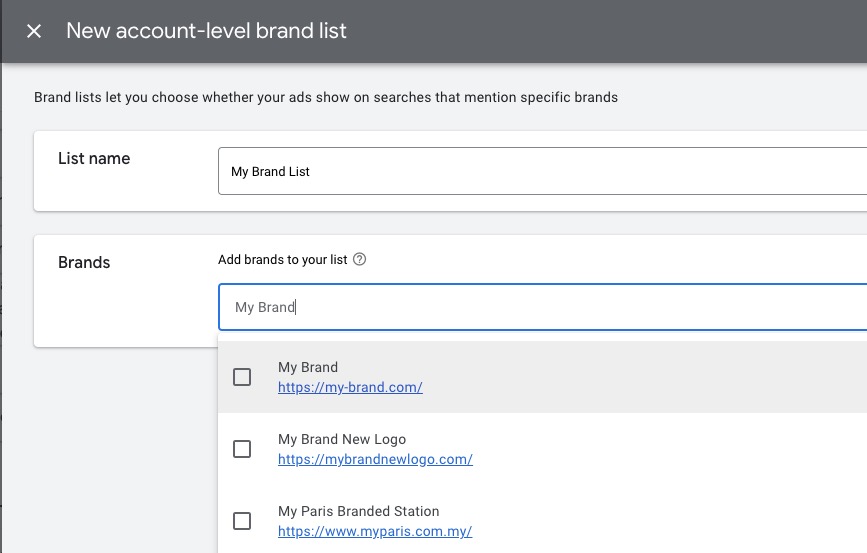
What if your brand doesn’t appear?
Don’t worry if you can’t find your brand in the list. Below the suggested brands, you find a link to add more brands.
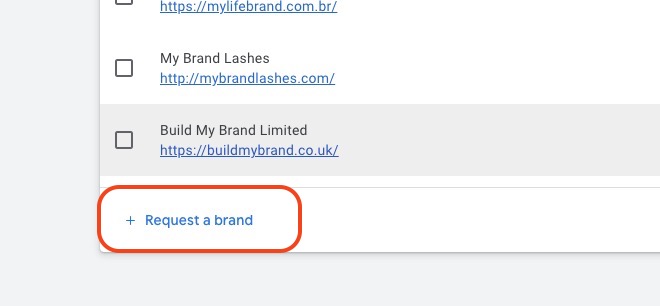
This link takes you to a form where you can request your brand to be added to the list.
Until you can exclude your brand via the brand list, it can take up to 6 weeks. In practice, it usually works faster.
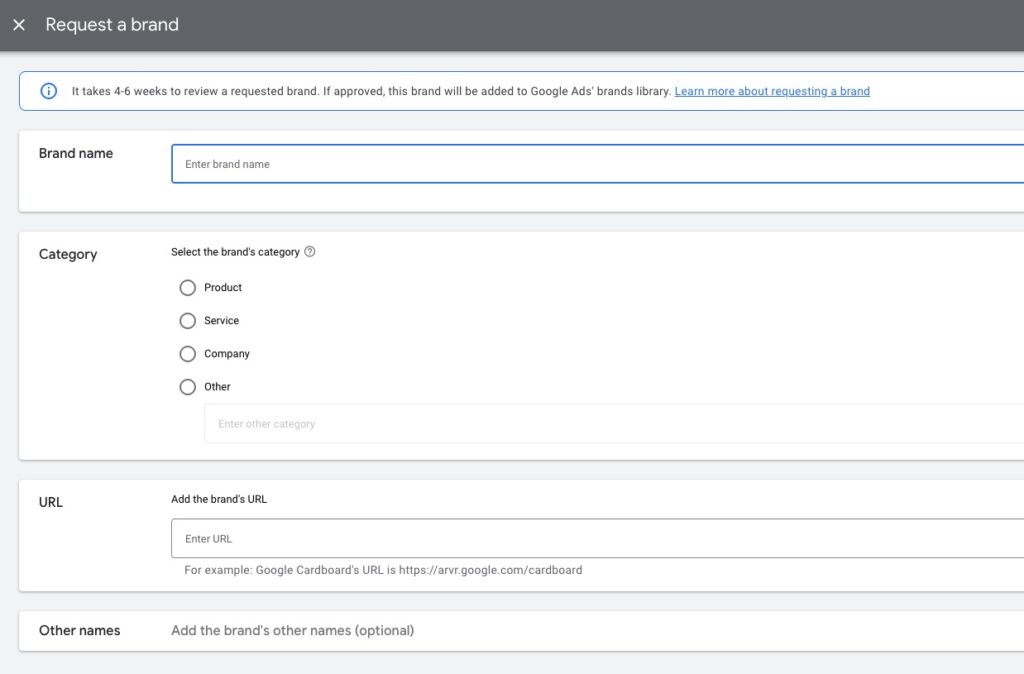
Step 2: Add brand list to the campaign
After you’ve created the list, you have to add it to the campaign and save the settings.
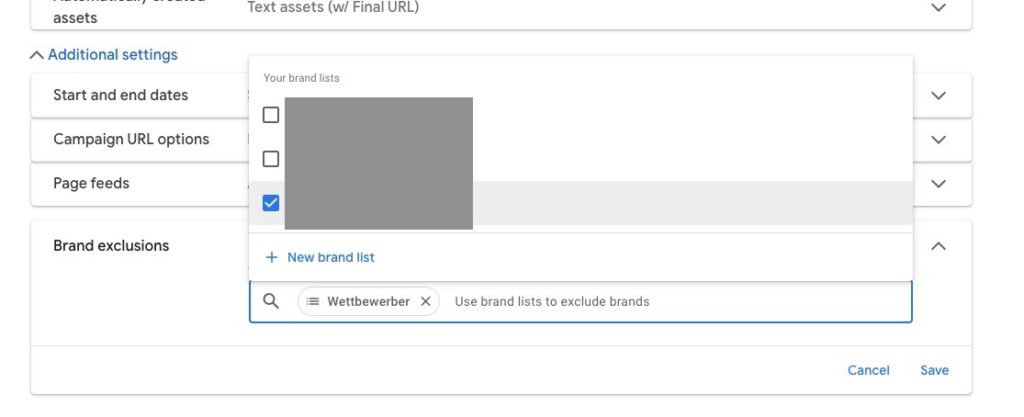
Step 3: Brand Exclusions at account level (NEW since 2025)
You can now apply Brand Exclusions also at account level. That’s useful when you have multiple PMax campaigns and want to pull brand protection consistently across all campaigns.
Path: Tools → Shared Library → Brand Exclusions.
This way, you don’t have to assign the list per campaign, but have a central place for brand protection across the entire account.
Step 4: Check PMax search terms
After activating the brand list, regularly check whether your brand terms still appear in the reports. It can take a while for changes to take effect. Look at the most recent period.
Option 2: Negative keywords directly in PMax
Since end of 2025, you can assign up to 10,000 negative keywords directly to a PMax campaign without contacting Google Support. This lets you flexibly exclude brand terms (your own brand, competitors, market terms), even when they don’t fit as „brand” in Google’s list.
Useful when:
- Brand Exclusions are too rigid (e.g., you only want to exclude certain brand variants)
- You want to block competitor brands that don’t fit as „your brand” in Brand Exclusions
- You need a quick, campaign-specific adjustment without touching the brand list
More on the mechanics in the article PMax Negative Keywords.
Option 3: Account-wide negative keyword lists
If you want to exclude your brand in all campaigns (also in Search and Shopping), go via account-wide negative keyword lists. These can be linked directly to PMax campaigns since end of 2025.
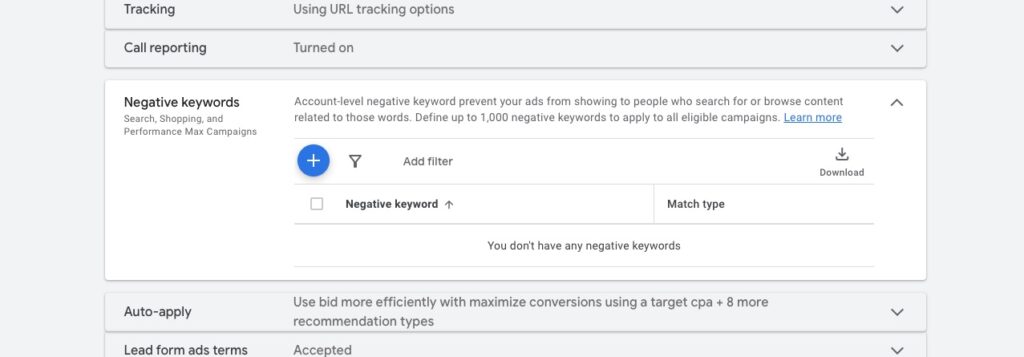
The changes take effect quickly.
Use separate brand campaigns
It’s usually the most sensible strategy to separate generic and brand search queries into different campaigns. This makes evaluation and budget management easier.
That doesn’t mean brand campaigns are unimportant. In most cases, it’s a good idea to supplement your PMax campaigns with a Brand Search campaign and a Brand Shopping campaign.
For the Shopping campaign, you have to exclude all generic search queries.
More context on the interplay between PMax and Search in the article PMax vs. Search Campaigns.
Closing words
I hope the post helped you understand how to exclude your brand from your Performance Max campaigns and why that’s usually a good idea.
Generally, you can never say that universally though. Businesses, accounts, and their goals can be very different. So you shouldn’t simply adopt anything you read without further thought. Always be skeptical and test whether it really helps you.
Work smart with Clicks in Mind
You might also like
 Performance Max
 Negative Keywords for PMax: How to Use Them Right
Add negative keywords directly to PMax, up to 10,000 per campaign. How to use the feature optimally for Search and Shopping ads.
Read more → Performance Max
 PMax vs. Search Campaigns? How to Make the Right Choice
PMax or Search campaigns? Learn the most important differences, avoid cannibalization with brand exclusions and 10,000 negative keywords, and find your suitable campaign mix.
Read more → Performance Max
 Analyze PMax Asset Performance: How to Do It in Google Ads
Here you learn where to find PMax asset evaluation, how to use Asset-Group-level Search Terms, and how to pull hard performance data with the Asset Auditor.
Read more →You want more results with Google Ads?
Get a free Google Ads Reality Check: a compact video (about 10 minutes) showing where budget is slipping away in your account and what to change.
Get your Google Ads Reality Check