Contents Create a Google Ads account - step by step
Google Ads is one of the best ways to reach potential customers online. Whether you have a local business, run an online store or just want to get started with online advertising, Google Ads can help you reach the right people at the right time.
But the first step can be daunting: account creation, campaign types, bidding strategies. It all sounds complicated at first. But don’t worry! In this guide, I’ll show you step-by-step how to create a Google Ads account in 2026, make the right settings and launch your first campaign.
After this article, you’ll have:
-
A fully set up Google Ads account
-
The most important settings set correctly
-
A clear understanding of the account structure
-
Your first Google Ads campaign ready
Sounds good? Then let’s get started! 🚀
Create a Google Ads account - step by step
Before you can place ads via Google Ads, you need to have a Google account and create a Google Ads account. To ensure that this works smoothly later on, you should consider a few important points at this stage.
Here you will find detailed instructions on how to set up your account and make the right settings.
First, navigate to the Google Ads homepage and click on “Start now”.
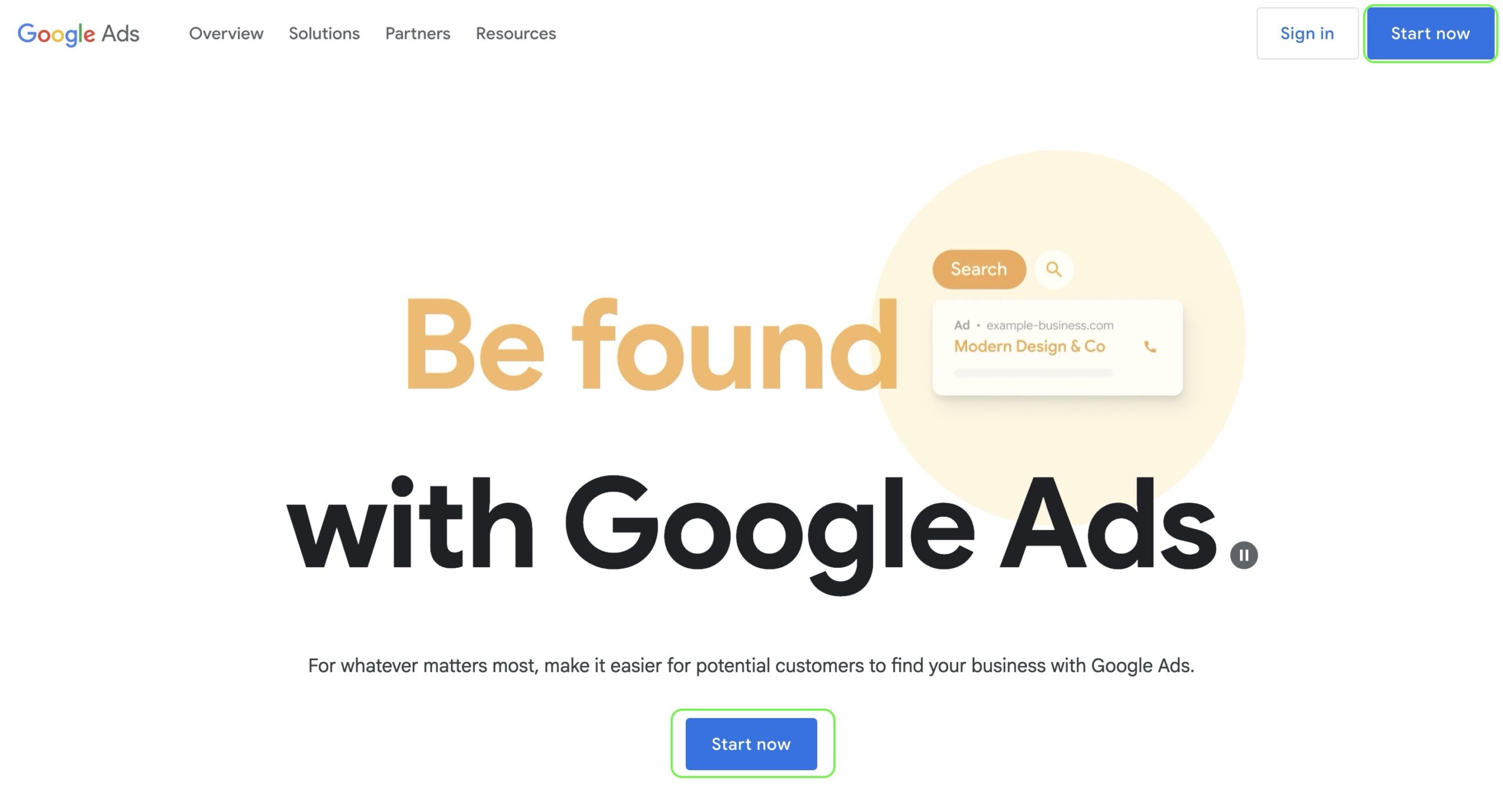
The next step is to sign in to your Google account
You need a Google account to use Google Ads. Next, let’s take a quick look at how to create one.
If you already have a suitable account (e.g. a Gmail address) that you want to use, you can skip this step.
Create a Google account (if you don’t already have one)
You can create your new Google account directly in the next step in Google Ads. However, if you do not want to use a Gmail address, but an existing company address (example@yourbusiness.com), Google will advertise its workspace.
It looks as if you have to buy a subscription to create a Google account on a company address. Caution: This is not necessary.
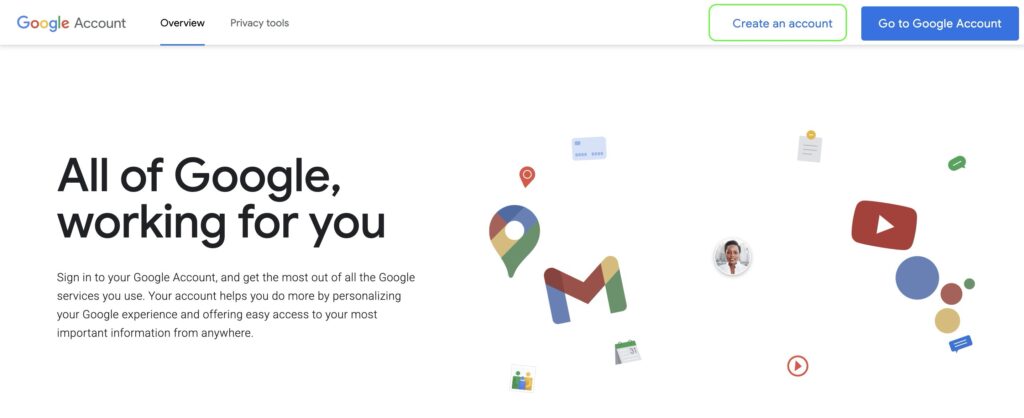
Instead, we simply go directly to the Google Account page: https://www.google.com/intl/en/account/about/
-
Click on ” Create an account” here
-
Enter your first name, surname, date of birth and gender in the next steps
-
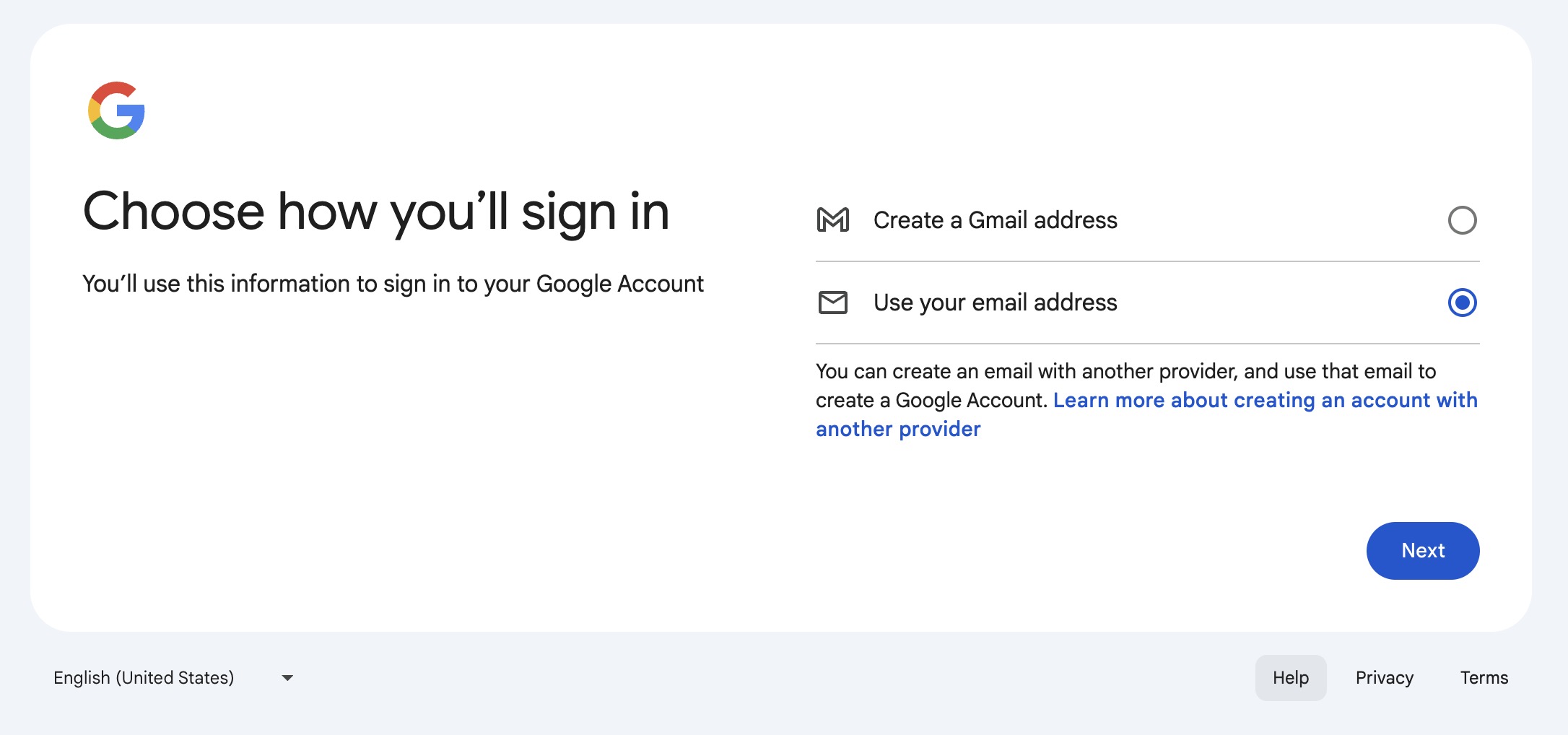
Choose whether you want to use a Gmail address or an existing email address or company address (recommended for business use)
-
Now choose your new Gmail address or enter your existing email and confirm it using the code Google sends you.
-
Create a secure password and confirm it.
-
Important tip: Add an alternative recovery email address. If you no longer have access to your account, you can restore it more easily this way.
-
Done.
💡 Tip: Use a central email address for your company (e.g. google@yourbusiness.com) to which several team members have access. This way, the account remains usable even if there are staff changes.
Create a Google Ads account
Now that your Google account is ready, you can set up your Google Ads account.
To do this, go back to the Google Ads login.
1. Sign in with your Google account
Google will take you straight to creating your first campaign. We’ll skip this step later to keep full control.
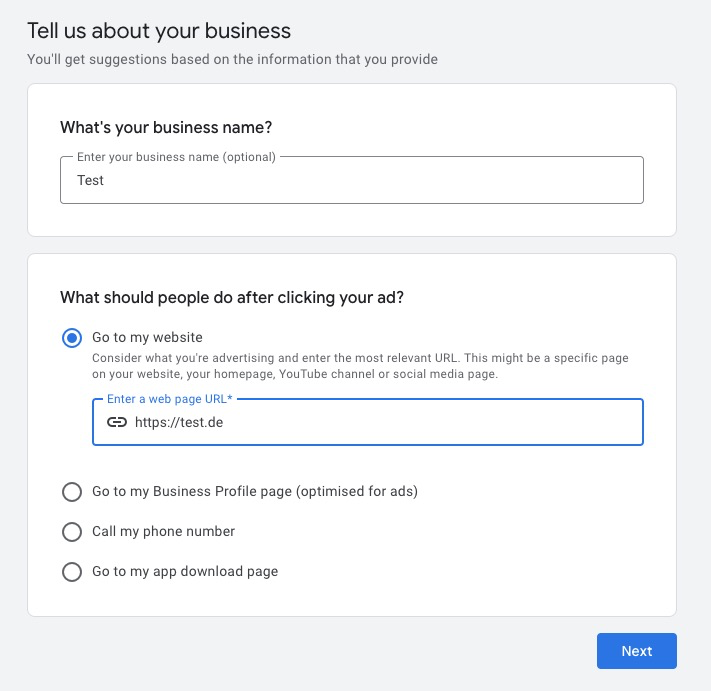
2. Enter your company information
-
Enter the name of your business. This will be used as your account name. If you leave the field blank, your account will simply be called “Google Ads Account”.
-
Select what you want users to do after they click on your ad. Be redirected to the website (recommended for most cases).
Simply enter your website URL here. Since we’re skipping the next step, this isn’t important for now.
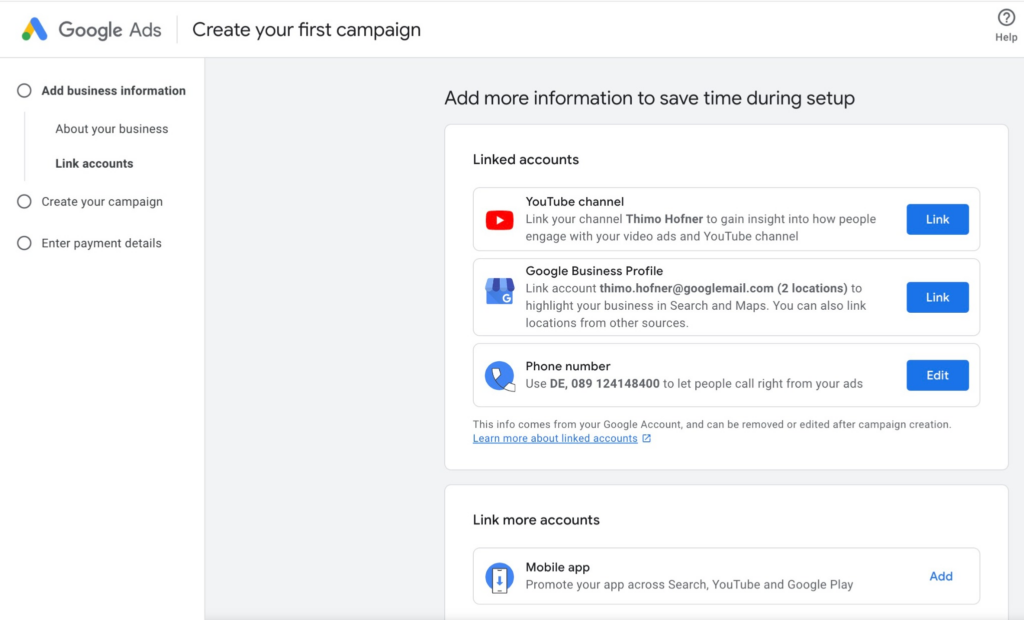
3. Link to other Google accounts (optional)
-
You can now link other Google services to use synergies between different Google platforms.
-
Possible links:
- YouTube channel (for video ads and target groups)
- Google Business Profile (for local ads in Google Maps and search).
- Phone number (for call ads).
- Mobile app (for app install campaigns).
You can link more later. Once the account and your tracking are in place, dynamic remarketing is a logical next step to bring visitors back with exactly the products they looked at.
4. Switch to Expert Mode and create an account without a campaign
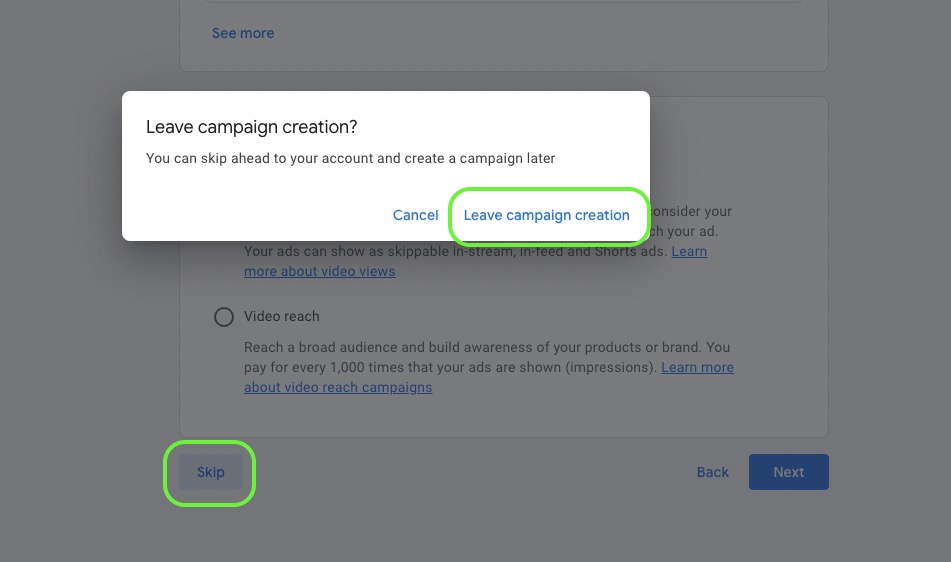
- By default, Google sets up new accounts in Smart Mode. That only offers smart campaigns with little control and pushes you straight into a campaign assistant.
- Instead, click the link “Switch to Expert Mode” at the bottom. This gives you access to all campaign types and settings.
- Then choose “Create an account without a campaign” at the very bottom. This way you set up the account completely before you spend any budget.
-
Note: Switching from Smart to Expert Mode is permanent, there is no way back. For working professionally, that is exactly what you want.
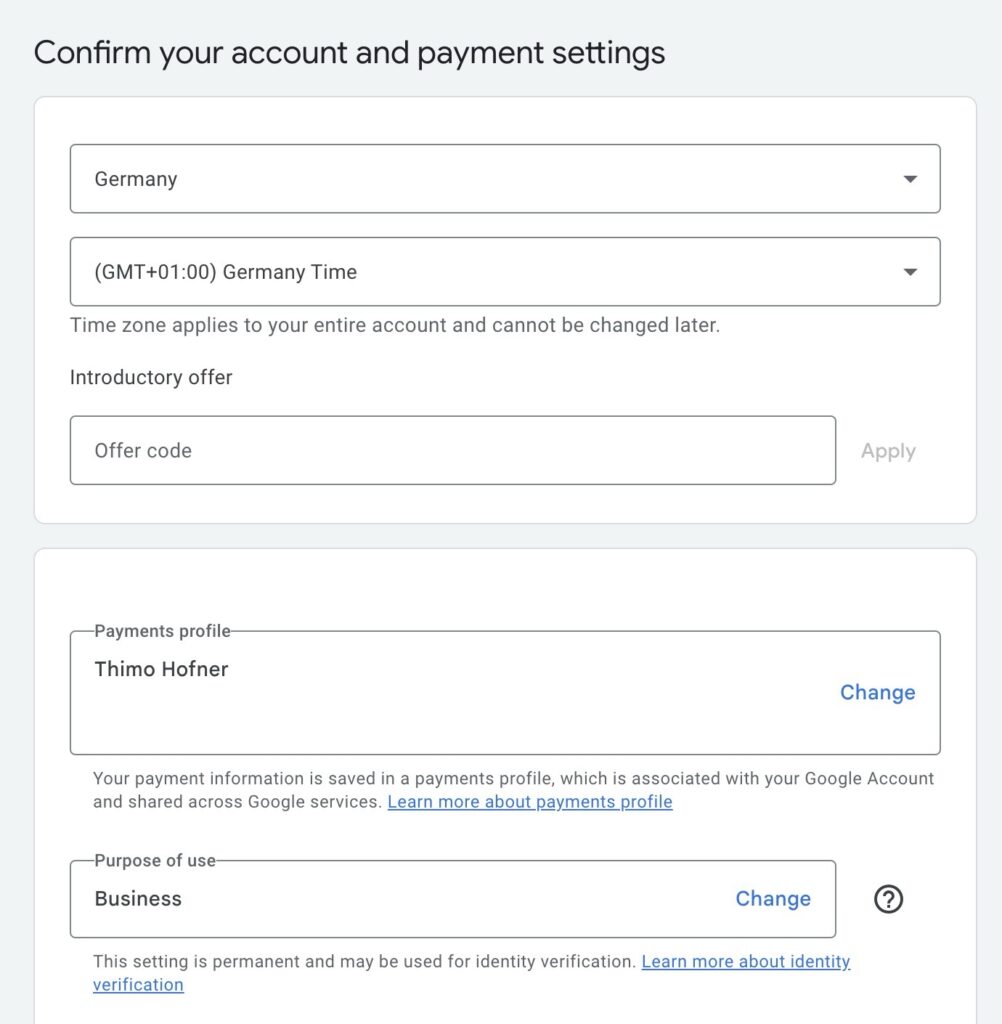
5. Confirming the account settings
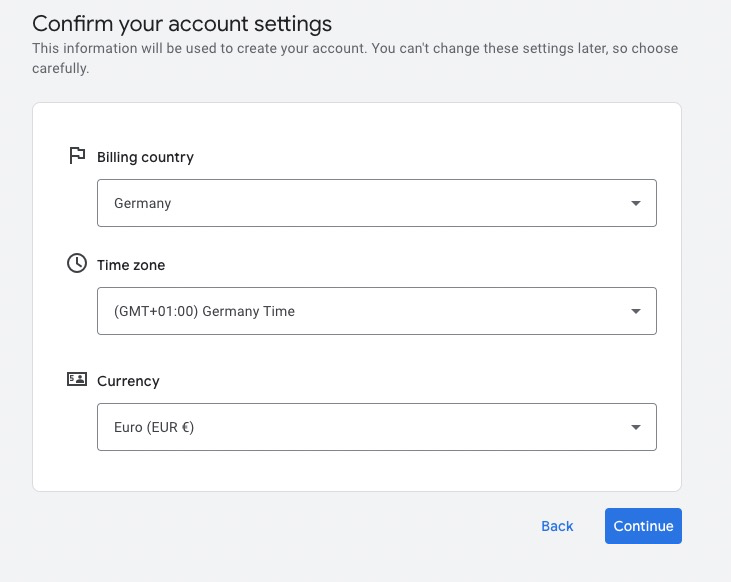
- Now you can set the basic account parameters:
- Billing country: make sure the correct country is selected as this cannot be changed later.
- Time zone: This information can no longer be changed, so make sure you set it correctly as it will affect your campaign planning.
- Currency: The currency determines the unit in which you pay for ads. This choice is also final.
- If your company is based in Switzerland and you want to be billed in CHF, select “Switzerland” and “CHF” accordingly.
- The currency has no influence on the prices in your webshop, it is only used for invoicing Google Ads.
- Then click on “Next”.
6. Enter payment method
- Google will now ask you to enter a payment method.
- You can choose between various payment methods, including
- Credit card.
- Direct debit.
- PayPal (depending on your country).
- If you have a Google Ads advertising voucher, you can also enter it here.
- Confirm the payment information to complete the process.
7. Google Ads account successfully created
You can log in at ads.google.com at any time and start creating campaigns.
Your account is now ready to go.
Before you launch your first campaign: set up conversion tracking first, not afterwards. Without tracking, you optimize blindly toward clicks instead of real results, and this is exactly where most beginners burn their budget.
Google Ads credits and welcome offers
Google offers starting credits for new advertisers in many countries. The amount and conditions vary depending on the region.
Find out more in the Google support article. How to safely claim the credit and which deadlines apply, I’ve written up in detail under Google Ads promotional offers.
How do the advertising vouchers work?
The credit is usually granted if a minimum investment in ads is made within a certain period of time. An example from Germany:
- “Place ads worth €400 and receive €400 credit.”
General conditions
- This only applies to new Google Ads accounts with a valid billing address.
- Code must be entered within a specified period after account creation.
- Minimum ad spend must be reached within a specified time period.
- The credit can only be used for future ads and expires after a certain period of time.
Before you create your account, it’s certainly worth checking if there are any current vouchers you can use.
You want more results with Google Ads?
Get a free Google Ads Reality Check: a compact video (about 10 minutes) showing where budget is slipping away in your account and what to change.
Get your Google Ads Reality Check →
Understanding Google Ads - The account hierarchy
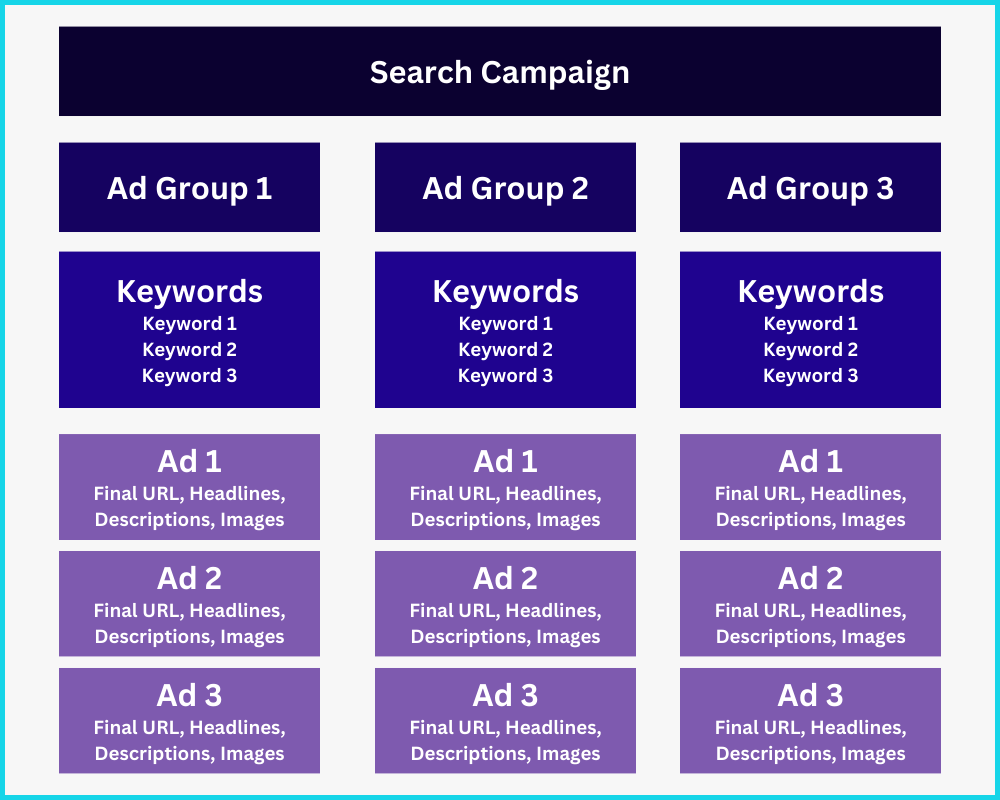
Google Ads is based on a clear hierarchy. Each level controls different aspects of your ads and influences their performance. A clear structure helps to use budgets efficiently, target specific audiences and evaluate campaigns better.
Account
The account is the top level and manages all administrative settings:
- Billing: payment method, billing address.
- User management: Access for team members or agencies.
- Links: Google Analytics, Merchant Center, YouTube.
- Global exclusions: Negative lists for keywords or placements.
Each campaign within the account can be configured independently.
Campaigns
Campaigns set the framework for your ads and control:
- Budget: daily or total for ad spend.
- Campaign type: Search, Display, Shopping, Performance Max, Demand Gen or Video campaigns. Demand Gen replaced the former Discovery campaigns back in 2024. To learn what’s behind the most powerful of these types, read my guide to Performance Max campaigns.
- Locations & devices: Location settings and targeting on desktop or mobile.
- Bidding strategy: Manual or automatic adjustment of cost per click.
- Duration: Start and end date of the campaign, if desired.
A good campaign structure ensures clear objectives and optimal budget allocation.
Ad groups
Ad groups bundle and control ads with similar content:
- Keyword allocation: which terms trigger which ads?
- Target group control: User segments for display or YouTube campaigns.
- Bid adjustments: If not already regulated at campaign level.
A good practice is to clearly target each ad group to a specific topic or product. This keeps the ads more relevant and achieves better click-through rates.
Ads
Ads are the visible element of your Google Ads campaign.
In classic search campaigns, they consist primarily of text. Specifically, these are ad titles, descriptions and the target URL.
In other campaign types, the ads also contain images and videos in addition to text.
Google relies on responsive ads here. Here you enter more titles and descriptions than are actually displayed in a single ad. Google tests different combinations and plays the best-performing variants based on user behavior and context.
Creating your first campaign - The roadmap
A successful Google Ads campaign needs a clear structure. Especially at the beginning: less is more. It is better to start with a few, well-thought-out elements than to get lost in too many details.
Here is a tried and tested roadmap for the first steps in a search campaign:
1. Define the goal of the campaign
Before you create a campaign, you need to be clear about what you want to achieve. Typical goals are:
- Sales: Directly via an online store or after making contact.
- Customer inquiries: Via a contact form or by phone call.
- Downloads or registrations: E.g. for e-books or newsletters.
Define one or two specific offers that you want to promote. Promoting too many products or services at once makes optimization more difficult. Therefore, start with your top offers or bestsellers.
2. Keyword research
What terms do potential customers enter into Google to find an offer like yours? Instead of using too many keywords at once, start with a few relevant terms.
An example for a solar system installer:
- Specific & relevant: “solar for single-family home”
- Too unspecific & expensive: “renewable energies”
Keywords that are too broad often lead to irrelevant clicks. It is better to start with a few, clear search terms and expand them later based on the actual search queries. The role that keyword match types play here, meaning how tightly or loosely Google interprets your terms, is something you should understand before you start.
3. Group keywords into ad groups
Thematically appropriate keywords should be divided into their own ad groups. This ensures that each ad matches the search query exactly.
Example for an installer:
- Ad group 1: “Buy solar system”, “Photovoltaic offer”
- Ad group 2: “Solar system financing”, “Photovoltaic promotion”
Rule for the start: A few, well-structured groups are better than too many confusing ones.
4. Create ads
The ad texts must speak the language of the target group and communicate clear benefits. Each ad should contain the following elements:
- Relevant keywords: so that users can see directly that the ad matches their search.
- Emphasize benefits: Why should someone choose your offer? (e.g. “Free consultation”, “Offer in 24 hours”)
- Clear call-to-actions (CTAs): Tell the user what to do (“Request a quote now”, “Get a free consultation”).
5. Use assets (formerly extensions)
Ad assets are free and make ads bigger and more eye-catching. They can contain the following elements, for example:
- Sitelinks: Additional links to important subpages.
- Call extension: Can be called directly from the ad.
- Location extension: Displays your address via Google Maps.
Include as many relevant assets as possible.
6. Define bidding strategy and budget
For the start, I recommend a more manual bidding strategy (e.g. Maximize Clicks with a bid cap) to better control the click prices. Only when conversion data is available can an automated strategy such as “maximum conversions” or “target CPA” be useful.
The daily budget should be sufficient for at least 10 clicks per day. Depending on the competition, the click price is between $1 to $5, so a starting budget of $10 to $50 per day is realistic. Important: It is better to start with a smaller but solid budget and increase it later.
To avoid typical mistakes, it’s worth taking a look at this article:
➡️ Avoid the most common Google Ads mistakes
From planning to optimization - your start with Google Ads
Your first Google Ads campaign is up and running, with a clearly defined goal, relevant keywords, structured ad groups and convincing ads. The key to success now lies in optimization: monitor performance, test new ad texts and adjust your bids.
A word of warning: Google will constantly show you automatic recommendations. Don’t apply them blindly. Some genuinely help you, others mostly cost you extra budget.
Start with a manageable budget, collect data and only scale up when the campaign shows measurable success.
I wish you every success with your first campaign ✨
If you need professional help, I will be happy to support you. You can find out more about the Google Ads management offer here.
Work smart with Clicks in Mind
You might also like
 Account
 Black Friday & Christmas: The Google Ads Guide
Discount or free gift, separate campaign or not, adjust bids or leave them alone: the options Google Ads gives you for Black Friday and the holiday season, and when each one makes sense.
Read more → Account
 Google Ads for Ecommerce: From Setup to Scaling
How to build out Google Ads for your online store: goals, tracking, product feed, your first campaigns, and the strategies that scale them profitably.
Read more → Account
 Google Ads Beginner? Avoid These 13 Costly Mistakes
Mistakes in Google Ads can be really expensive. In this post, I'll show you the 13 most common ones and how to avoid them.
Read more →You want more results with Google Ads?
Get a free Google Ads Reality Check: a compact video (about 10 minutes) showing where budget is slipping away in your account and what to change.
Get your Google Ads Reality Check