
Contents What are scripts in Google Ads?
Do you feel the same way I do about PMax campaigns, with an ambivalent relationship? Through maximum automation, they’re very easy to create and now work very well.
But exactly that automation brings challenges: lack of transparency, little control, and often a feeling of not being able to fully oversee the campaigns.
Scripts can help you close these gaps. They provide additional data, simplify analysis, and give you more control over your campaigns. In this article, I’ll introduce 10 scripts plus 1 bonus to help you better understand and optimize your PMax campaigns. Ready? Let’s go.
Update May 2026: By now, Google itself has lifted some of the pain points scripts were originally built for into the native interface. Most notably the Channel Performance Report under Insights, which shows budget distribution per network. The scripts in this post today are more the tool for more depth than for basics. Where it makes sense, I point to the respective native counterpart. These hidden PMax reports are now shown to you by the UI even without a script.
The 11 best PMax scripts
What are scripts in Google Ads?
Google Ads scripts are small code snippets that automate tasks in your account. They let you analyze data, create reports, or even automatically adjust campaign parameters. Scripts use JavaScript and can be inserted directly into the Google Ads interface.
Their big advantage: They save time, deliver deeper insights, and create transparency where Google’s standard tools reach their limits. Instead of checking everything manually, you can standardize processes with scripts and manage your account more efficiently.
Who creates the scripts?
Don’t worry, you don’t have to become a web developer. Fortunately, there are experts who have already developed numerous scripts and mostly made them available to the community for free.
Here’s a shoutout from me to experts like Mike Rhodes, Nils Rooijmans, and Floris de Schrijver. Big thank-you for their contribution to the Google Ads world.
Follow these experts if you want to get more out of your campaigns. They regularly share helpful scripts and practical tips.
The 11 most helpful Performance Max scripts
1. Performance Max Spend Allocation Script (Mike Rhodes)
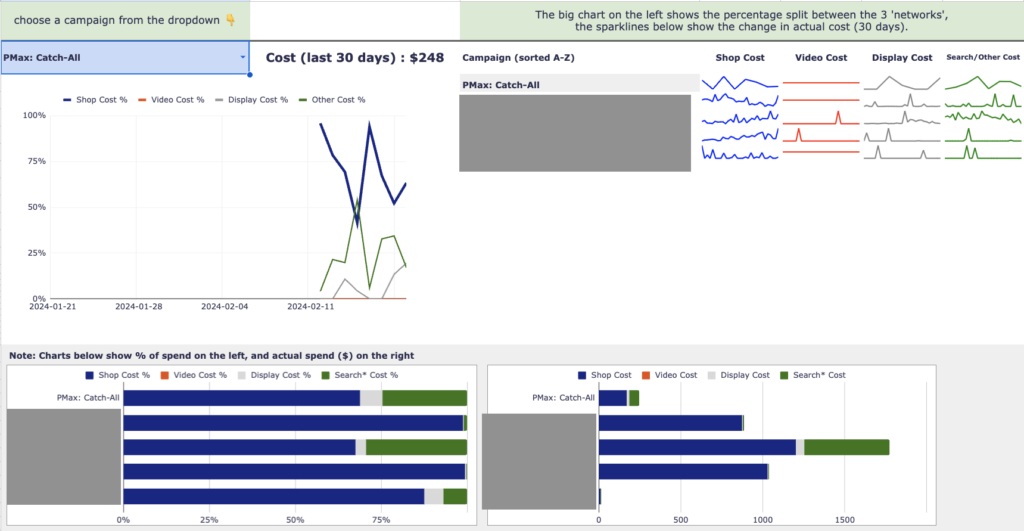
Do you lack an overview of how your PMax budget is actually used? One of the most common criticisms of Performance Max campaigns was the lack of transparency in budget distribution. This script solves exactly that problem. It shows you in detail how much budget goes to various channels like Shopping, Video, Display, and Search.
The script gives you not only transparency but also the basis for targeted optimizations. Instead of tapping in the dark, you know exactly where to intervene.
More on native analysis in the article Analyze PMax Campaigns.
Use cases:
- Get clarity on budget distribution.
- Know which channel to prioritize in optimization.
- Identify channels with high or low ROI.
Link: Performance Max Spend Allocation Script on GitHub
2. Flowboost Labelizer (Floris de Schrijver)
With the Flowboost Labelizer, you can easily divide your products into different performance clusters. The script assigns labels like „no index”, „under index”, „near index”, „index”, and „over index”, so you can see at a glance which products sell well and which don’t.
These labels give you a structure that lets you direct your budget specifically to top sellers without neglecting products that also have potential.
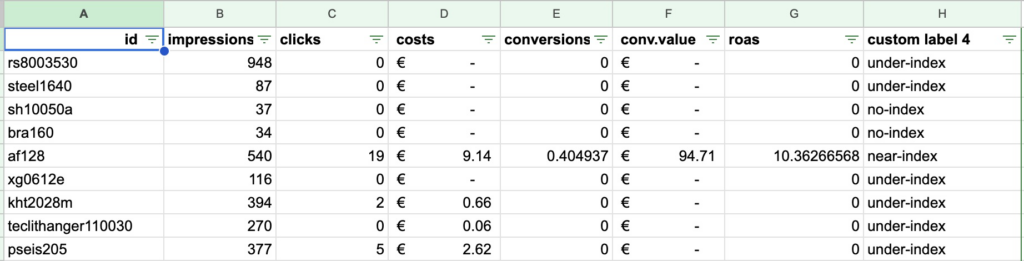
A big advantage is that you can define yourself when a product is considered a „top seller”. So you can adjust thresholds individually and tune your campaign strategy accordingly.
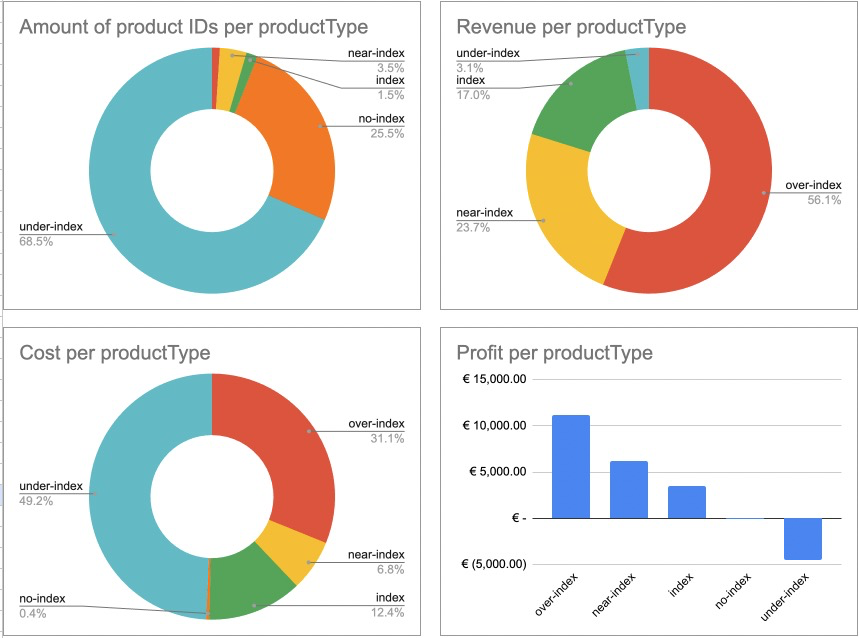
The data is aggregated in a Google Sheet, where you also get an overview of the current status. There you see how much budget you spend on low performers or „under index” products and how small their share of your total revenue is.
Use cases:
- Segment campaigns based on product performance.
- Identify products wasting your budget.
- Create a better decision base for optimizations.
Link: Flowboost Labelizer, Floris de Schrijver
3. Non-Converting Search Term Alerts (Nils Rooijmans)

Do you know the problem of generating many clicks in your Performance Max campaigns without any conversions? PMax’s lack of transparency often makes it difficult to identify inefficient search terms. That’s exactly where this script helps. It automatically tracks down search terms that generate clicks but no results. The data is clearly summarized in a Google Sheet, and you can even set up email notifications if needed.
This script gives you back control so you can avoid unnecessary costs. You see at a glance where your campaign needs adjustment and can set exclusions specifically.
Update: Since end of 2025, you can assign Negative Keywords directly to a PMax campaign (up to 10,000 per campaign) without contacting Google Support. This lets you implement the insights from the script directly in the campaign. More in the article PMax Negative Keywords.
Use case:
- Find search terms that consume budget but don’t bring conversions.
Link: Non-Converting Search Term Alerts, Nils Rooijmans
4. PMax Trending Search Categories (Nils Rooijmans)
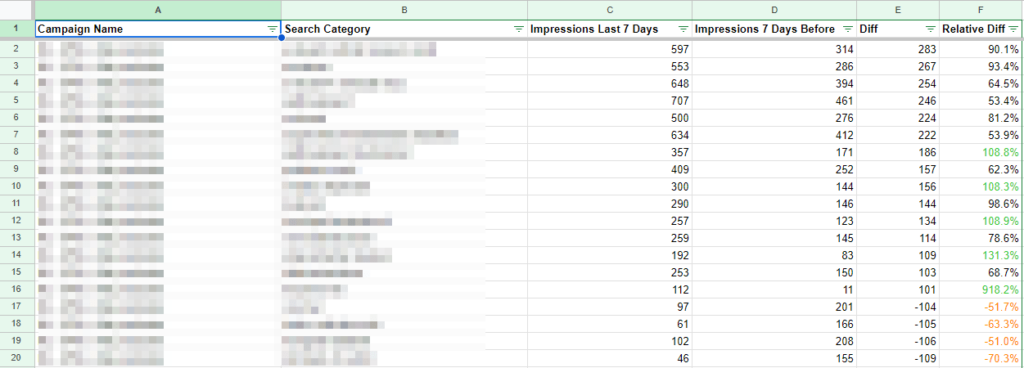
Stay one step ahead by recognizing which search categories are gaining popularity. The PMax Trending Search Categories Script helps you identify emerging trends early, before your competition notices them. It automatically analyzes your campaigns and highlights categories with significant impression increases.
With these insights, you can proactively adjust your campaigns, optimize content and ads for the trending categories, and ensure you’re always on the pulse of the time.
Use case:
- Identify trends and react to them early.
- Adjust campaigns flexibly and data-driven.
Link: PMax Trending Search Categories, Nils Rooijmans
5. Brand Traffic Analyzer (Smarter Ecommerce)
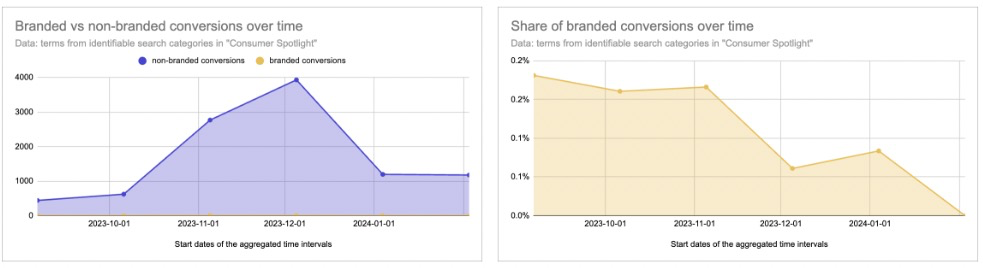
In Performance Max campaigns, it’s often unclear how much of your budget is used for brand-related and how much for generic search queries. Although you can view search terms via PMax Insights in Google Ads, manual analysis remains time-consuming. Plus PMax campaigns are opportunistic and often prefer to bid on brand terms, since these usually deliver the best performance.
The Brand Traffic Analyzer automates this process and displays the distribution between brand and generic traffic in easy-to-understand diagrams. The script accesses the Consumer Spotlight Report and shows you how changes to budget or ROAS targets affect distribution.
Use cases:
- Ensure that brand terms aren’t preferred too strongly and generic terms get enough budget.
- Quick overview of budget distribution between brand and generic search queries.
Link: PMax Brand Traffic Analyzer, Smarter Ecommerce
You want more results with Google Ads?
Get a free Google Ads Reality Check: a compact video (about 10 minutes) showing where budget is slipping away in your account and what to change.
Get your Google Ads Reality Check →
6. Account Anomaly Detector (Google Ads Solution)
Sudden changes in your campaigns can quickly lead to unnecessary costs or worse results. That’s exactly where the Account Anomaly Detector comes in. This solution automatically monitors the performance of your Google Ads account and compares it with historical data of the same weekday. As soon as unusual deviations occur, you’re notified.
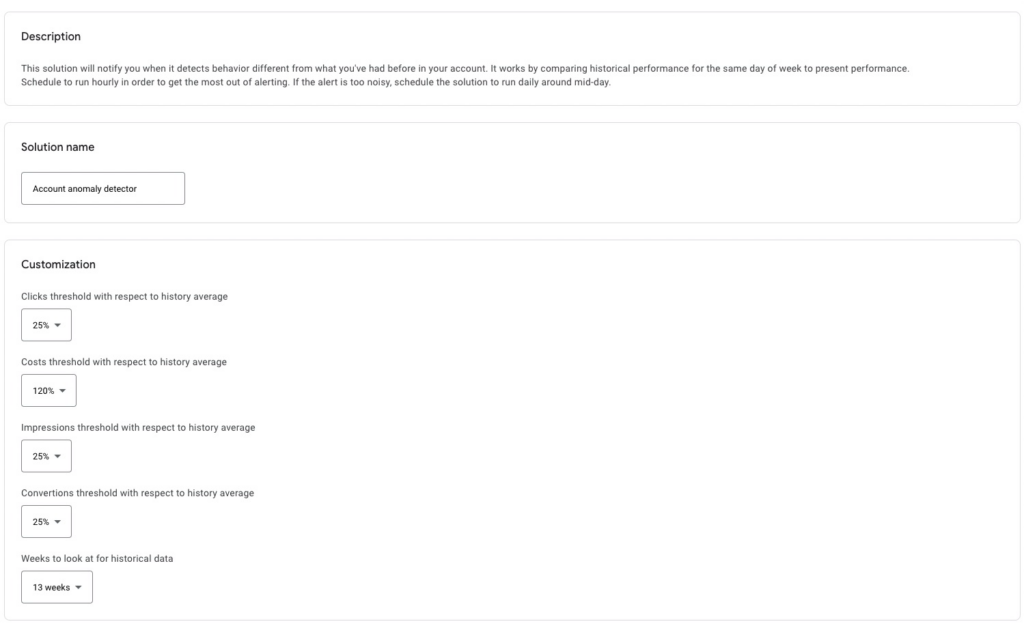
Unlike a normal script, this is a so-called Solution, available directly in the Google Ads interface and usable without technical effort.
What is a Google Ads Solution? Google Ads Solutions are pre-made script templates available in the Google Ads interface. They require no additional setup or technical knowledge.
Customization options for the Account Anomaly Detector:
- Click, Impression, and Conversion thresholds: 25 percent deviation by default, can be adjusted.
- Cost thresholds: Adjustable, e.g., costs over 120 percent of the average.
- Historical data base: Analyzes up to 52 weeks for well-founded alerts.
- Notification: Store your email address to be informed automatically.
Use case:
- Early warning system for significant fluctuations to intervene in time.
- Automatic monitoring of metrics like clicks, impressions, costs, and conversions.
7. Disapproved Products Alerts (Nils Rooijmans)
Rejected products in the product feed can significantly impact the visibility and performance of your campaigns. Especially with Performance Max campaigns, which heavily rely on Shopping components, an issue in the product feed can lead to important products no longer being advertised. The Disapproved Products Alerts Script helps you detect such problems early.

The script regularly checks your product feed for rejected products. As soon as a problem is detected, you receive an email notification. It saves you valuable time by not having to search for errors manually.
Use case:
- Quick reaction to rejected products to secure the visibility of your campaigns.
- Monitoring of large product feeds without manual effort.
Link: Disapproved Products Alerts, Nils Rooijmans
8. PMax Placement Exclusion Suggestions (Nils Rooijmans)
One of the most common criticisms of Performance Max campaigns is the lack of control over placements. It’s often unclear where your ads are actually served. This can lead to budget being wasted on inefficient or inappropriate placements. With the PMax Placement Exclusion Suggestions Script, you get more control over your campaigns.
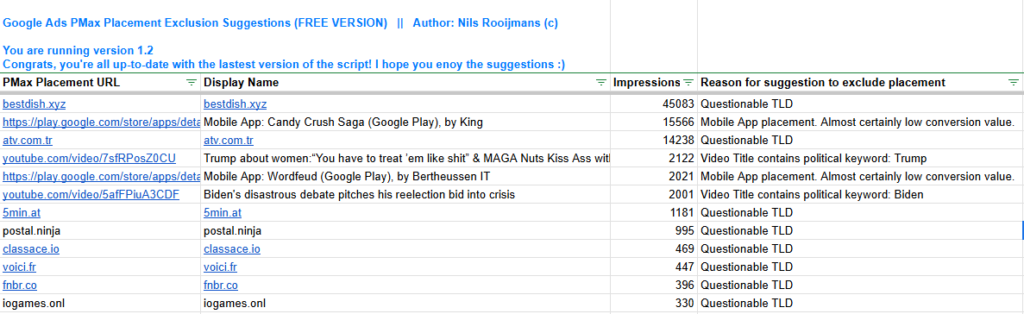
The script analyzes the placements of your ads and creates suggestions for which you should exclude to increase the efficiency of your campaign. This ensures that your budget is used only on high-quality and relevant pages. The results are displayed in a clear Google Sheet.
Use case:
- Focus budget on high-quality and relevant pages.
- Identify placements that are inefficient or don’t fit the brand strategy.
Link: PMax Placement Exclusion Suggestions, Nils Rooijmans
9. PMax Whisperer Script (Mike Rhodes)
Performance Max campaigns offer great automation potential, but granular insights are often missing for in-depth optimizations. The PMax Whisperer Script by Mike Rhodes closes this gap. It delivers detailed insights into the performance of your campaigns by clearly summarizing data and creating easy-to-understand reports.
The script analyzes all essential areas of your PMax campaigns, including search terms, impressions, and conversions. Information is provided that is hard or not at all visible in the Google Ads interface.
Customization options:
- Search term analysis: Get an in-depth overview of relevant search terms.
- Individual reports: Adjust the reports to your specific requirements.
- Performance overview: Detailed data on channels, conversions, and other important KPIs.
Use case:
- Use granular data to optimize the campaign strategy.
- Perform deeper analyses that go beyond standard PMax Insights.
Link: PMax Whisperer Script, Mike Rhodes
10. All-In-One PMax Script (Mike Rhodes), paid
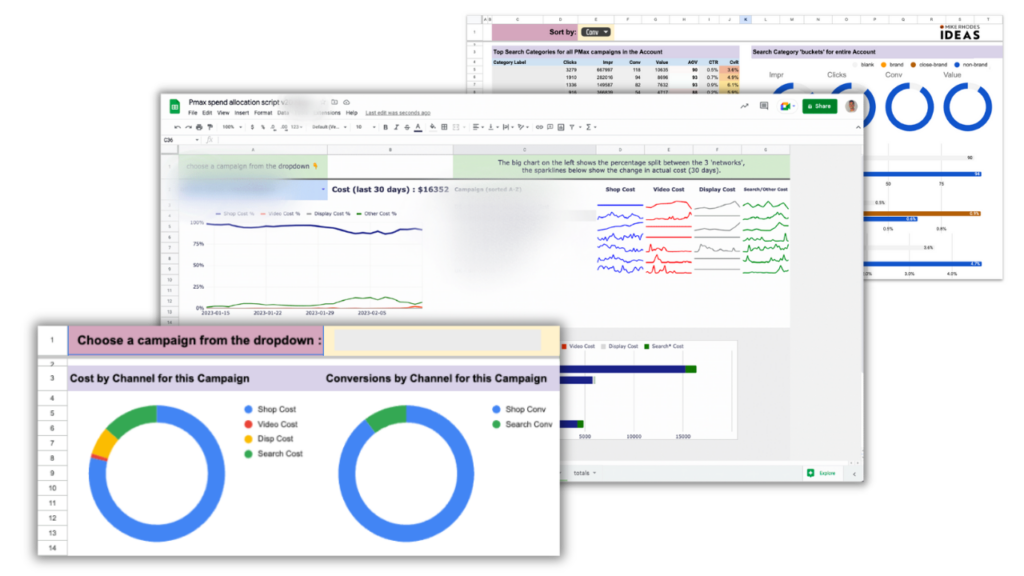
The All-In-One PMax Script by Mike Rhodes is a comprehensive solution for Performance Max campaigns that combines numerous functions in a single script. It offers in-depth insights into search terms, budget distribution, asset performance, and conversions. The script combines many of the functions of the different scripts I’ve presented in this post.
Unlike the other scripts presented here, this one is paid (as of 2026 starting at 199 USD). I wanted to mention it anyway.
Mike Rhodes continuously adapts this script, so new functions are constantly being added. In January 2026, it was expanded to integrate with the native Channel Performance Report.
Customization options: The script lets you adjust reports individually to your requirements and highlight the most important KPIs.
Webinar: If you want to learn more about the script, watch a webinar where Mike Rhodes explains the functionality and use cases. Watch the webinar
Use cases:
- Detailed insights and analyses for all aspects of your PMax campaigns.
- A central solution for maximum control and efficiency improvement.
Link: All-In-One PMax Script, Mike Rhodes
11. Bonus: Mike Rhodes Asset Auditor
If you’re bothered by the vague „Low / Good / Best” labels in the Google Ads interface: the Asset Auditor pulls hard performance data per Asset Group (Spend, Clicks, Conversions, ROAS) and thus gives you a concrete decision base for which Asset Groups really carry.
Complements well with the workflow from the article PMax Asset Performance Analysis.
Use cases:
- Hard asset evaluation instead of vague Google labels.
- Decision base for which Asset Groups to pause or strengthen.
Link: Mike Rhodes Scripts Overview
How do you set up scripts in Google Ads?
Setting up scripts in Google Ads is easier than it sounds and only takes a few minutes. Here’s a step-by-step guide:
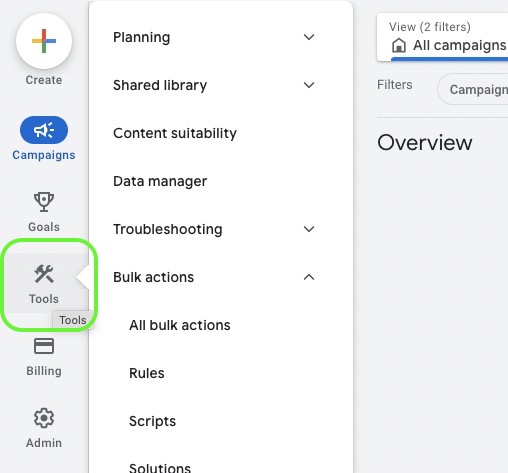
1. Navigate to scripts
Log into your Google Ads account, click the tool icon at the top right, and select „Scripts” in the „Bulk Actions” area.
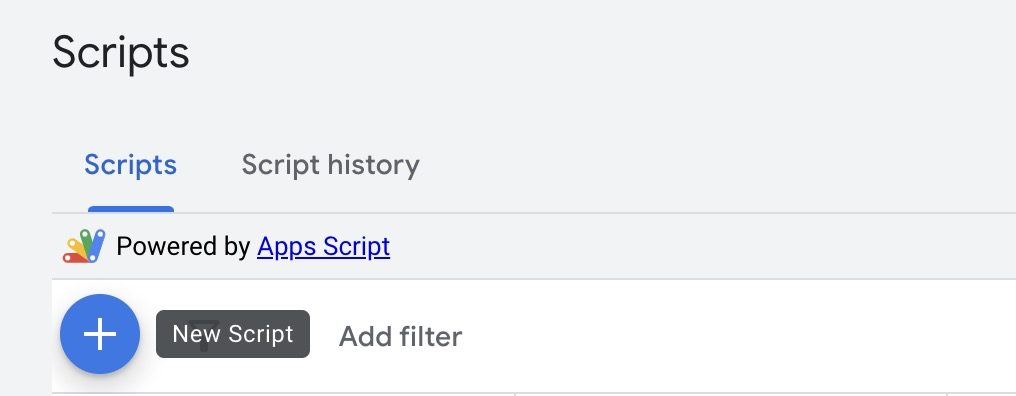
2. Add a new script
Click the plus sign (+) to create a new script.
3. Insert code
Copy the script you want to use and paste it into the editor.
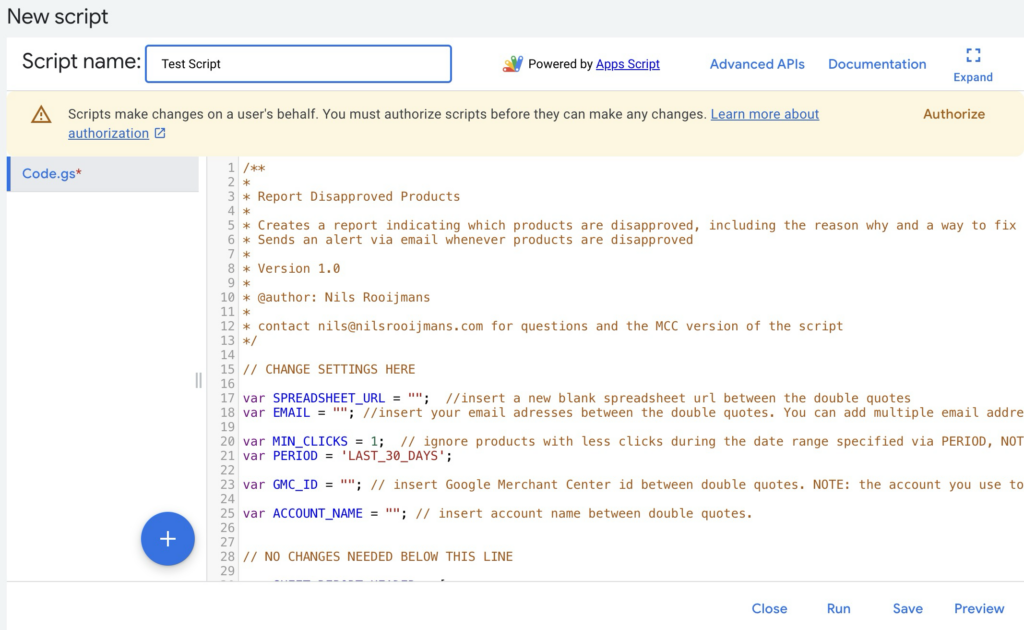
4. Adjust script template
Each script has an area for individual settings. Here you can, for example, store a link to a Google Spreadsheet where results are saved, or define thresholds relevant to your campaign.
For this, simply pay attention to the documentation of the respective script. It’s always clearly explained what you need to change and from when you shouldn’t change anything anymore.
var SPREADSHEET_URL = "https://docs.google.com/spreadsheets/d/...";
var EMAIL_ADDRESSES = "youremail@example.com";
var IMPRESSIONS_MIN_ABS_DIFFERENCE = 100;
var IMPRESSIONS_MIN_REL_DIFFERENCE = 0.5;
var SEND_EMAIL = true;
5. Run test
Before activating the script, run a test. This way, you ensure that the code contains no errors and works as expected.
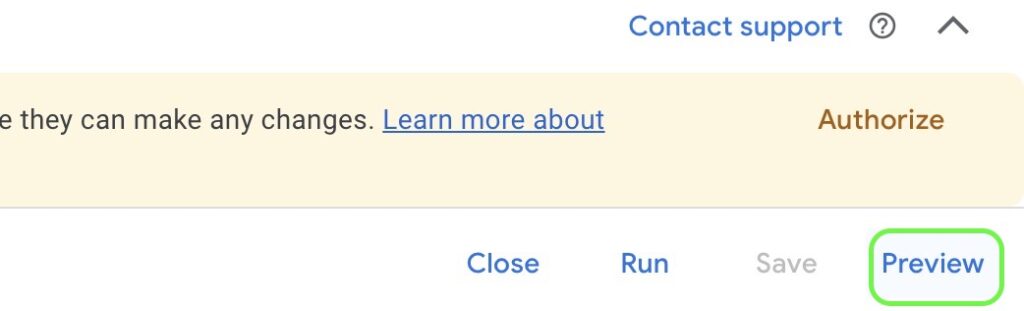
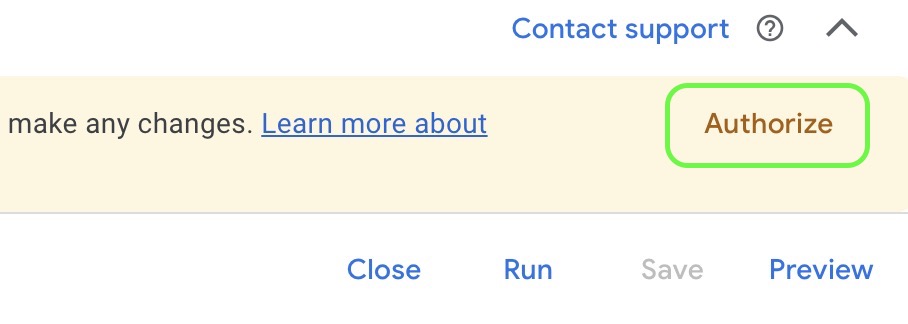
6. Authorize the script
Before the first execution, you have to authorize the script so it can access your Google Ads account. Click „Authorize” and follow the instructions.
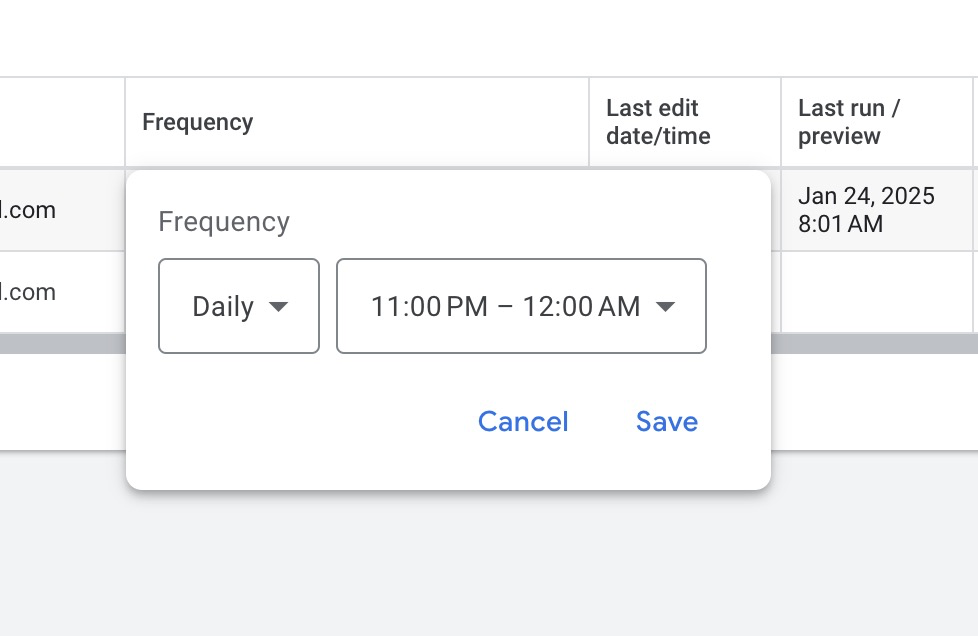
7. Set execution frequency
Set up a schedule to run the script automatically, e.g., hourly, daily, or weekly. Which setting makes sense is usually mentioned in the script’s documentation.
8. Check results
After execution, you can view the results in the script log. There you find reports, data, or any errors that occurred during execution.
Of course, also check the Google Sheet where any new updates should appear.
Conclusion: Gain more control over PMax campaigns
Performance Max campaigns can often feel like a black box, but with the right scripts, decisive insights can be gained. They help you uncover weaknesses, optimize more specifically, and bring transparency to your campaigns.
Important to understand: with Google’s native 2025/2026 updates (Channel Performance Report, Asset-Group-level Search Terms, 10,000 Negative Keywords), many basic pain points are now covered without scripts. Today, scripts shine especially where it’s about more depth, automatic alerts, and historical analyses.
I hope this article helped you and brought you a few new ways to manage your campaigns. Good luck with it.
Work smart with Clicks in Mind
You might also like
 Performance Max
 Negative Keywords for PMax: How to Use Them Right
Add negative keywords directly to PMax, up to 10,000 per campaign. How to use the feature optimally for Search and Shopping ads.
Read more → Performance Max
 Analyze PMax Asset Performance: How to Do It in Google Ads
Here you learn where to find PMax asset evaluation, how to use Asset-Group-level Search Terms, and how to pull hard performance data with the Asset Auditor.
Read more → Performance Max
 Analyze PMax Campaigns: How to Do It (+ Hidden Reports)
Learn all the ways to evaluate your Performance Max campaigns, including Channel Performance Report, Asset-Group-level Search Terms, and demographic audience reporting.
Read more →You want more results with Google Ads?
Get a free Google Ads Reality Check: a compact video (about 10 minutes) showing where budget is slipping away in your account and what to change.
Get your Google Ads Reality Check