
Contents Where to find errors in Merchant Center
A disapproved product stops running in every Shopping ad and every PMax campaign. Google revenue for that product grinds to a halt, and often nobody notices for a while because the rest of the account keeps running as usual. In this post, I’ll walk through the typical product-level errors from the Merchant Center diagnostics: what each message means, how you fix it, and which ones actually cost you revenue.
The essentials at a glance
- Where do the errors show up? In Merchant Center under Products, collected in the diagnostics view. Issues are flagged per product and per target country.
- Which errors actually cost revenue? Disapprovals come first: those products stop running entirely. “Limited performance” throttles delivery. Warnings can wait.
- How do you work through them? Prioritize by clicks and revenue of the affected products. One error on a bestseller outweighs a hundred on long-tail items.
Where to find errors in Merchant Center
Merchant Center checks every product against the product data requirements and against your own website. You see the result under Products: each product carries a status, and the diagnostics view collects all issues with the number of affected items. There are three severity levels to know.
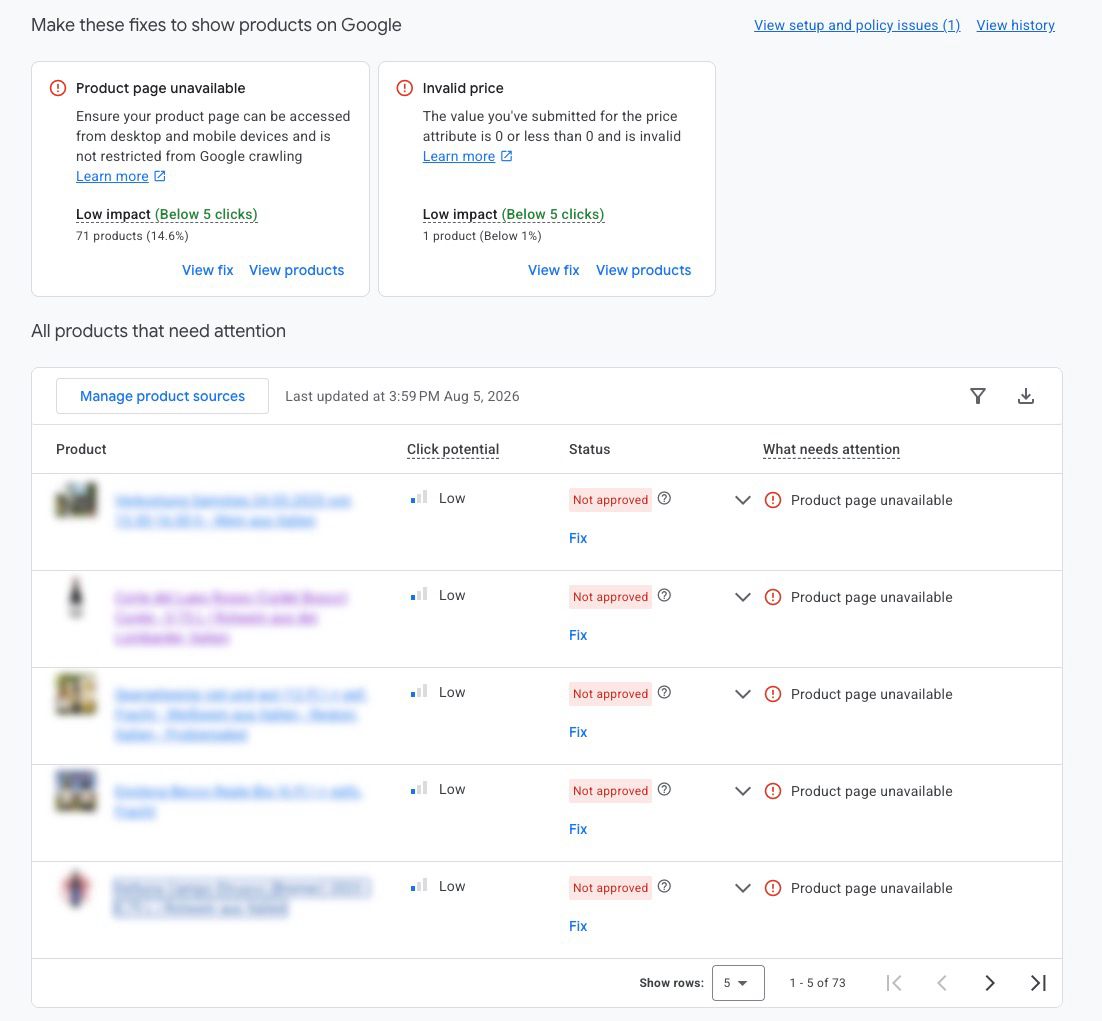
Disapproved means the product no longer appears in any Shopping ad or PMax campaign, and free listings drop out too. Limited performance means the product keeps running, but Google shows it less often. Warnings tell you what will turn into a disapproval if you don’t fix it.
To decide what to fix first, start in Google Ads. Sort the affected products by clicks or revenue over the last 30 days and work top to bottom. That way your time goes into the products that actually move money.
You’ll also want an alert. Disapprovals tend to show up right after feed changes, sales events, or site migrations, which is exactly when nobody is looking at Merchant Center. The Disapproved Products script by Nils Rooijmans checks your feed daily for disapproved products and emails you as soon as something breaks. How to set it up is covered in our post on PMax scripts.
Missing and incorrect product identifiers
The GTIN, the number under the barcode (in the US usually the UPC), is how Google matches your product to its global product catalog. For products without a GTIN, the combination of MPN (manufacturer part number) and brand does the same job. This match is how Google knows what you sell and compares your offer against identical products from other sellers. Identifier problems show up in diagnostics in four flavors.
Missing identifiers: GTIN
The literal issue reads “Limited performance due to missing identifiers [gtin, mpn, brand]”. It appears when a product is submitted without identifiers even though the manufacturer assigned one. The consequence is limited performance: Google shows the product less often.
The fix starts in your source data. As a reseller you get the GTIN from your supplier, and it usually already sits in your ERP or price list. From there it belongs in the gtin field of your feed. If you run a feed tool like Channable, a mapping to the existing field is all it takes. If the manufacturer doesn’t assign a GTIN, Google accepts mpn plus brand together instead. And if the values exist in your ecommerce platform but never made it into the feed, you can add them through a supplemental feed.
Private labels: identifier_exists set to false
For products that have neither GTIN nor MPN (private labels, handmade goods, one-offs), there is the identifier_exists attribute. Set to false, Google stops requiring identifiers and serves the product normally.
The intent matters: identifier_exists: false is meant for products where no identifier actually exists. Using it to skip maintaining real GTINs risks a disapproval for contradictory data, because Google recognizes many products by brand and title in its catalog. Made-up GTINs are the worst option: sooner or later they’ll collide with real products.
Invalid value: GTIN
The issue reads “Invalid value [gtin]”. Three things cause it. A check digit is wrong, all variants share the parent product’s GTIN, or the field holds a placeholder. Every variant needs its own GTIN, the same way every color and size on a shelf has its own barcode.
Apparel: missing color, size, and gender
For apparel and accessories, Google also requires color, size, gender, and age_group in the US and other major markets. If one is missing, the product gets disapproved. The issue follows the pattern “Missing value” plus attribute, for example “Missing value [color]”.
Variants of the same model are grouped via item_group_id. Without that grouping, Google treats every size as a separate product.
You want more results with Google Ads?
Get a free Google Ads Reality Check: a compact video (about 10 minutes) showing where budget is slipping away in your account and what to change.
Get your Google Ads Reality Check →
Price and availability mismatches
Google crawls your product pages and compares price and availability against your feed. If the values differ, the product gets disapproved, because a price in the ad that differs from the page is, in Google’s view, a broken promise to the buyer. Persistent price mismatches can get your whole account suspended, which is why these two issues belong at the top of your list.
Mismatched value: price
The issue reads “Mismatched value (page crawl): price [price]”. The typical causes:
- The feed lags behind. Your store has new prices, but the feed updates hours later, and Google crawls in that window.
- Sale prices without
sale_price. A sale is running in your store, but the feed only lists the regularprice. - Tax or currency settings in the feed differ from what the page displays.
- Stale structured data. The schema.org price markup in the page source shows an old value, and Google reads that markup too.
The most effective fix is timing: price changes in your store and the feed update should be part of the same workflow. Google recommends scheduled uploads right after the store update, or a Merchant API connection.
Once price and feed match again, request a review in Merchant Center. Google then recrawls the page ahead of schedule and lifts the disapproval after a successful check.
Mismatched value: availability
The issue reads “Mismatched value (page crawl): availability [availability]”. The classic scenario: a product sells out, the product page says “out of stock”, the feed still says in_stock.
The fix is the same timing discipline as with price, and here too, request a review after the fix so the product gets approved faster. For fast-moving inventory, a daily feed upload often isn’t enough. That’s when an API connection with multiple updates per day pays off.
out_of_stock isn’t a pause switch. If you deliberately want to pull a product from ads, use the pause attribute. Marking in-stock products as sold out just sets up the next mismatch on the next crawl.Promotional text in titles
Titles and descriptions describe the product, nothing else. “FREE SHIPPING”, “SALE %%%”, emojis, or all-caps words count as promotional text and get the product disapproved. The same goes for your own store name in the title.
Discounts and promotions have their own place in Merchant Center: Merchant Promotions display them as a compliant badge on the ad. For how to structure titles that earn clicks, see our post on product titles.
Image disapprovals
The product image is the first thing shoppers see in a Shopping ad, and Google is strict about reviewing it for exactly that reason. Three issues come up again and again.
Promotional overlay on image
The issue reads “Promotional overlay on image [image_link]”. It covers logos, watermarks, badges like “-20%”, or buttons sitting on top of the product image. Google disapproves those images until a clean version is in place.
You’ve got two options. Either swap the image in your store for a version without the overlay. Or enable automatic image improvements in Merchant Center: Google then removes the overlay itself and replaces the image, which takes 24 to 72 hours according to the documentation.
Generic image
The issue reads “Generic image”. It hits placeholder graphics, logos in place of product photos, and generic stock imagery. Every product needs a photo showing the submitted variant, for apparel that means the actual color.
Image not retrievable
Beyond the content-related disapprovals, there’s a technical one: Google simply cannot load the image. The usual causes are robots.txt rules locking out the Googlebot, a CDN with hotlink protection, or oversized files. Check the image_link URL in an incognito window and the robots.txt of your image host. The Googlebot-Image user agent needs access.
Landing page and shipping errors
The last two issues live outside the product data itself: the page behind the ad and the shipping information. Both are quick to check and usually quick to fix.
Product page unavailable
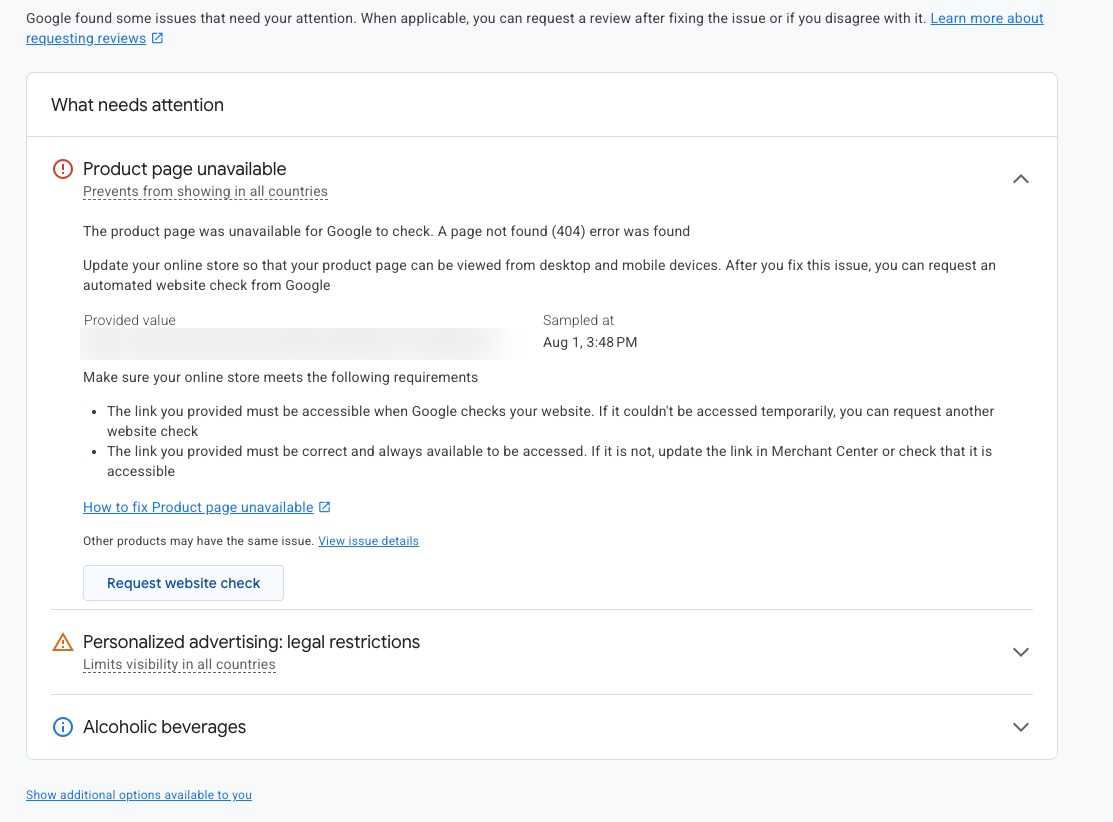
The issue reads “Product page unavailable”: Google could not load the URL from your feed during the crawl. The usual suspects: 404s after catalog changes, redirect chains, server trouble at crawl time, or a robots.txt that blocks bots from your site entirely. Mobile is checked separately: if the mobile version of the page fails, the product gets disapproved as well.
The fix: point the link URL in your feed to the final, reachable product page, remove any redirects, and make sure the Googlebot is allowed to crawl it. After a redesign or URL migration, update the feed the same day.
Missing value: shipping
Google requires shipping information for every target country so the ad can show a total cost. The fastest route is the account-level shipping settings in Merchant Center, which apply to all products. The shipping attribute in the feed is only needed for exceptions, such as bulky items with their own rate.
FAQ
How long does the re-review take after a fix?
After a correction, Google rechecks the product automatically, and for image fixes the documentation quotes 24 to 72 hours. For price and availability issues you can also request a review in Merchant Center, which speeds up approval.
Why is my product disapproved even though the page looks correct?
Google evaluates what the page looked like at crawl time. If price or stock changed since then, Google compares an old version of the page with the new feed. Also check the structured data in the page source. It often shows a different value than the visible page, and Google reads both.
What do duplicate product IDs mean?
Every combination of id, target country, and language has to be unique. Duplicate IDs appear when two feeds deliver the same product, or when a multi-country setup submits the same IDs several times. Google then processes only one of the offers, and you don’t control which one.
Do I have to delete disapproved products from the feed?
Leave them in the feed and fix the cause instead. To deliberately exclude individual products from Shopping, use excluded_destination. Only delete products that have permanently left your catalog.
Conclusion
Merchant Center errors are routine. Every feed produces them eventually, and what separates stores is reaction time. Two habits get you there: a prioritized look at diagnostics once a week, sorted by clicks on the affected products. Plus an automated alert via script that reports new disapprovals immediately.
The weekly check costs five minutes. A disapproved bestseller costs you money every day it goes unnoticed.
Thanks for reading this far. Good luck putting it into practice!
Work smart with Clicks in Mind
You might also like
 Shopping
 Brand Shopping Campaigns Made Simple
A brand Shopping campaign separates branded searches from generic traffic. Here's the setup with campaign priorities and brand negatives, step by step.
Read more → Shopping
 Google Shopping Supplemental Feeds: How to Fix and Enrich Your Product Data
A supplemental feed adds or overrides individual attributes in your Shopping feed without touching the primary feed. Here's what it does, how to set one up, and when it's worth it.
Read more → Shopping
 How to Set Up Merchant Promotions: Unlock Discount Badges in Shopping
Merchant Center Promotions are not the plain strikethrough sale. Here's the setup path in Merchant Center, the required fields that matter, and what to do about rejections.
Read more →You want more results with Google Ads?
Get a free Google Ads Reality Check: a compact video (about 10 minutes) showing where budget is slipping away in your account and what to change.
Get your Google Ads Reality Check