
Contents What are Merchant Center Promotions?
- What are Merchant Center Promotions?
- Which discount types does Google support?
- How do you create a promotion in Merchant Center?
- Which required fields do you actually need to understand?
- How do you check status and approval?
- How do you fix a rejection or a missing badge?
- Which hurdles show up most often in practice?
- FAQ: common questions about Merchant Center Promotions
- Conclusion
There are a few ways to show an offer in Google Merchant Center, and one of them is Merchant Center Promotions (German UI: Angebote, formerly Werbeaktionen). They unlock an extra “special offer” badge under your Shopping listing, plus a pop-out box with the discount amount, the promo code, and the validity window.
One distinction first, because it trips up most people: Merchant Center Promotions are not the plain strikethrough sale you signal with sale_price in your product feed. Those are two different mechanics. Promotions are offers that in most cases get redeemed with a promo code at checkout, or that need an extra note (free shipping above a threshold, a gift with purchase).
This post shows you how to create a promotion right in Merchant Center, which required fields you actually need to understand, and what to check first when one gets rejected.
The essentials at a glance
- Merchant Center Promotions are not a strikethrough-price feature. For a plain price cut you use
sale_pricein the product feed. Promotions are for offers with a promo code, with free shipping, or with a gift on purchase. - What the shopper sees afterward in the Shopping listing: a “special offer” badge under the product, plus a pop-out box with the discount amount, the code, and the validity period.
- Where and how you create it: In Merchant Center under Marketing > Promotions (German UI: Marketing > Angebote), click “Add promotion”. In the form you enter the promotion ID, title, discount type and value, scope, promo code, and runtime. Save, wait for Google to approve, and the badge goes live.
What are Merchant Center Promotions?
Merchant Center Promotions are a free feature in Google Merchant Center that lets you report a running shop offer to Google. By default, Shopping listings only show the title, the image, and the price. An offer stays invisible in the listing if Google doesn’t know about it. The “special offer” badge is what gives the listing an extra signal in the search result, the kind that sets it apart from the competition.
The effect of the badges isn’t directly measurable. Google doesn’t hand you an isolated click-through comparison between listings with and without the badge. What you can see in Merchant Center: the click and impression numbers per promotion. What you can see in Google Ads: how the click-through rate of your Shopping campaign develops against the weeks before the offer.
Which discount types does Google support?
In the create form you pick the discount type from a list. The four most common options:
- Percentage off: for example “20% off all sneakers”
- Fixed amount off: for example “10 euros off orders over 50 euros”
- Free standard shipping: for example “free shipping over 75 euros”
- Free gift with purchase
Beyond those there are special types for quantity discounts (“buy 2, get 1 free”), for cash-back offers, and for shipping variants (overnight, two-day). The form asks for whichever fields are required per type.
How do you create a promotion in Merchant Center?
In Merchant Center you find the area under “Marketing > Promotions” (German UI: Marketing > Angebote). The precondition is that your target country is one of the 13 supported markets.
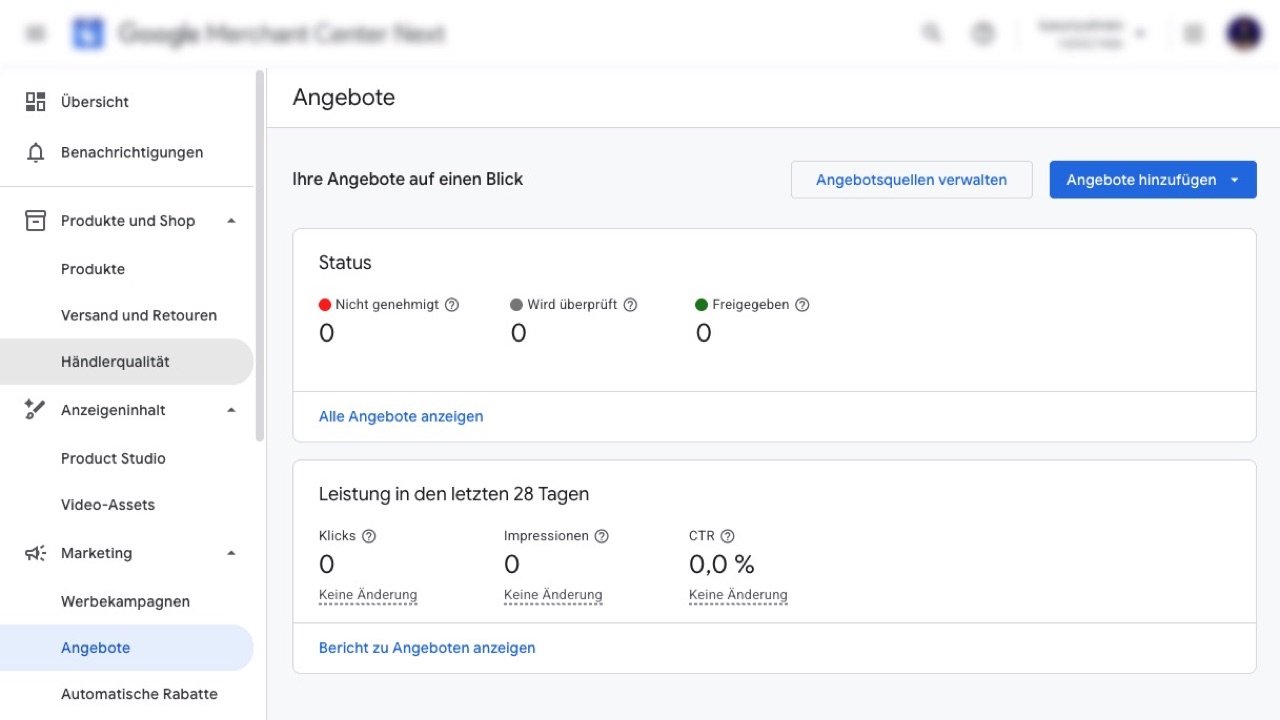
There you click “Add promotion”. You get walked through a form that asks for the required fields. The decisive part you see in the next section: which fields you actually need to understand.
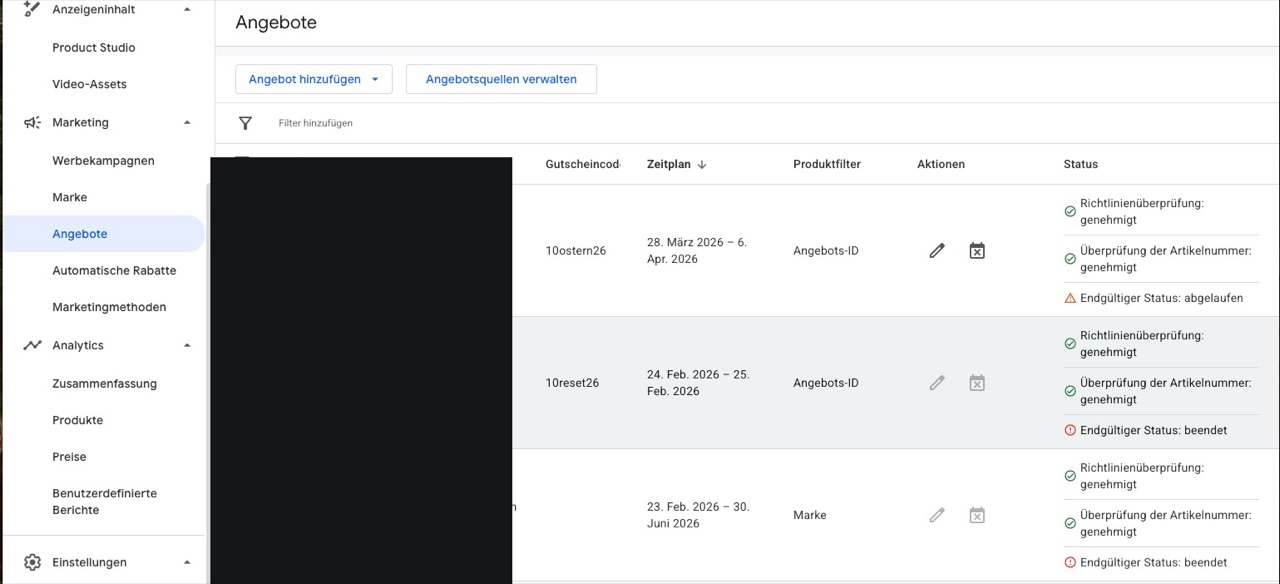
After you save, the promotion lands on the status “Under review”. Google checks it against the program and content policies. The docs don’t name an official review duration. The badge goes live only after approval.
You want more results with Google Ads?
Get a free Google Ads Reality Check: a compact video (about 10 minutes) showing where budget is slipping away in your account and what to change.
Get your Google Ads Reality Check →
Which required fields do you actually need to understand?
The create form has some fields you can just click through, and others where most promotions fall apart. Here are the ones that matter.
Promotion ID
An internal label that uniquely identifies the promotion. Important rules from the official spec: 60 characters max, case-sensitive, no spaces, no special characters like % or !. A safe bet is a purely alphanumeric label like summersale2026.
You need this ID in a second place too. When the promotion shouldn’t apply to everything but only to certain products, you put the same ID in the product feed in the promotion_id column on the affected SKUs. If the ID in Merchant Center and the ID in the feed don’t match exactly, no product matches at all and the badge stays off.
Promotion title
The text that appears in the pop-out box when the badge is clicked, 60 characters max. It should be short and clear, no marketing slogans. Google rejects titles like “best price ever”, all-caps spam, or multiple exclamation marks.
Applicable to
Here you set whether the promotion applies to all products in the feed or only to specific products. For specific products you have two paths:
- Narrow it down right in the form by brand, category, or product-ID list.
- Or in the product feed: enter the promotion ID in the
promotion_idcolumn on the affected SKUs. That’s the clean variant when you use a feed tool like Channable, because the selection logic is centrally controllable there.
Important: if the spelling between the promotion ID in Merchant Center and in the feed doesn’t match exactly, no product matches at all. The promotion does go to the status “Approved”, but the badge never appears. You see the match count in the detail view of the promotion under “Matched Products”.
Discount type and value
The discount type from the list above, plus the concrete value (e.g. 20% off). For cent amounts or percentage values below the minimum threshold, Google rejects.
Promo code
Three options: no code, a generic code (every shopper uses the same one), or unique codes per shopper (not relevant for manual setup, that only works through the promo feed with your own code pool). When you set a code, it has to work in the shop and deliver exactly the discount announced in the title, otherwise Google rejects the promotion at the code spot-check.
Minimum order value
Optional. Useful for free shipping or discounts that should only kick in above a threshold. Important: the threshold has to match the code logic in the shop. If Google gets told “free shipping over 75 euros” and the threshold in the shop only kicks in at 100 euros, that’s a rejection reason.
Start and end date
Required, with timezone. The maximum runtime per promotion is 183 days (about 6 months). For longer offers you need a follow-up promotion with a new ID. Very short offers (a few hours) also get rejected by Google.
Destination
Where should the badge appear? Shopping ads, free listings, both. The default is usually “both”, and for special setups (e.g. testing in free listings only) you can narrow it down.
How do you check status and approval?
Every promotion shows one of four statuses in the overview:
- Under review: Google is still checking
- Approved: running live
- Disapproved: violates one or more policies
- Expired: end date reached
In the detail view per promotion you find three important pieces of info: the number of products assigned to the promotion (“Matched Products”), the concrete rejection reasons if it was rejected, and the click and impression numbers on the badge over the offer period.
What the numbers show: The click column only counts clicks on the pop-out box, not clicks on the Shopping listing itself. So low pop-out clicks don’t mean the promotion does nothing. The badge often works as a visual cue that triggers the listing click, without the shopper ever opening the pop-out box.
How do you fix a rejection or a missing badge?
1. Read the rejection reasons
In the detail view Google names the concrete rejection reason with a reference to the relevant policy. The officially documented main reasons are in the Google docs on disapproved promotions. The common ones:
- Code delivers no discount or a lower one: Google tests the code at checkout. If it doesn’t apply, or gives less discount than announced, it gets rejected.
- Title without a minimum-discount figure: “Up to 50% off” gets rejected. Correct: “20 to 50% off”.
- Title doesn’t match the scope: if the title says “discount on everything” but the form only has specific products selected, that’s a conflict.
- Gift not specified: “gift with purchase” isn’t enough, the actual gift has to be in the title.
- Shipping promotion without a code: if the free shipping is also available in the shop without a code, Google rejects it.
2. Approved but no badge: check “Matched Products”
When the promotion is on the status “Approved” but no badge appears in the search result, usually not a single product is assigned to the promotion. The “Matched Products” number is in the detail view. At 0, check:
- Is the promotion ID actually in the product feed (column
promotion_id) on the affected SKUs? - Is the spelling exactly right (case-sensitive)?
- Are the affected SKUs themselves approved and active in the feed?
3. Landing page test
For many promotions Google calls up the landing page and checks whether the discount is actually available there. If the prices don’t match the promotion, it gets rejected after the fact.
4. Test order with the code
For code promotions, make a real test order. If the code doesn’t work at checkout, the promotion fails even when everything else in Merchant Center is set up correctly.
5. Check the region
Promotions are country-specific. A DE promotion doesn’t appear in other markets, even if the shop ships there. For multi-country setups you need a separate promotion per country.
Which hurdles show up most often in practice?
- Code logic in the shop: if the code works in the shop only once per customer but is declared as unlimited in Merchant Center, Google rejects it on spot-checks. The shop and the Merchant Center setting have to match.
- Tight lead time before the offer starts: approvals sometimes take longer than expected. Plan in lead time, especially for big offers like Black Friday.
sale_priceand a promotion in parallel: if you already have a reduced price in the product feed and add a percentage promotion on top, the displayed final price can look double-discounted. Keep it clean: either the price cut in the feed or the promotion badge, not both for the same item.
FAQ: common questions about Merchant Center Promotions
Do Merchant Center Promotions work in Austria or Switzerland?
No. The feature is limited to 13 countries, including Germany, but not AT or CH. The full list is in the official Google docs.
Do I need a promotion for every discount, or issale_priceenough?
For plain price reductions, sale_price in the feed is enough. You only need a promotion when the offer should carry an extra note (a promo code, free shipping above a threshold, a gift with purchase). Running both in parallel on the same item collides in the display and isn’t something I’d recommend.
Where do I find the official spec?
The full required fields and format rules are in the Google docs on the promotions spec. The list of rejection reasons and fix paths is in the docs on disapproved promotions.
Conclusion
Merchant Center Promotions are the right tool when your offer needs a note that goes beyond the plain price cut. For the classic strikethrough sale, sale_price in the product feed stays the clean way.
What you need to get started: a clear offer plan (which products, which discount, which period, an optional code), the promotion ID in the product feed too if you want to narrow it to specific SKUs, and lead time for the approval.
Thanks for reading this far. Good luck putting it into practice!
Work smart with Clicks in Mind
You might also like
 Shopping
 Brand Shopping Campaigns Made Simple
A brand Shopping campaign separates branded searches from generic traffic. Here's the setup with campaign priorities and brand negatives, step by step.
Read more → Shopping
 Merchant Center Errors: How to Fix Disapproved Products
Merchant Center errors stop your Shopping ads. Here are the typical product-level issues from GTIN to price mismatch, with causes and fixes.
Read more → Shopping
 Google Shopping Supplemental Feeds: How to Fix and Enrich Your Product Data
A supplemental feed adds or overrides individual attributes in your Shopping feed without touching the primary feed. Here's what it does, how to set one up, and when it's worth it.
Read more →You want more results with Google Ads?
Get a free Google Ads Reality Check: a compact video (about 10 minutes) showing where budget is slipping away in your account and what to change.
Get your Google Ads Reality Check