
Contents 1.Content suitability
- 1.Content suitability
- 2.Google Ads solutions
- 3.Auto-generated Assets (Text Customization)
- 4.Dynamic remarketing
- 5.Seasonality adjustments
- 6.Data exclusions (data exclusions for tracking errors)
- 7.Conversion value rules
- 8.Automated rules
- 9.Performance Max placements report
- 10.PMax Asset Group Performance
- 11.Your Data Insights
Google Ads offers significantly more functions than are visible at first glance. Many of them are hidden deep in the interface. But they can make a real difference in practice.
In this post, I’ll show you 11 functions that are hardly known, but can help with setup, optimization and analysis.
If you are just starting out, it’s worth looking at the right Google Ads account setup first, because a clean foundation is what makes many of these functions truly usable.
Hidden Google Ads features
1.Content suitability
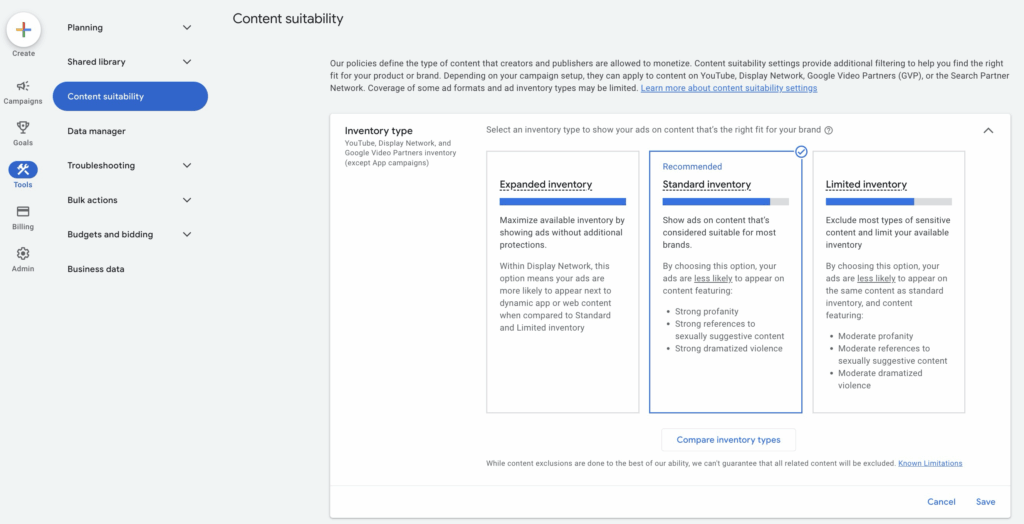
By default, Google shows your ads on all kinds of websites, apps and YouTube videos. Even those that don’t match your brand. You can use the content suitability settings to control exactly where your ads should not be displayed.
You will find options here, for example, to exclude certain sensitive categories (violence, swearing, political content, etc.) or to block individual placements. The key part is the inventory modes, which Google renamed in 2026: Maximum Inventory (formerly “Expanded”), Moderate Inventory (formerly “Standard”) and Limited Inventory. Heads up: since May 2026, accounts without an active selection default to Maximum Inventory, meaning the broadest possible reach. If environment control matters to you, you should check this actively. This is particularly important if you work with Performance Max or YouTube. Otherwise, you have little control over the environment of your ads. In this article, Google explains exactly how this works.
You can find the settings in Google Ads under:
Tools & Settings → Content Suitability
2.Google Ads solutions
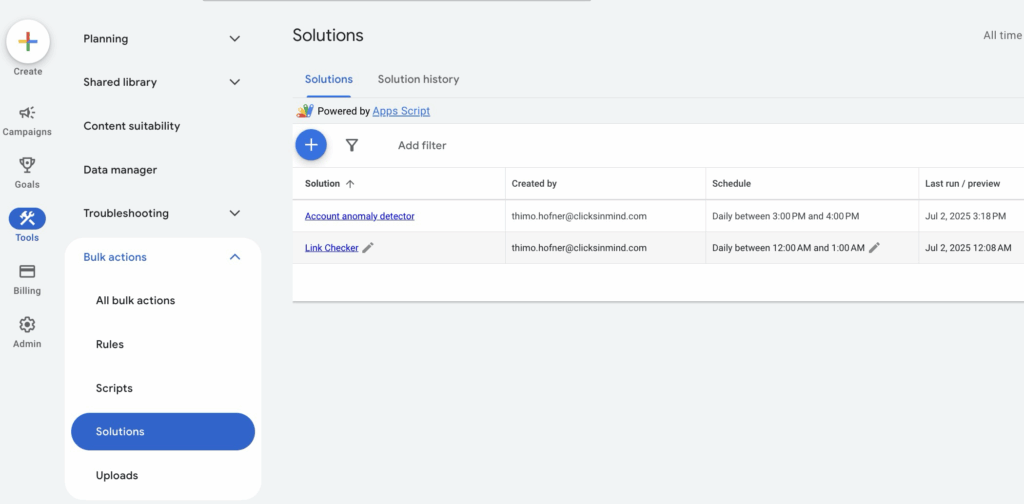
The “Google Ads solutions” are a no-code script template library directly in your Google Ads account. You will find several preconfigured templates that you can use to execute bulk actions, without any JavaScript of your own. These include, for example:
- Account reports with all important KPIs
- Anomaly detection with automatic email notifications
- URL checks (e.g. broken link detection)
- Budget adjustments according to your own schedule
- Management of exclusion lists
The templates save you time on routine tasks and give you a quicker overview of performance. A real advantage, especially in larger or more complex accounts. Click here for my post on Google Ads solutions. If you want to write your own scripts, you’ll find ready-made templates in my post on PMax scripts.
You can find it under:
Tools & settings → Bulk actions → Solutions
3.Auto-generated Assets (Text Customization)
Google can automatically generate ad texts and creatives. For example, from content on your landing page or domain. Since 2026, Google officially calls this function “Text Customization” (formerly “Automatically created assets” / ACA). This function is active by default for Performance Max and responsive search ads, but is rarely consciously controlled.
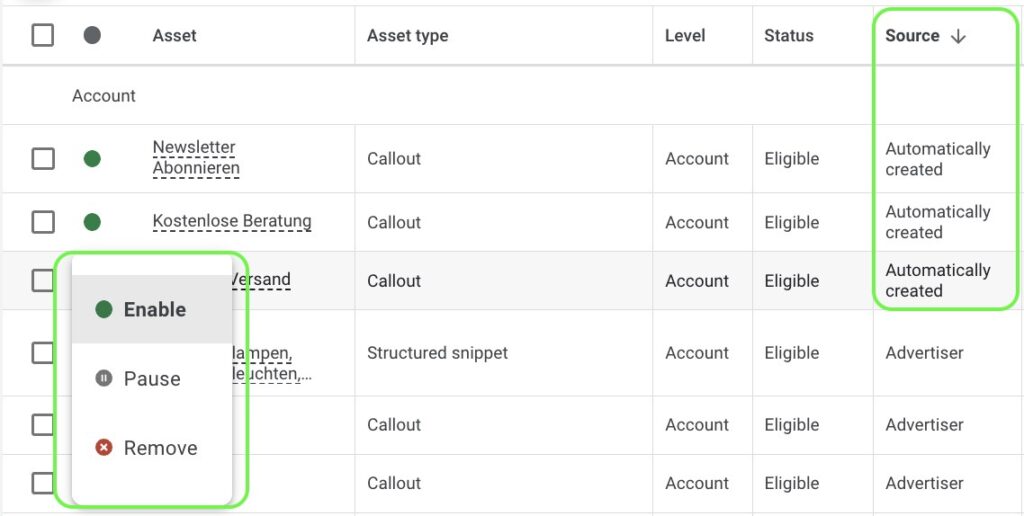
In the asset report, you can see which assets are being displayed. And, above all, where they come from. In the asset report you’ll still recognize them by the “Automatically created” label in the “Source” column. There, you can quickly see whether automatically generated variants are performing poorly or do not fit in terms of content. You can deactivate such assets directly in the report at ad group or campaign level.
You can also switch the function on or off completely. This can be done directly in the campaign settings. For example, if you prefer to retain full control over your texts.
Can be found under:
Campaign settings → Additional settings → Automatically created assets
and
Asset report → “Source” column
4.Dynamic remarketing
Many people assume that Dynamic Remarketing, especially in Performance Max, works automatically. But it doesn’t. Google needs a clean setup in the background so that it can display the right products or services. And this is exactly what is missing in many accounts.
The most important point: your Google Ads tag must correctly pass certain parameters such as the product ID. Only then does Google know which items a user has viewed. And can return them specifically in ads.
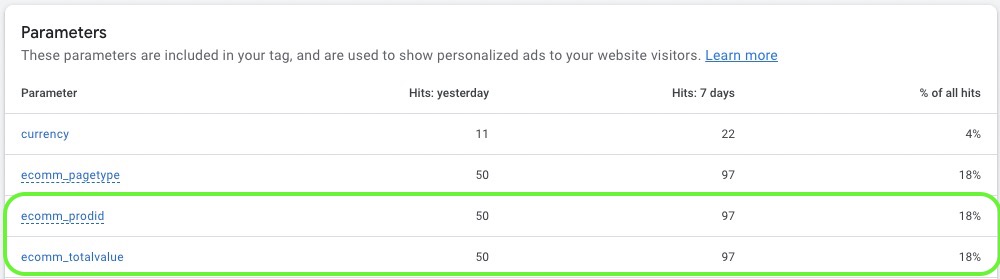
It’s not rocket science, but it is often overlooked or implemented incorrectly. If you want to set it up correctly, you should pay attention to data layer parameters and a well-maintained feed setup.
You can find all the details about the setup here:
Set up dynamic remarketing correctly
5.Seasonality adjustments
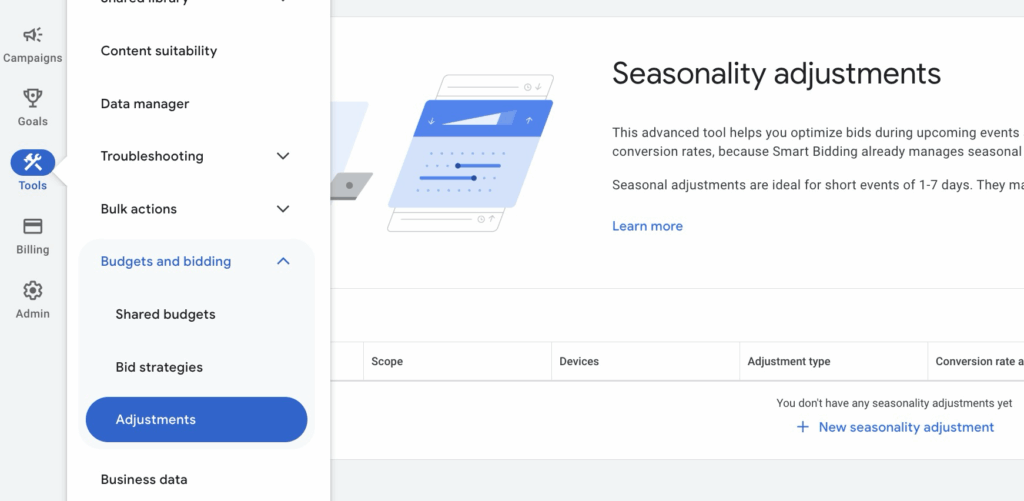
If you use smart bidding, such as target CPA or target ROAS, the algorithm learns based on past data. But what if user behavior changes significantly in the short term? This is exactly what Seasonality Adjustments are for.
You can use this function to signal to Google: “I expect very different conversion rates during this period.” Typical examples: Black Friday, a TV campaign or a limited flash sale. This prevents the algorithm from “forgetting” or reacting too aggressively due to outliers.
Important: the function is only intended for short periods of time, ideally 1 to 7 days. For periods longer than 14 days, Google says it works significantly less well. It also only affects smart bidding, not manual bidding strategies.
Can be found under:
Tools & Settings → Budgets & bidding → Adjustments → Seasonal
6.Data exclusions (data exclusions for tracking errors)
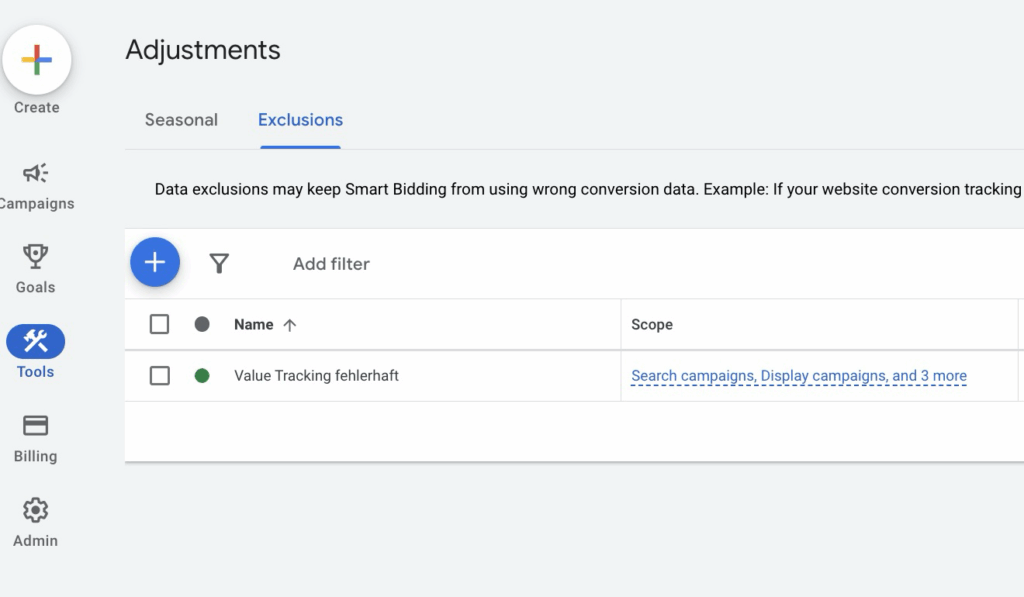
If your conversion tracking provides incorrect data, for example due to an incorrect tag configuration, this will still be included in the bid optimization. This can lead to Smart Bidding working on a distorted database.
A typical case: the conversion tag fires twice because it is integrated directly into the code and is also triggered via the Google Tag Manager. This doubles the number of conversions, without actually resulting in more sales.
With data exclusions, you can exclude such periods from automatic learning. Google then ignores the conversion data for this period during optimization.
Can be found under:
Tools & Settings → Budgets & bidding → Adjustments → Exclusions
7.Conversion value rules
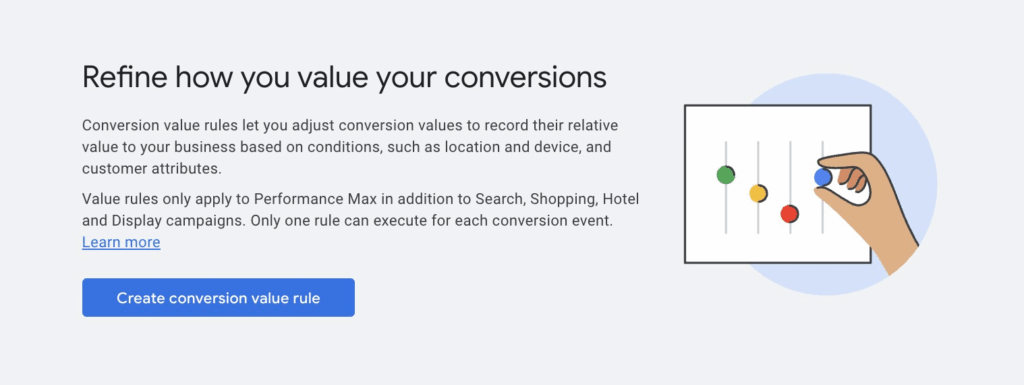
Not every conversion is worth the same. The actual business contribution can vary greatly depending on the location, device or target group. With conversion value rules, you can map these differences directly in Google Ads and add them to Smart Bidding.
Example: a lead from the DACH region brings you twice as much revenue on average as one from abroad. Or: users who are part of a certain target group are more likely to close a deal. Such differences can be mapped using value rules by adjusting the conversion value for certain conditions. In 2026, the rules can also be applied to specific store visits, whereas before they applied uniformly to all conversion actions.
This feature is particularly relevant for the Maximize Conversions strategy (possibly with target ROAS). Because the more precisely Google knows the value of a conversion, the better the optimization works.
Can be found under:
Targets → Conversions → Value rules
8.Automated rules
Automated rules used to be much more relevant. Especially before smart bidding and AI-based optimizations became standard. Nevertheless, there are still many useful use cases today in which you can save a lot of time with simple if-then rules.
A typical example is the time-controlled activation or pausing of campaigns or ads, for example, for short-term promotions or seasonal offers. Rules for labeling, budget adjustments or performance triggers (such as a high impression CTR) can also be easily implemented.
You can specify whether the rule takes effect automatically or only notifies you by email. Ideal for monitoring purposes.
You can find out more in the official support article:
Using automated rules in Google Ads
Can be found under:
Tools & Settings → Bulk actions → Rules
9.Performance Max placements report
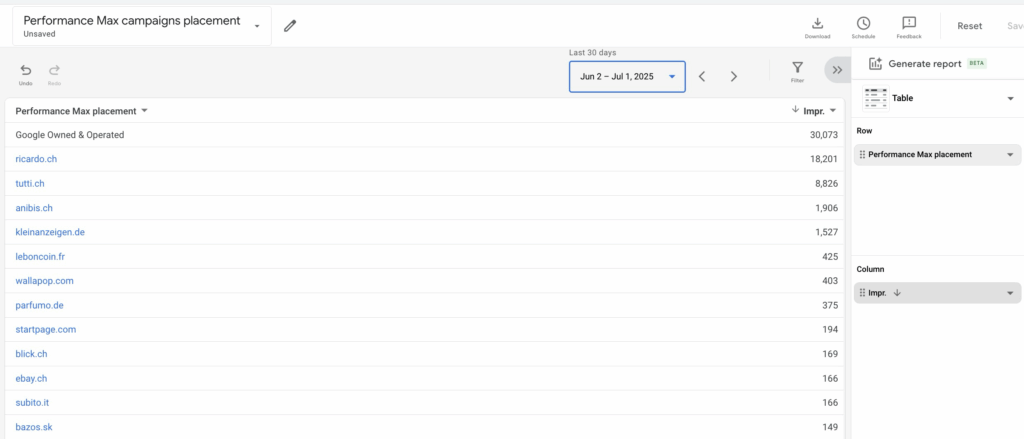
By default, Performance Max does not show you where your ads have been displayed. In 2026, Google made this significantly more transparent. There are now two ways:
- The Channel Performance Report shows per campaign how performance is distributed across Search, Display, YouTube, Discover, Maps, Gmail and Search Partners.
- The “Where Ads Showed” report shows the specific placements (domains, apps, YouTube channels), now also for PMax.
This is particularly helpful in the event of noticeably poor performance or unsuitable environments, in order to see the specific placements of your video and display ads. If you want to analyze the channel mix beyond the interface as well, take a look at how you connect and dig into your Google Ads reports in GA4.
Read more in the article:
Analyze PMax campaign
Can be found under:
Campaigns → Insights and reports → Channel Performance
10.PMax Asset Group Performance
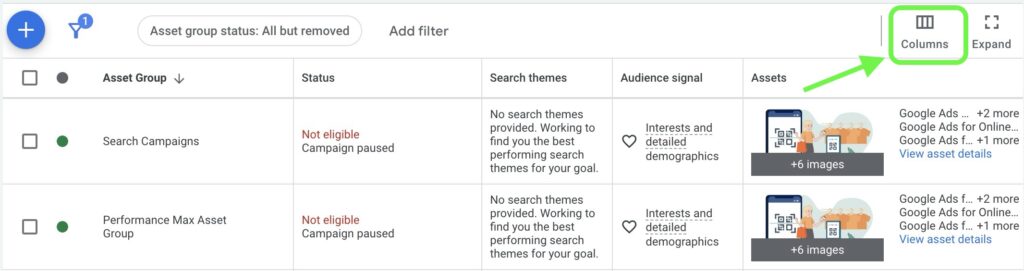
Asset groups are used to test different approaches within a Performance Max campaign. Such as different target groups, creatives or product areas. In Google Ads, you can compare the performance of these groups with each other in order to make informed optimization decisions.
To do this, open your PMax campaign, navigate to Asset groups in the left-hand menu and switch to the table view. By default, the performance data is missing there. But you can use the column icon to show clicks, conversions, costs and other relevant metrics.
This way you can see:
- Which groups are performing well and should get more budget
- Which ones cost a lot but deliver little
- Where there is potential for optimization (e.g. low impressions)
You can find detailed instructions here:
Analyze PMax campaign: Evaluating asset groups correctly
Can be found under:
Performance Max campaign → Asset groups → Customize table view columns
11.Your Data Insights
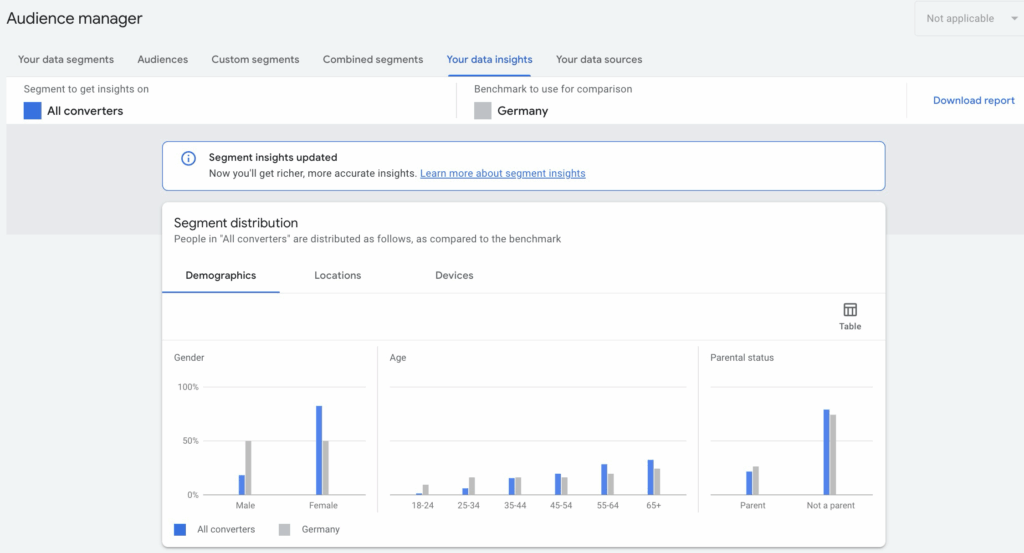
With Your Data Insights, Google automatically analyzes your website and app users. And shows you which target groups are particularly strongly represented in your previous conversion database.
The report is divided into two areas:
- Audience Distribution: shows proportions such as age, gender, devices or location, compared to the general Google user base.
- Relevant Audiences: takes a close look at affinity and in-market segments and shows which segments are particularly overrepresented for your conversions.
Example: you can see that your conversions include significantly more users in the market for “winter sports equipment” than in the overall population. This gives you an indication of which target groups your campaigns should focus on.
Can be found under:
Tools & Settings → Shared Library → Target Group Manager → Your Data Insights
You want more results with Google Ads?
Get a free Google Ads Reality Check: a compact video (about 10 minutes) showing where budget is slipping away in your account and what to change.
Get your Google Ads Reality Check →
Conclusion
I hope this article has been helpful for you and has shown you a few functions that you may have overlooked. If you want to work more specifically, more efficiently or simply with a better overview, it’s worth taking a look at these hidden options.
Work smart with Clicks in Mind.
You might also like
 Account
 Black Friday & Christmas: The Google Ads Guide
Discount or free gift, separate campaign or not, adjust bids or leave them alone: the options Google Ads gives you for Black Friday and the holiday season, and when each one makes sense.
Read more → Account
 Google Ads for Ecommerce: From Setup to Scaling
How to build out Google Ads for your online store: goals, tracking, product feed, your first campaigns, and the strategies that scale them profitably.
Read more → Account
 Google Ads Account Setup in 2026: A Beginner's Roadmap
Get started with Google Ads: step-by-step guide from account creation to the first campaign - including valuable tips.
Read more →You want more results with Google Ads?
Get a free Google Ads Reality Check: a compact video (about 10 minutes) showing where budget is slipping away in your account and what to change.
Get your Google Ads Reality Check