
Contents What are assets in Performance Max campaigns?
- What are assets in Performance Max campaigns?
- How do you find the asset reporting?
- What information do the Asset Details provide?
- Asset-Group-level Search Terms as context
- Optimize PMax campaigns based on Asset Details
- Alternative: Hard data instead of Google labels
- PMax: With the black box to the best results?
Performance Max (PMax) campaigns are increasingly becoming Google’s favorite. They are also very performance-strong in most cases. We advertisers have to be content with giving up more and more control to Google.
One of the few levers we have is the ad assets we can store. With these, we can influence the ads, our touchpoints with potential customers. The texts, images, and videos we store there have a big impact on the result of our campaign.
To continuously optimize performance, you should regularly check these various assets and rework them if needed. In this post I show you how to analyze and improve your Performance Max assets.
At a glance: The performance of individual texts, images, and videos in PMax campaigns is found in Google Ads for each asset group under „View details”. Regularly replace assets rated as „Low”. For deeper analysis, since 2025/2026 there’s the Asset-Group-level Search Terms Report and the Asset Auditor by Mike Rhodes as a script alternative.
By the way: In another article, I explain everything about evaluation options for Performance Max campaigns.
What are assets in Performance Max campaigns?
PMax campaigns work by you providing Google with as many assets as possible. These creative materials are called assets. The algorithm combines them to achieve the best possible performance.
You can store texts, images, and videos. Google generates a variety of different ad combinations and uses these in the various ad networks (Search, Display, YouTube, Discovery, Gmail, and Shopping for e-commerce).
To run ads on different topics or products within a campaign, we can organize the respective creative materials into asset groups.
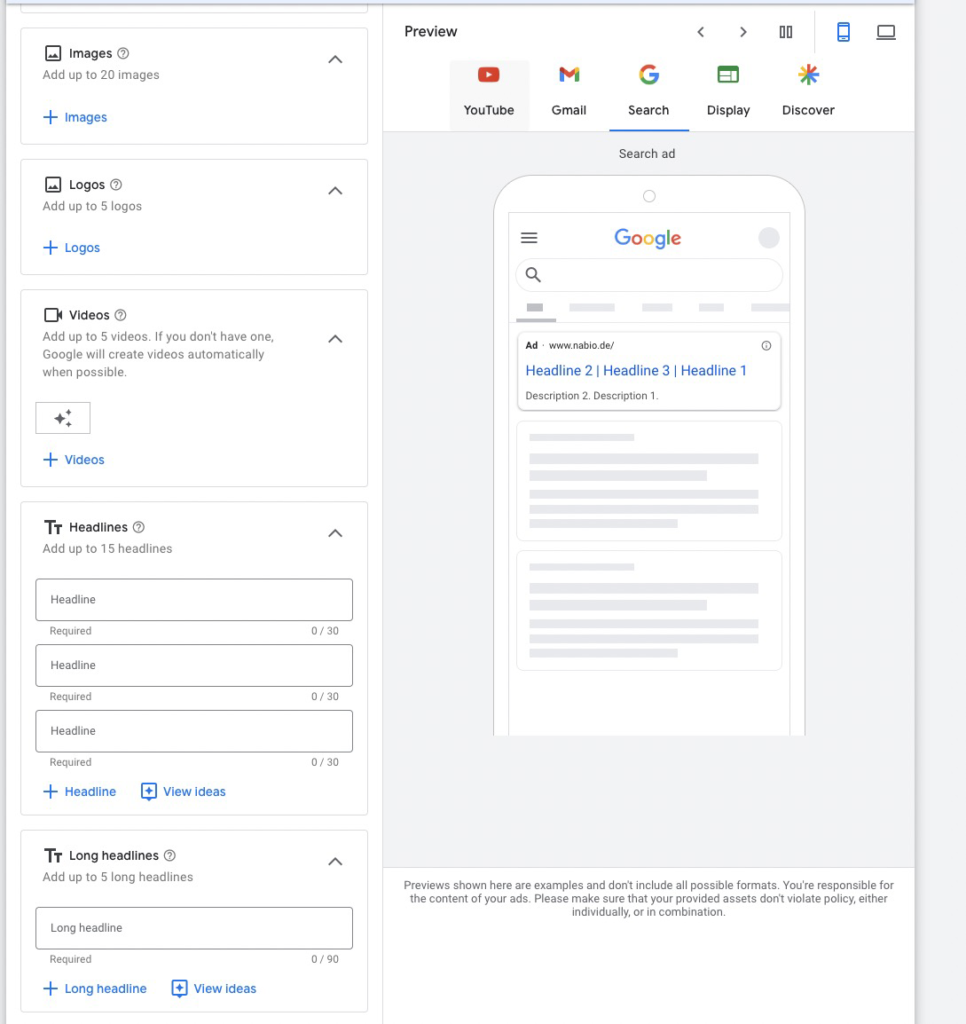
What kinds of assets exist?
Text Assets
- Headlines (max. 30 chars): Up to 15 different, at least 3 required.
- Long Headlines (max. 90 chars): Up to 5, for ads in Display, Discovery, YouTube, or Gmail.
- Short Description (max. 60 chars): At least 1 required.
- Descriptions (max. 90 chars): Up to 4 additional long descriptions.
- Business Name: For verified accounts.
- URL: Exactly 1 destination URL per asset group.
Image Assets
- Images: Up to 20 different images in 1.91:1, 1:1, 4:5.
- Logos: Various company logos in 1:1 or 4:1.
Video Assets
Per asset group up to 5 videos in 3 formats:
- Vertical: 9:16
- Square: 1:1
- Horizontal: 16:9
If you don’t provide your own videos, Google will likely automatically generate videos for YouTube from your texts and images.
Asset minimums for meaningful evaluation
Before you dive into evaluation, look at asset quantities. Google needs sufficient comparison data to rate assets against each other. Recommended minimum equipment per asset group:
- 15 Headlines
- 10 Descriptions
- 20 Images
- 5 Logos
- 5 Videos
If you’re below that, many ratings remain „Pending” or „Not enough data”. In that case, it’s worth building more asset variety first.
How do you find the asset reporting?
After you’ve created a campaign with all the necessary asset groups and assets, you want to know which texts, images, and videos work well. You get this information in the Asset Detail Reports.
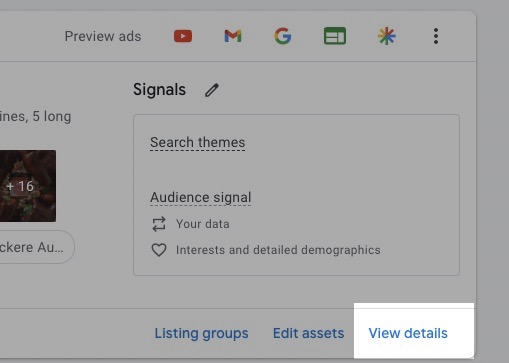
You find them in the Asset Group view as a link in the bottom right corner of each asset group. Click „View Details”, and you’ll get to the asset evaluation.
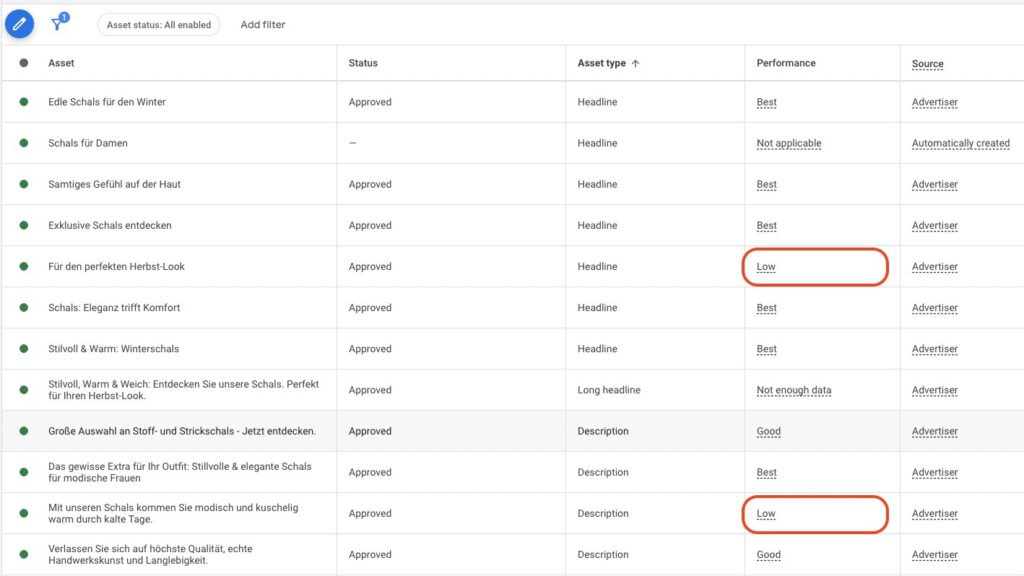
In the asset evaluation, you get an overview of all the assets you’ve stored and those Google automatically generated. In a table, you see multiple columns per asset:
Additionally, there’s the Combinations tab. Similar to traditional responsive ads, you see which combinations of your assets the Google algorithm plays most often.
You want more results with Google Ads?
Get a free Google Ads Reality Check: a compact video (about 10 minutes) showing where budget is slipping away in your account and what to change.
Get your Google Ads Reality Check →
What information do the Asset Details provide?
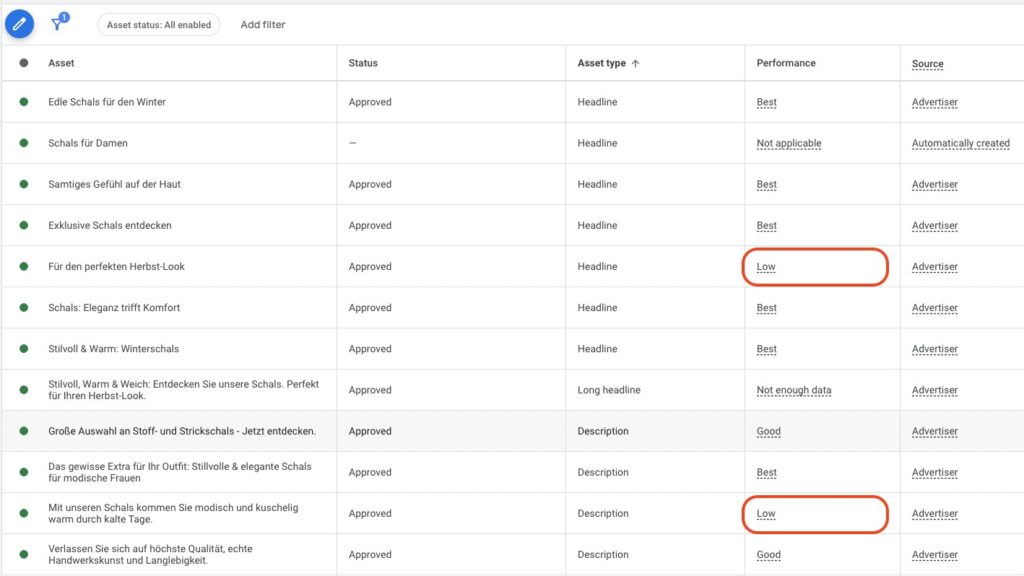
In the Asset Details, you get a good overview of all your assets. The most important column is „Performance”. There Google gives you insight into how a text, image, or video performs as part of an ad.
Important to understand: Google compares the individual assets of the same type with each other. If you have too few assets, you’ll find no data there.
Google rates the performance of the assets in the following categories:
- Best: The asset performs best compared to others. It can also be that many or almost all assets are categorized as „Best”.
- Good: The asset performs adequately, but there are better ones.
- Low: The asset performs poorly compared to other assets of the same type in the asset group.
You may also find these values:
- Pending: Google doesn’t have enough data yet. For comparison: Responsive Search Ads need about 2,000 impressions for a rating.
- Not enough data: When no rating can be made yet, possibly too few assets for a comparison.
- Not Applicable: Not all assets can be rated (HTML5, auto-generated, or rejected assets).
Information about auto-generated assets
The performance of individual assets is the biggest value of the Asset Details. But it’s also worth looking in regularly for other reasons.
You find all auto-generated texts and videos there.
In the „Source” column, you find either „Advertiser” or „Automatically generated”.
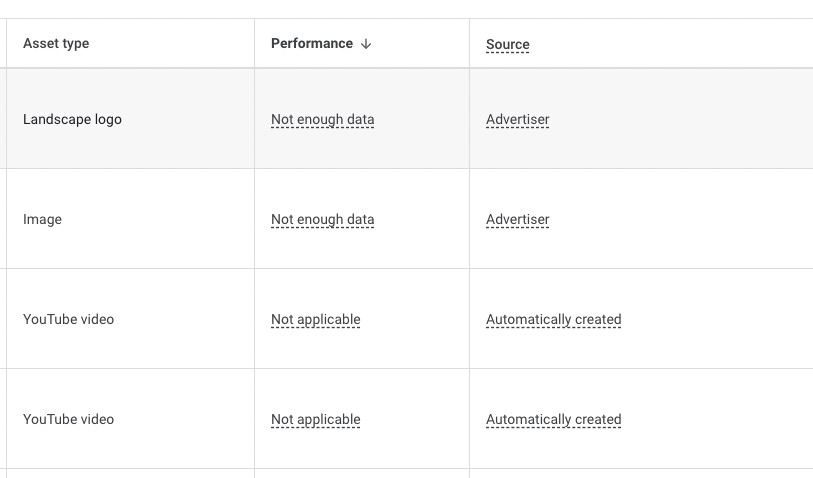
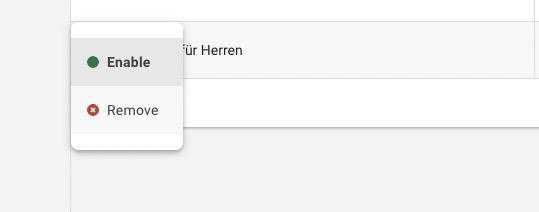
If you don’t want to keep one of the auto-generated assets, you can deactivate it. Just hover over the green status icon on the far left and remove the asset.
Information on asset status
In the Asset Details, you quickly see when a text, image, or video has been rejected by Google. You find that in the „Status” column.
Asset-Group-level Search Terms as context
Since 2025/2026, you can access the Search Terms report at the asset group level, not just at the campaign level. This is gold worth for asset evaluation: you see directly which search queries Google assigns to each asset group. This lets you evaluate whether your assets match the search queries thematically.
Path: Open asset group → Insights → Search Terms.
If the search terms in an asset group don’t match the asset set, that’s a hint at a mismatch: either adjust the search themes, refine the asset selection, or rethink the asset group structure.
Optimize PMax campaigns based on Asset Details
The Asset Details are a useful report for optimizing PMax campaigns. It’s worth looking in regularly and systematically. That can happen every 2 weeks or monthly.
That’s the biggest advantage the Asset Details offer.
Additionally, it’s worth looking at auto-generated assets from Google. Check them and decide whether the texts or videos fit your offer. If not, deactivate them individually. If you generally don’t want the auto-generated texts, you can turn off auto-creation in the campaign settings.
Alternative: Hard data instead of Google labels
Google labels („Low / Good / Best”) are helpful as a start, but vague. The Mike Rhodes Asset Auditor (available as a script since early 2026) pulls hard performance data per asset group: Spend, Clicks, Conversions, ROAS.
With this, you can not only see „is this asset good/bad”, but „which asset group really contributes measurably to performance”. That’s the more honest data basis for asset group decisions.
More tool options in the article 10 super helpful PMax Scripts.
PMax: With the black box to the best results?
PMax campaigns are largely a black box for you as an advertiser, even though the 2025/2026 updates (Channel Performance Report, Asset-Group-level Search Terms) have made them significantly more transparent. That’s also the reason many are skeptical of the campaign type.
Regular optimization pays off here too. By gradually replacing weak assets, you improve your click-through rates and ultimately your conversion data.
It’s no guarantee for success, but one of the few levers you have to get more out of the black box PMax.
I hope I could help you with this post and wish you success with your campaigns.
Work smart with Clicks in Mind
You might also like
 Performance Max
 Negative Keywords for PMax: How to Use Them Right
Add negative keywords directly to PMax, up to 10,000 per campaign. How to use the feature optimally for Search and Shopping ads.
Read more → Performance Max
 Analyze PMax Campaigns: How to Do It (+ Hidden Reports)
Learn all the ways to evaluate your Performance Max campaigns, including Channel Performance Report, Asset-Group-level Search Terms, and demographic audience reporting.
Read more → Performance Max
 What is a Catch-All Campaign in Google Ads? (+ Strategies)
Catch-All campaigns in Google Ads explained: strategies, pros and cons, Channel Distribution check, Negative Keywords hygiene, and cross-link to Feed-Only PMax.
Read more →You want more results with Google Ads?
Get a free Google Ads Reality Check: a compact video (about 10 minutes) showing where budget is slipping away in your account and what to change.
Get your Google Ads Reality Check