
Contents What is dynamic remarketing?
Dynamic remarketing shows your store visitors exactly the products they have previously viewed. Automatically, personalized and directly from your product feed.
This is a no-brainer for e-commerce. But for it to work, you need a clean setup.
In this article, I’ll show you how to set up dynamic remarketing correctly from a technical perspective: with Google Tag Manager, a well-maintained feed and the right data layer structure. I’ll assume the account basics are already in place. If you’re just starting out, my guide to the Google Ads account setup will help you. By the way, dynamic remarketing is just one of many hidden Google Ads features that often get overlooked in practice.
The most important things at a glance
-
Prerequisite: Dynamic remarketing in Google Ads requires a complete product feed with ID, title, image, price and availability in the Google Merchant Center.
-
Data layer: The product data is provided in the data layer via an items array, whereby the product ID must match the ID in the product feed exactly so that Google can assign the appropriate products for dynamic ads.
-
Tracking: The remarketing tag is set up in Google Tag Manager and transfers the items and optional value parameters to Google Ads when an event is triggered so that user activities can be recorded correctly and suitable product ads can be displayed.
What is dynamic remarketing?
Dynamic remarketing automatically shows your visitors exactly the products that they have previously viewed in your store. Including the image, title and current price.
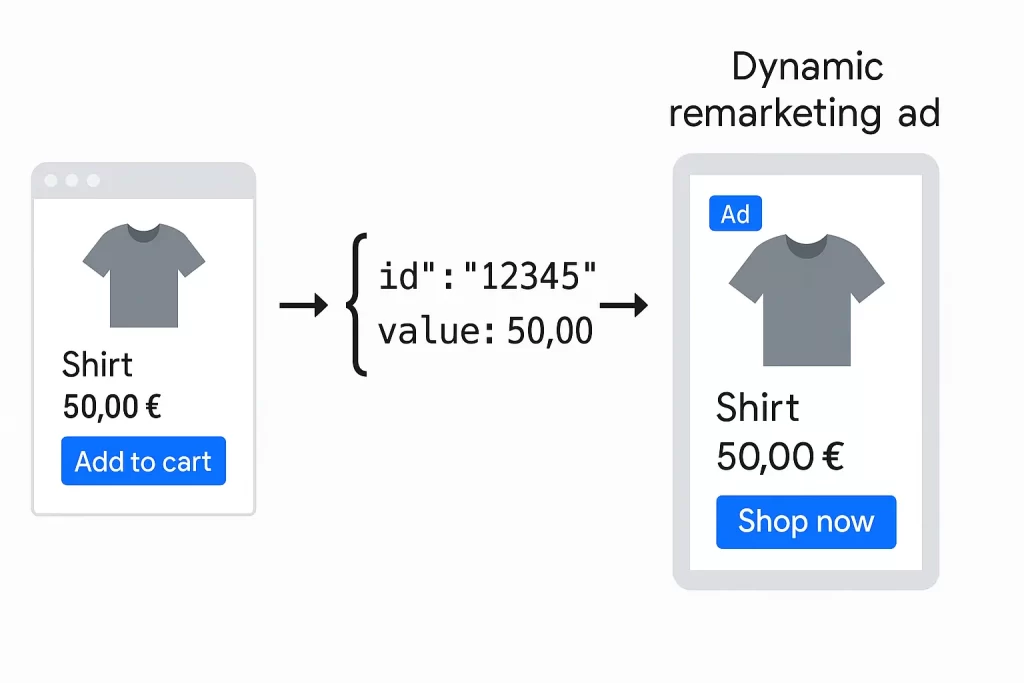
In contrast to classic remarketing, where all users see the same ad, Google pulls the content directly from your product feed. The result: personalized ads that perform significantly better.
Dynamic remarketing is extremely effective in e-commerce, especially when it comes to bringing back shopping cart abandoners or prospective customers. Once the technical setup is in place, you can build the dynamic remarketing campaigns in the next step.
What many people don’t know: A clean remarketing setup is not only important for your own remarketing campaigns, but also for all Performance Max campaigns. This is because PMax also uses this data automatically if the feed and tags are integrated correctly, regardless of whether you actively control this or not.
Here you can find more information about Performance Max campaigns.
The product feed: the basis for dynamic ads
The product feed is the heart of every dynamic remarketing campaign. This is where Google pulls all the information that will later appear in the ads: product name, price, image, availability and, of course, the unique product ID.
This must be included
For dynamic remarketing to work, your feed needs at least these mandatory fields:
-
id: the unique product ID (e.g. SKU or article number)
-
title: the product name
-
image_link: URL to the product image
-
price: current price
-
availability: stock status (e.g. in_stock, out_of_stock)
Feed quality pays off
Even if dynamic remarketing works automatically, the feed determines the quality of the ads. Therefore, pay attention to:
-
Clear, descriptive titles (e.g. “Nike Air Max 270 Men, Black” instead of just “Air Max”)
-
High-resolution images without text or watermarks
-
Up-to-date price and stock data, ideally with a daily feed update
If you use Google Shopping, the necessary feed is usually already available, you just need to use it for dynamic remarketing too. In the Merchant Center, make sure that the feed target platform also includes “display ads”.
You want more results with Google Ads?
Get a free Google Ads Reality Check: a compact video (about 10 minutes) showing where budget is slipping away in your account and what to change.
Get your Google Ads Reality Check →
Data layer: How Google gets to know what users do
For Google to know which products a user has seen or bought on your website, you need a clean database. And this comes from the data layer.
Specifically, Google expects an items array containing product IDs and optionally a value variable for the product value. This format is a prerequisite for the remarketing tag to work in the next step.
Example on a product detail page
dataLayer.push({
  event: 'view_item',
  items: [
    {
      id: 'SKU12345',
      google_business_vertical: 'retail'
    }
  ],
  value: 59.90
});
What happens here:
-
event: describes what the user is currently doing, e.g. viewing a product (view_item) or buying (purchase).
-
items: contains at least the product ID, and this must match the ID in the product feed exactly.
-
google_business_vertical: mandatory field. It tells Google which feed type the ID is matched against (e.g.
retailfor stores,travel,real_estate). Without this field, Google cannot cleanly assign the ID to the Merchant Center feed. -
value: optionally transfers the price or order value (gross).
This format is now standard, even with Google Analytics 4. View the documentation.
Since the end of 2025, there is a second path: If you link GA4 and Google Ads and your GA4 e-commerce events (view_item, add_to_cart, purchase) run cleanly with an items array, Google can pull the dynamic remarketing data directly from GA4. You then save yourself the separate Google Ads remarketing tag. The prerequisite stays the same: the product IDs must match the Merchant Center feed exactly. I’ll show you the manual GTM tag path in the next step. It gives you more control and works independently of the GA4 link.
As soon as it is integrated on your site, you can work with it in GTM and transfer the information to the remarketing tag.
Google Tag Manager: Set up a dynamic remarketing tag
As soon as the data layer is in place, you can set up the remarketing tag in Google Tag Manager (GTM). This allows you to transfer the product data to Google Ads, automatically and at exactly the right moment.
Step 1: Create data layer variables
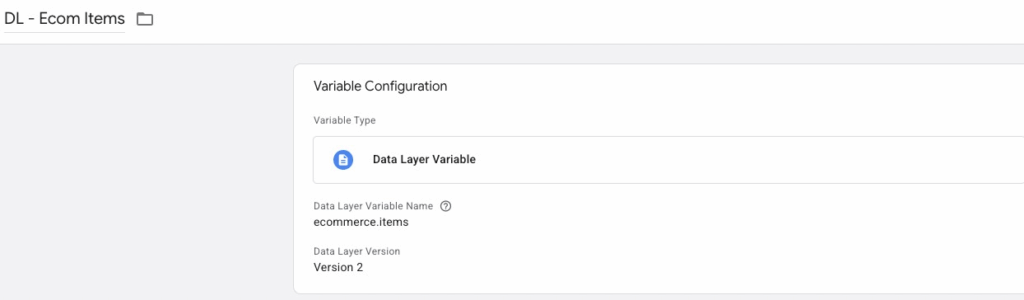
First, create two variables so that GTM can access the values from the data layer:
-
DLV - items- Type: Data layer variable
- Name:
items
-
DLV - value- Type: Data Layer Variable
- Name:
value
Step 2: Create remarketing tag
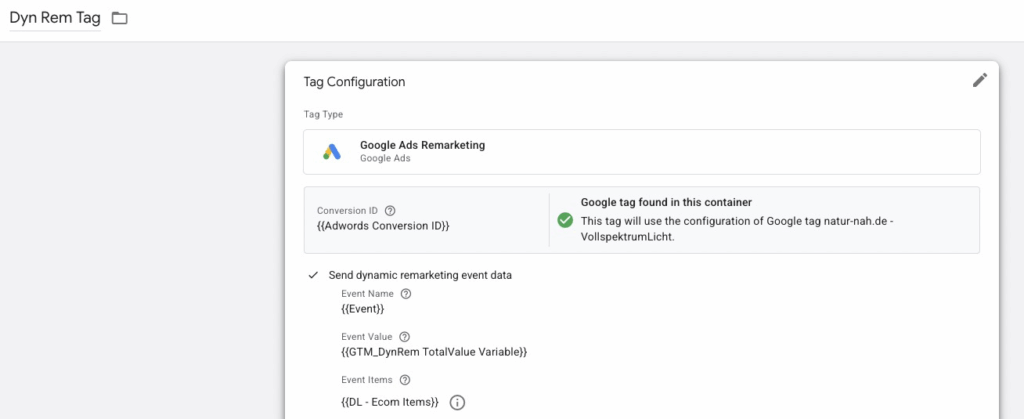
- Tag type: Google Ads Remarketing
- Conversion ID: Your Google Ads conversion ID
- Activate dynamic remarketing: Check the box “Send dynamic remarketing event data”
Then define the following parameters:
Parameter name
Parameter value
Event
{{Event}}
Event Value
{{DLV - value}}
Event Items
{{DLV - items}}
Step 3: Create trigger
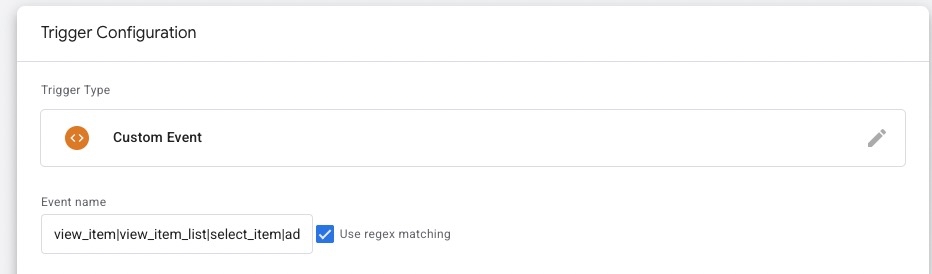
To ensure that the tag only fires for relevant events, create a user-defined trigger:
- Type: Custom event
- Event name:
view_item(or whatever you use in your data layer)
If you want to cover several events (e.g. also purchase), you can alternatively work with a regex trigger like this one. This way, the tag is sent to Google with the data from the data layer for each of these events
view_item|view_item_list|select_item|add_to_cart|remove_from_cart|view_cart|begin_checkout|add_payment_info|add_shipping_info|purchase
Step 4: Testing
Before you go live, be sure to check:
- In GTM preview mode, whether the tag triggers and the variables are passed correctly
- Use the Google Tag Assistant to check whether the remarketing tag is sending correctly to Google Ads
Only publish the container if this is the case.
How to check whether the parameters arrive correctly
Before you run campaigns with dynamic remarketing, you should make sure that Google actually receives the necessary product data.
This can be done directly in Google Ads:
Tools → Data Manager → Google Tag →View Stats
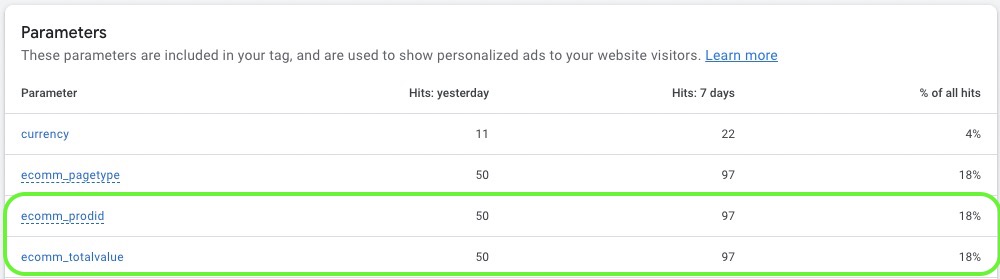
There you will find an overview of the transferred parameters. The most important are:
-
id(orecomm_prodidfor older setups) -
value(orecomm_totalvalue)
The ecomm_prodid and ecomm_totalvalue parameters are legacy. For a new setup, you use the “Send dynamic remarketing event data” path with event/items/value, not the old custom parameters.
This gives you a quick way to check directly in Google Ads, without debugging tools.
Data protection & consent mode
Before you use dynamic remarketing, you should check whether the tracking is GDPR-compliant.
Disclaimer: I am not providing legal advice here, this section is for technical guidance only.
Why consent is necessary
Dynamic remarketing is based on personalized advertising, and this requires the user’s active consent. Without opt-in, the remarketing tag must not fire.
This applies in particular to:
- the setting of cookies for advertising purposes (e.g. doubleclick.net)
- the transmission of personal data to Google
Google Consent Mode v2
With Google Consent Mode v2, you can control whether tags are triggered, depending on whether the user has consented or not. Since March 6, 2024, Consent Mode v2 has been mandatory for EU/EEA traffic, otherwise you lose remarketing and audience features for these users. Three states are relevant here:
-
ad_storage: allows or prohibits the setting of advertising cookies -
ad_user_data: allows or prohibits user data being sent to Google for advertising purposes at all -
ad_personalization: allows or prohibits personalized advertising (e.g. remarketing)
By default, all states are set to “denied”. Only when the user agrees (e.g. via your cookie banner) is it updated to “granted”.
Example setup in the code
<!-- Before all other tags -->
<script>
  gtag('consent', 'default', {
    'ad_storage': 'denied',
    'ad_user_data': 'denied',
    'ad_personalization': 'denied'
  });
</script>
<!-- After consent via the banner -->
gtag('consent', 'update', {
'ad_storage': 'granted',
'ad_user_data': 'granted',
'ad_personalization': 'granted'
});What happens without consent?
Google is not allowed to collect remarketing data without consent, this means:
- no functioning audience lists
- no dynamic ads
- no personalized targeting
In this case, Google can only use modeled or aggregated data for conversion measurement, but this does not replace real remarketing.
Recommendation
Make sure that you:
- use a GDPR-compliant cookie banner (e.g. with consent mode integration)
- only fire the remarketing tag with active consent
- implement the consent mode in a technically correct way
This puts you on the safe side, at least technically. Everything else is best clarified with a data protection officer or lawyer.
Conclusion: Clean setup = functioning remarketing
Dynamic remarketing is not rocket science, but it stands and falls with the technology in the background. If you transfer the right product data, maintain the feed properly and set up the Google Tag Manager correctly, Google will do the rest for you.
In a nutshell, you need:
- a complete product feed in the Merchant Center
- a correct items array in the data layer
- a remarketing tag in the GTM that transfers this data
- and clean consent logic that is GDPR-compliant
Whether you later work with your own dynamic remarketing campaign or run everything via Performance Max, the setup is the basis for your ads to work.
If you get it right once, you will benefit in the long term: better ads, higher relevance, more sales. And if you have any questions or need help with the setup, feel free to get in touch.
Good luck!
Work Smart with Clicks in Mind
You might also like
 Display
 Dynamic Remarketing Campaigns in Google Ads: Setup Guide
Set up Dynamic Remarketing in Google Ads correctly: campaign types, audience setup, frequency cap, and troubleshooting for e-commerce.
Read more → Tracking
 Conversion Adjustments in Google Ads: How to Fix Conversions You've Already Tracked
Conversion adjustments in Google Ads: correct returns, cancellations, and wrong values after the conversion so Smart Bidding bids on real revenue. With a step-by-step guide.
Read more → Tracking
 New-Customer Tracking and Bidding in Google Ads
How to split new from returning customers in Google Ads: the new_customer signal in the conversion tag, Customer Match, and the new-customer features to steer budget toward real growth.
Read more →You want more results with Google Ads?
Get a free Google Ads Reality Check: a compact video (about 10 minutes) showing where budget is slipping away in your account and what to change.
Get your Google Ads Reality Check